
Participant
July 29, 2015
Answered

How do I trim or split a full-motion video slide in Captivate 8?

  • July 29, 2015
  • 2 replies
  • 2825 views

I'm trying to trim or split a full-motion video slide into 2 (so I can delete the useless part). The Selected Start Time and Duration buttons don't appear to do anything, and the handy old Trim function in previous versions of Captivate seems to have disappeared (sob).
This topic has been closed for replies.
Correct answer Lilybiri

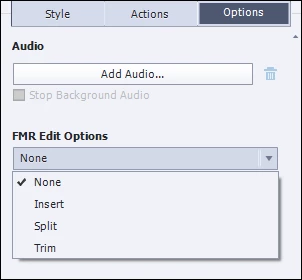
Is it a FMR-slide, you'll find trim under the Options tab.

If it is a cpvc-slide, there is a dedicated video editor with a lot more functionality then trimming: pan/zoom, inserting static objects etc.

2 replies

Participant
October 6, 2016

Not sure if this is the best way to do it - Adobe experts can comment. But here's what you need to do if recording a screen for your eLearning Module. Versions 8 and 9 don't have the Trim button in the regular (blank or template) project timeline.

  1. Create a blank project. Save it and close it. You won't need that until all your screen recordings are done.
  2. Go to File > Record a New > Video Demo.
  3. Captivate minimizes and the record window pops up (just as it would in all versions).
  4. Select the window and resolution and record the screen (as you would normally do).
  5. Press End to stop recording. Captivate console comes up and  the TRIM button appears right where it used to be - on the timeline.
  6. Make edits (trim) and save the video (the format is filename.cpvc).
  7. Open the blank project (step 1).
  8. Go to Insert > CPVC slide and select your filename.cpvc.

This slide is now similar to "Recording Slide" in previous versions. You can then use Speech Management and add voice over.

Lilybiri
LilybiriCorrect answer
Legend
July 29, 2015

Is it a FMR-slide, you'll find trim under the Options tab.

If it is a cpvc-slide, there is a dedicated video editor with a lot more functionality then trimming: pan/zoom, inserting static objects etc.