This topic has been closed for replies.
Correct answer David Burnham HBA

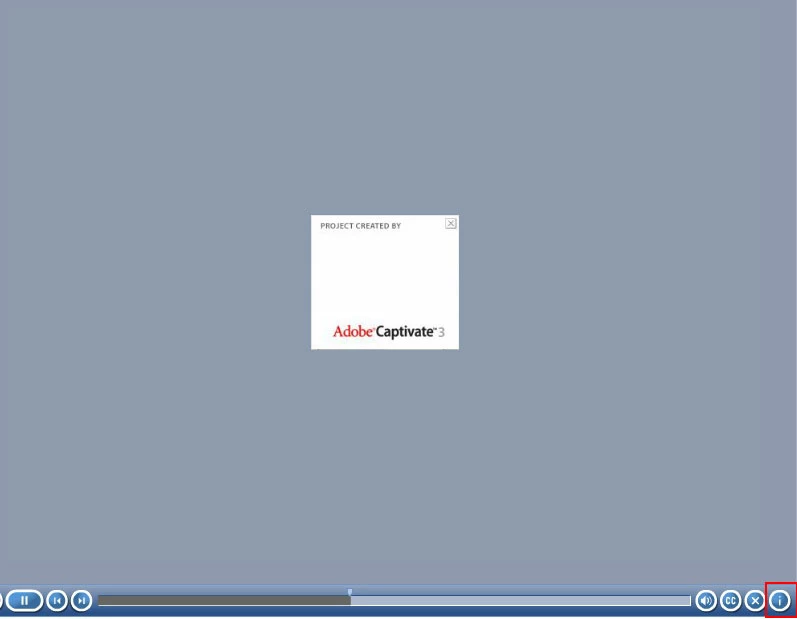
Wow, the project you are looking at was created with Captivate 3, haven't seen that for a while. The (i) button was an  Adobe marketing tool showing Captivate version. You could never edit the content. I can't remember which version they finally deprecated it in the player controls but maybe version 4. hmm. It is no longer a button found on the playbar as set in the Skin Editor.  Follow Lilybiri's instructions to add info. If you want a pop up then use a smart shape or text caption to add the text information about the project or use the appropriate system variables and then create a button on the slide with a show / hide toggle on the button to show the smart shape or text caption. If you use a smart shape button you show for rest of project so the toggle button would be available on each slide .  

2 replies

David Burnham HBA
David Burnham HBACorrect answer
Inspiring
November 23, 2019

Wow, the project you are looking at was created with Captivate 3, haven't seen that for a while. The (i) button was an  Adobe marketing tool showing Captivate version. You could never edit the content. I can't remember which version they finally deprecated it in the player controls but maybe version 4. hmm. It is no longer a button found on the playbar as set in the Skin Editor.  Follow Lilybiri's instructions to add info. If you want a pop up then use a smart shape or text caption to add the text information about the project or use the appropriate system variables and then create a button on the slide with a show / hide toggle on the button to show the smart shape or text caption. If you use a smart shape button you show for rest of project so the toggle button would be available on each slide .  

Participant
November 24, 2019

Thank you David for confirming about deprecated player control.

Lilybiri
Legend
November 21, 2019

Very short question, and difficult to understand. You can add Project Info with that command from the File menu. The default playbars do not have the possibility to add custom fields. You can add Project information by inserting the appropriate system variables on a master slide, on a slide (eventually timed for the rest of the project). You also can have Project Info showing up in a TOC.