
Participating Frequently
May 10, 2017
Answered

How to align Image and Title text in Fluid Box

  • May 10, 2017
  • 3 replies
  • 2004 views

I am totally frustrated trying to have image and text stay in relative positions as they scale in fluid boxes.

I need to have a logo image to the left of the course title name at the top of the content slides. There needs to be padding between image and text and they need to retain their positions and scale as the fluid box is viewed from desktop to mobile. The fluid box has a background fill.

I can get the image and title text in the fluid box but I can't put padding around image and when box resizes the text goes over the image. Also text doesn't resize correctly when I preview in iPhone and Galaxy size.

Am I going about this the wrong way?

I am totally new to Captivate. I had only finished the Captivate 9 tutorials and I could get this working OK with the break points but fluid boxes are defeating me.

I would appreciate any suggestions and advice. Or if anyone could point me towards a help text or video that could show me. I've had a look at a few Fluid Box videos already but they are still frustrating me.
This topic has been closed for replies.
Correct answer jm jullien

Hello Joe, if this can help you I did this type of alignment (image and title) by following the process:

1 Inside a horizontal FB (one cell) that I had called “Header”, I put a background color then defined a horizontal and vertical padding of 10px.

2 Inside this “Header” I added two verticals FB.

The left one for the picture and the right for the title.

I defined a space (or a flow) for the left around 20% and for the right 80%  (by using my “Header” re-dimensioning).

3 Then I adjusted:

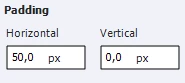
The left with a horizontal padding of 50px – vertical 0px

The right with a horizontal padding of 10px – vertical 0px

It works well on PC and smartphone (Galaxy) as well. According to the size the title goes under the picture and never over.

4 For the padding of your picture you can check or use the 2 “Padding” form fields that you have for your relevant FB.

You can also check that your picture has its “Maintain aspect ratio” tick-box ticked.

In my case it works well.

3 replies

jm jullienCorrect answer
Participating Frequently
May 10, 2017

Hello Joe, if this can help you I did this type of alignment (image and title) by following the process:

1 Inside a horizontal FB (one cell) that I had called “Header”, I put a background color then defined a horizontal and vertical padding of 10px.

2 Inside this “Header” I added two verticals FB.

The left one for the picture and the right for the title.

I defined a space (or a flow) for the left around 20% and for the right 80%  (by using my “Header” re-dimensioning).

3 Then I adjusted:

The left with a horizontal padding of 50px – vertical 0px

The right with a horizontal padding of 10px – vertical 0px

It works well on PC and smartphone (Galaxy) as well. According to the size the title goes under the picture and never over.

4 For the padding of your picture you can check or use the 2 “Padding” form fields that you have for your relevant FB.

You can also check that your picture has its “Maintain aspect ratio” tick-box ticked.

In my case it works well.

JoeJavaAuthor
Participating Frequently
May 11, 2017

Thank you for your very detailed explanation.

I can follow it all except for (by using my “Header” re-dimensioning). How do I do that please?

It was the default title smart shape in the top FB on the master slide that was stopping me from inserting the two vertical FB's. I am so glad to have sorted that one it was really getting to me.

Participating Frequently
May 11, 2017

Hi Joe, thank you. I was talking about the two arrows enabling to define the size of the 2 FB within my Header.

See my picture.

JoeJavaAuthor
Participating Frequently
May 10, 2017

I think the answer may be to create two sibling fluid boxes in the top box. One box holds the image and the other the title text.

I managed to do this and it worked. Previewing in iPhone size the text was placed under the image with space between them where previously the text would flow over the image.

Problem is I was experimenting so much I can't repeat how I inserted the sibling fluid boxes. When I try to repeat it the Fluid Box icon is grayed out.

So my main question now is - how do you create sibling Fluid Boxes for an existing box?

RodWard
Community Expert
Community Expert
May 10, 2017

Fluid Boxes are designed to take away the need to control the precise positioning of objects on the screen.  Their supposed to use algorithms to automatically work out an optimum placement of objects.

It sounds to me like you need to switch over to using Break Points if you want the level of control that you are talking about.  Fortunately, Captivate 2017 gives you that option.

JoeJavaAuthor
Participating Frequently
May 10, 2017

My main problem is stopping the title text from going over the top of the image. If I could stop that from happening and just keep a few pixels between them that would solve my main problem and give me the level of control I need..

I like the concept of Fluid Boxes and can see the benefits of using them. I've just got to learn more about them and Captivate itself.

Lilybiri
Legend
May 10, 2017

You'll need to put them in different FB's on a lower level.