
Participant
November 1, 2017
Answered

How to multiply a slide design?

  • November 1, 2017
  • 1 reply
  • 403 views

I customized a standard multiple-choice-slide and would like to have all future multiple-choice-slides look the same. If I just duplicate it the design and the box-size are all over the place. Can I somehow change the standard template? Is there a way to duplicate them more accurate? Thanks for your help. I´m on the newest version of Captivate btw. I will add a screenshot of the simple slide design I tried to copy to test this.
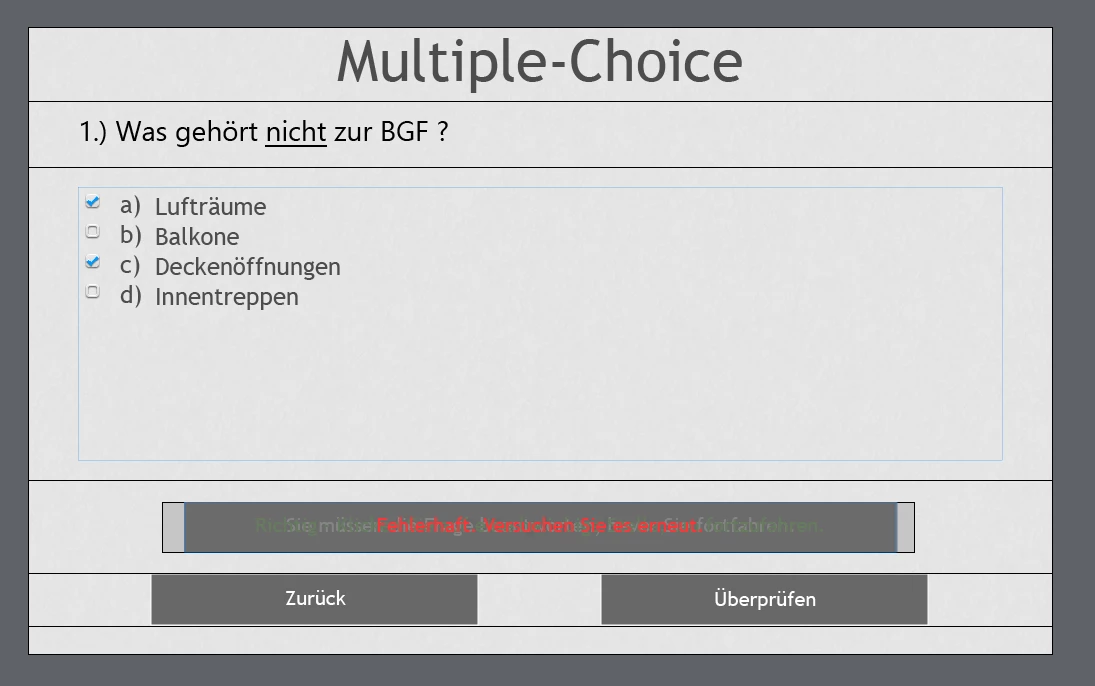
This topic has been closed for replies.
Correct answer Lilybiri

As I already mentioned, I would never do that on a regular quiz slide. My approach:

  • Edit a color palette or create a new palette
  • Change the object styles for the Quizzing items (font size is part of it); I use the Object style manager, but it can also be done based on a changed item on a test slide
  • Edit the dedicated master slide to change position and size; do NOT delete  items on the master slide
  • Save the edited theme as a custom theme
  • Insert quiz slides., they'll automatically take on the layout and the styles you have defined in the theme

With this approach, small changes later on will be a breeze: new font slize for an item, just change the object style. New location for items, just change the master slide.

1 reply

Lilybiri
Legend
November 1, 2017

Please, give some more details: version number, responsive or normal theme?

Captivate use themes. A theme consists of a theme color palette, object styles, master slides and skin (eventually Recording defaults). More info:

What's in a Theme - a Template? - Captivate blog

Quiz slides typically are created from the dedicated Quiz Master slides. You have to be VERY careful when editing those master slides, because they have a lot of embedded objects with attached functionality. Do not mess up with those objects, don't delete them, you can uncheck them if that option is available. If you are talking about a responsive project, created with Fluid Boxes, here is the exploration of the Fluid boxes on those master slides:

Tips for 'Fluid' Quiz Slides - Captivate blog

Sorry for all that lecturing, which is due to the way you formulated your question which makes me suspect that you are not aware of the importance of themes. If you edit a master slide, just save that theme as a custom theme and all future projects using that theme will have the new setup. All MCQ slides will use your master slide.

leonheessAuthor
Participant
November 2, 2017

Thanks for your help.

Let´s say I created a standard quiz-slide and I changed the font-size and the position of the questions. Now I want 12 quiz-slides with different questions each to have the same layout and the changes I did before applied to them. What would be the smartest way to do this?

Lilybiri
LilybiriCorrect answer
Legend
November 2, 2017

As I already mentioned, I would never do that on a regular quiz slide. My approach:

  • Edit a color palette or create a new palette
  • Change the object styles for the Quizzing items (font size is part of it); I use the Object style manager, but it can also be done based on a changed item on a test slide
  • Edit the dedicated master slide to change position and size; do NOT delete  items on the master slide
  • Save the edited theme as a custom theme
  • Insert quiz slides., they'll automatically take on the layout and the styles you have defined in the theme

With this approach, small changes later on will be a breeze: new font slize for an item, just change the object style. New location for items, just change the master slide.