

camilaf3199346
Inspiring
July 24, 2017
Answered

How to set custom failure captions?

  • July 24, 2017
  • 1 reply
  • 1732 views

I am recording a software simulation on Captivate. I would like that every time an user clicks the wrong menu, failure caption is displayed. I know it's set in the click box setup, but I don't know how to standardize it. I mean, when someone is recording the screen and then press End, I want that video "ready" for edition (showing a standard failure caption as we want, in a previous configured style). How to do it? That's the tricky question...
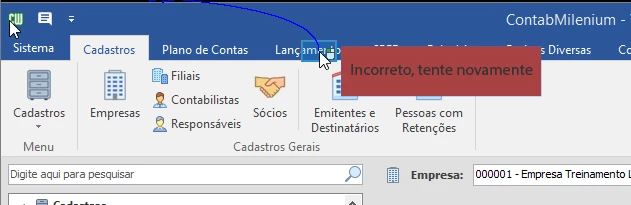
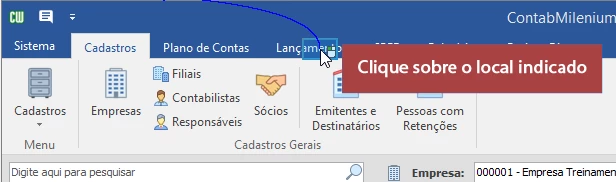
For example: in this failure caption, it's displayed the message "Incorrect, try again" (in Portuguese, my mother language). Ok... But I would like it to be displayed this way ("Click the right place") with different font, size and color. I don't want to change it to every slide. Instead I would like to set it once. Is there a way to solve it?
Thanks in advance!
This topic has been closed for replies.
Correct answer Lilybiri

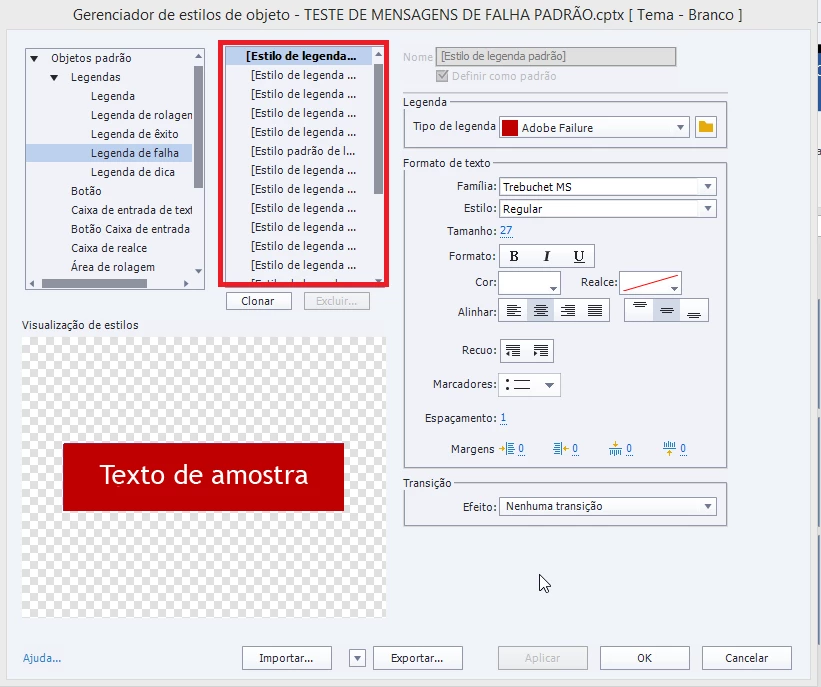
Ok, I've already changed the object style. However, I cannot delete other styles. There are several of them, standard styles I can't delete and they're confusing. For example, the object style I want is selected. However, I cannot delete any object style underneath it. It becomes confusing because objects have applied some "standard failure caption" that is repeated many times. So when I apply this object style as standard, other styles don't change. It only works when I go slide by slide, clicking the objects and selecting the right style name. But it demands a lot to do it one by one... Do you understand me?


I asked to change the default object style. All captions or shapes with that default style would have been changed automatically. Only overridden styles have to be changed manually.

1 reply

Lilybiri
Legend
July 24, 2017

The object style for the messages during recording can be set up in Preferences, Recording, Defaults.

The content of all messages can be edited in the file corresponding with your language, which has the extension 'rdl' and is found in the installation folder of Captivate. Edit this with a non-formatting application like NotePad but be careful, maybe take a backup of the original file:

camilaf3199346
Inspiring
July 24, 2017

Thanks, Lilybiri. You're the best! I just didn't get how to set font color in preferences. Because in my default failure caption (in preferences) I chose font color as white. However, in all captions it is still displayed in black... As I have around 80 slides, I would like a way to change it too. But you have helped me a lot so far! Thank you for everything.

Lilybiri
Legend
July 24, 2017

Did you change the object style? You have to be sure if shapes or captions

are used, because they have each a style.