Inspiring
October 25, 2017
Answered

How to set transparent iframe background for project within a project?

  • October 25, 2017
  • 1 reply
  • 2622 views

Hello,

Right now I have a published HTML5 CP project zipped up and added as a web object to a 2nd HTML5 CP project. When in the 2nd project, I'd like the background on the first to be transparent. When previewing the 2nd project, I've used the browser inspector to try all manner of "background: none transparent" to no avail.

I also tried added a 1x1 transparent image as the tiled background to the 1st project—showed promise because the transparency was there in Captivate itself, but when published just reverts to a white frame on top of the 2nd project.

Any advice?
This topic has been closed for replies.
Correct answer Stu_M_

Hi there,

You could try this:

To start with - in your 1st Captivate Project, make sure there aren't any images set to fill the background. By default it looks like Captivate 9 inserts a subtle "BG.jpg" textured background. Delete this (in the properties panel on the master slide view).

Then:

  • In the published files of your 1st Captivate Project (that will be inserted as a web object in your 2nd), navigate to the directory: ../assets/css
  • Locate the CPLibraryAll.css file and open it in a text editor
  • Add the following lines of CSS to the bottom of the file to override the style of the background:

.cpMainContainer,.cpDocument,.cp-movie,.project,.cp-frameset,.projectBorder {
background-color:transparent!important;
}

#projectBorder{
background-color:transparent!important;
}

body {
background-color:transparent!important;
}

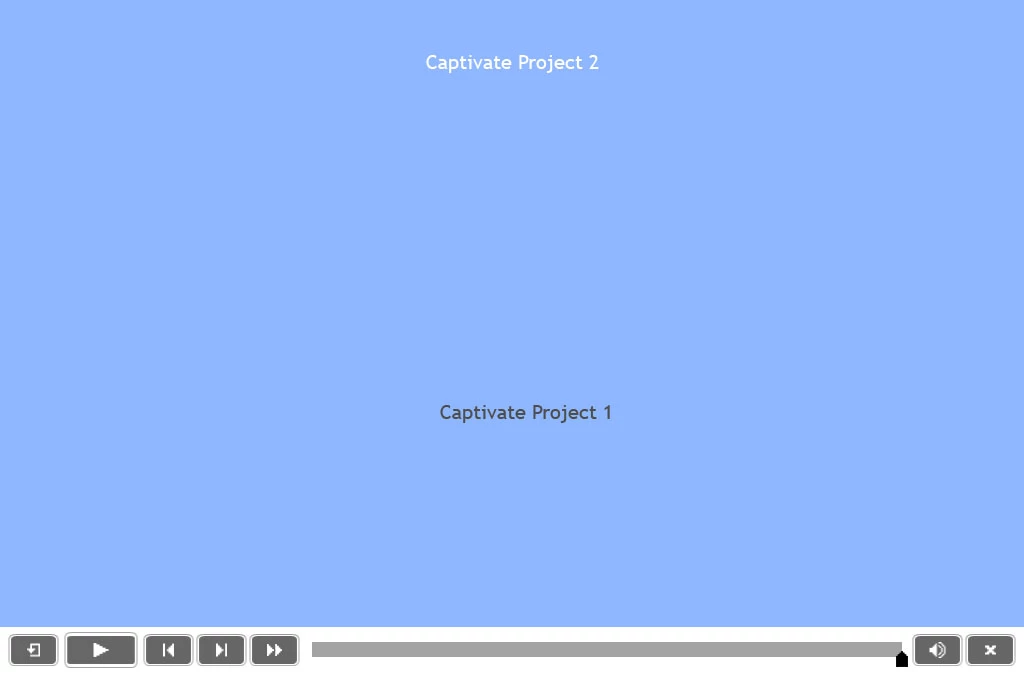
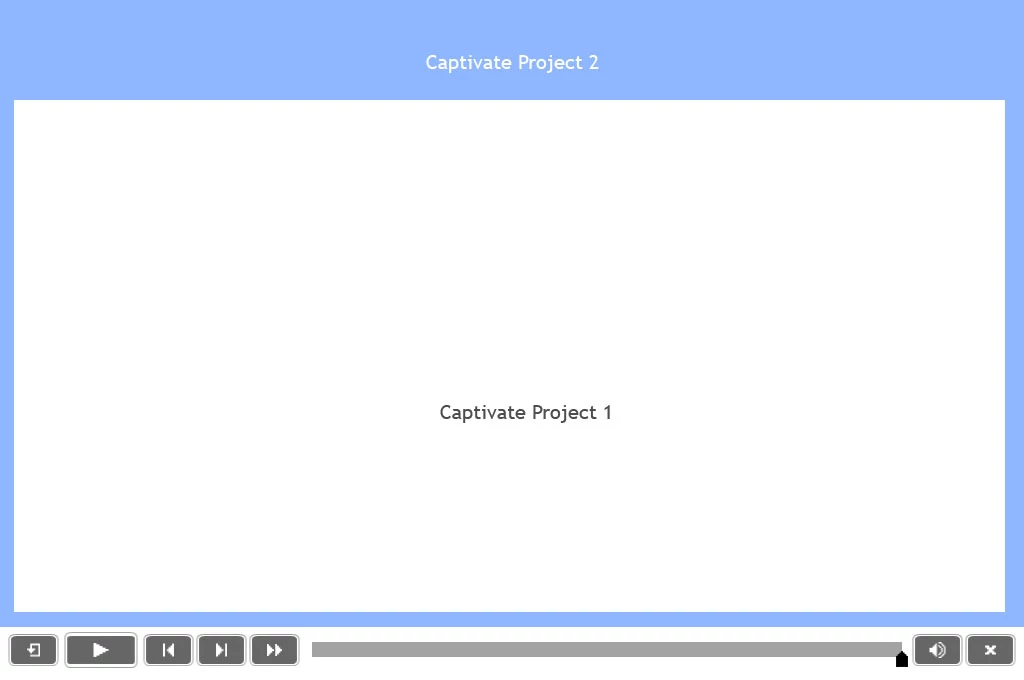
Some of that code might be redundant. It's a quick and dirty fix so I wasn't being very thorough. I tested this out and it worked. Here are some before and after screenshots:

Maybe there is a simpler way of achieving this in Captivate itself. If there is, I'm not sure how to do it.

If anyone reading this wants to make the background of the loading animation iframe transparent as well, check out this post I made recently.

(Note: I'm using Captivate 9)

1 reply

Stu_M_
Stu_M_Correct answer
Participant
October 25, 2017

Hi there,

You could try this:

To start with - in your 1st Captivate Project, make sure there aren't any images set to fill the background. By default it looks like Captivate 9 inserts a subtle "BG.jpg" textured background. Delete this (in the properties panel on the master slide view).

Then:

  • In the published files of your 1st Captivate Project (that will be inserted as a web object in your 2nd), navigate to the directory: ../assets/css
  • Locate the CPLibraryAll.css file and open it in a text editor
  • Add the following lines of CSS to the bottom of the file to override the style of the background:

.cpMainContainer,.cpDocument,.cp-movie,.project,.cp-frameset,.projectBorder {
background-color:transparent!important;
}

#projectBorder{
background-color:transparent!important;
}

body {
background-color:transparent!important;
}

Some of that code might be redundant. It's a quick and dirty fix so I wasn't being very thorough. I tested this out and it worked. Here are some before and after screenshots:

Maybe there is a simpler way of achieving this in Captivate itself. If there is, I'm not sure how to do it.

If anyone reading this wants to make the background of the loading animation iframe transparent as well, check out this post I made recently.

(Note: I'm using Captivate 9)

Inspiring
October 26, 2017

Thank you so much, Stu! That worked perfectly in CP10. I did have to edit AdobeCaptivate.ini so that elements could be on top of the web object, then counter-intuitively put the object at the top of the timeline i.e. in front of everything else.

Last hurdle is figuring out how to hide the web object on-demand since it's set to show for rest of project (can't paste on each slide where I need it because the loading is so slow & noticeable unfortunately).

Thanks again!

Stu_M_
Participant
October 26, 2017

My pleasure!