


Participant
November 1, 2020
Question

How to Stop the First Slide audio after jumping back from second slide

  • November 1, 2020
  • 5 replies
  • 279 views

I have a Audio-Test.cptx file and where I have added audio to the first slide and Jump To action on two buttons.

Audio plays fine at first however I want when user Jump to any other slide and comes back to slide one audio should stop.

1  I have added Advance Action on Enter on slide 1 like below 
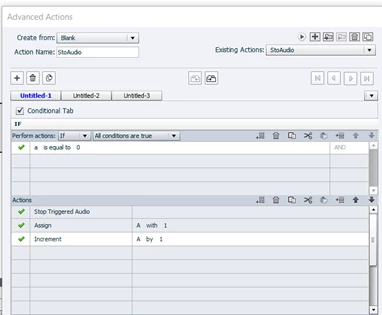


2  And on Exit added the below action
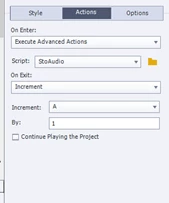


However when Jump back from second  slide or 3rd slide it plays the audio on the slide one, please suggest. I have attached the file also.


    This topic has been closed for replies.

    5 replies

    Lilybiri
    Legend
    November 2, 2020

    You can find a solution with micro-navigation and one shared action which can be used for all revisits: not only to play the audio only once, but also for other situations where you do not want thelearner to sit throughout something on a revisit:

    http://blog.lilybiri.com/play-audio-once-on-first-visit

    And the shared action can be found and used in:

    http://blog.lilybiri.com/advanced-to-shared-action-step-by-step-micro-navigation-showcase

    Do not use duplicate advanced actions if you need to use a solution on multiple slides. Using Shared action is a much better approach, especially in this case where you can reuse it in all projects and for different goals.


    Paul Wilson CTDP
    Community Expert
    Community Expert
    November 2, 2020

    Hi Steve,

    I decided to answer your question by creating a brief video that explains how I would do what you're trying to accomplish: https://youtu.be/JsjuC-VfTNw 


    Paul Wilson, CTDP
    Paul Wilson CTDP
    Community Expert
    Community Expert
    November 2, 2020

    Triggered audio is any audio that was initiated from an Action. For example, if you run the following action on-enter of a slide:

    Play Slide01.MP3

    If you have slide audio, which is the most common, Stop Triggered Audio will not interrupt it. Instead, you should run the audio as part of your advanced action. Here is how I would do it...

    1. Create a variable for each slide that you want to suspend audio on subsequent visits. I'm calling mine _Slide01Audio and giving it an initial value of 0.
    2. Create the following advanced action that is run on-enter of the slide in question.

    First Decision Tab

         Increment _Slide01Audio by 1

    Second Decision Tab

         If (Slide01Audio < 2 )

              Play Audio Slide01Audio.wav

    You can save this as a Shared Action and apply the same set of actions to multiple slides, variables and audio files.

    Hope this helps


    Paul Wilson, CTDP
    Nancy OShea
    Community Expert
    Community Expert
    November 2, 2020

    Moving to Adobe Captivate which is not part of Creative Cloud.


    Nancy O'Shea— Product User & Community Expert
    John T Smith
    Community Expert
    Community Expert
    November 1, 2020

    Please post the exact name of the Adobe program you use so a Moderator may move this message to that forum