Image Placeholder Resizing
Captivate 5.0.1.624 (eLearning Suite 2, Windows 7, Office 2010)
Template with Master Slides
Template has "Stencil" Slides (from Masters)
Stencil Slide(s) has Text Caption Placeholder
Stencil Slide(s) has Image Placeholder
...
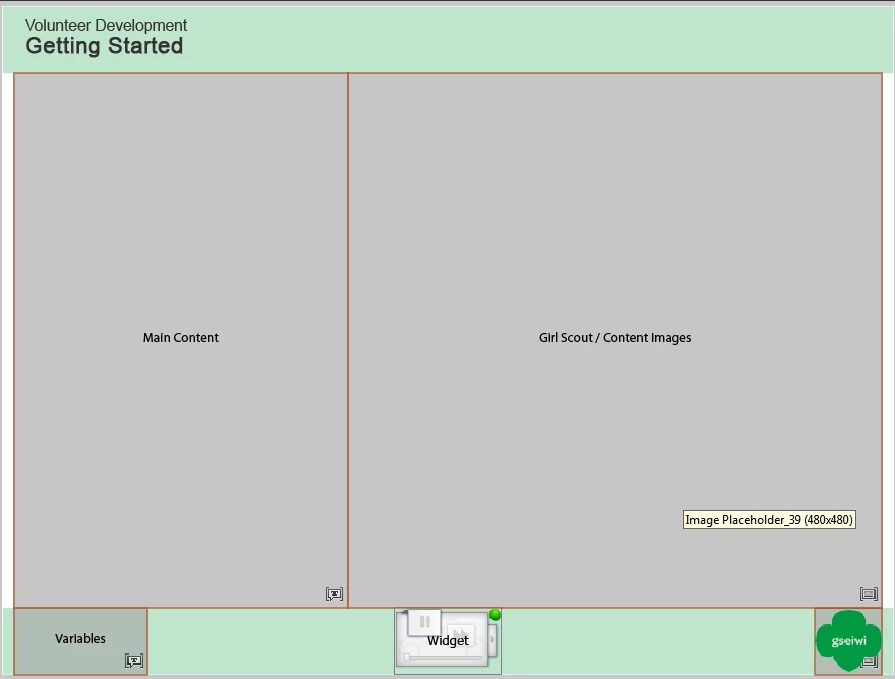
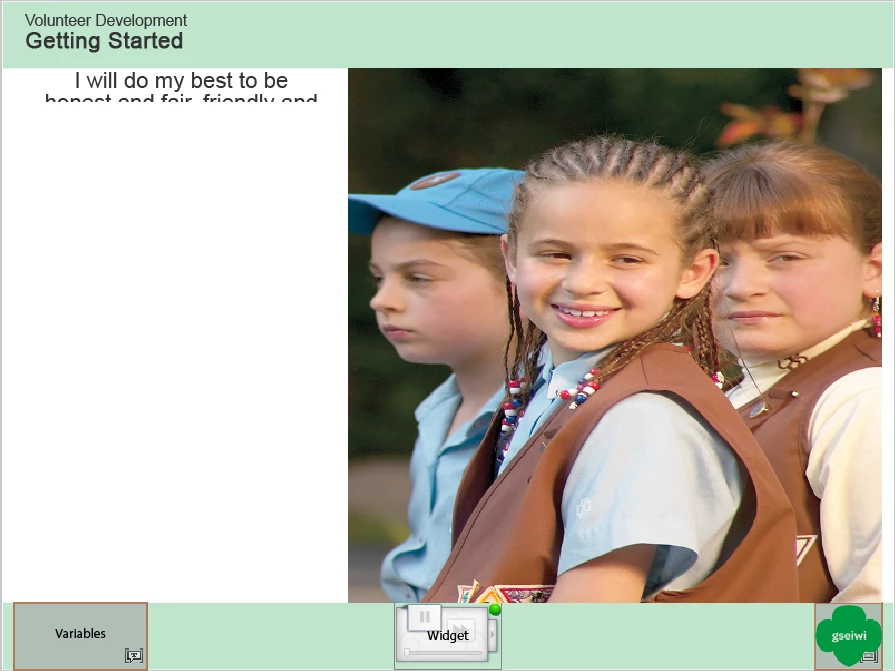
When I type text, the text box resizes. If I turn off auto-sizing, I get the text at the top of the box and then have to adjust it all. Also, when I import an image, it resizes to the placeholded and often distorts. I then have to reset it to original and readjust it back to the location of the original image placeholder.
The following shows the placeholders:
The following shows the imported image (distorted) and text (auto-resized) in the placeholders:
The following shows the imported image (distorted) and text (auto-resize is OFF) in the placeholders:
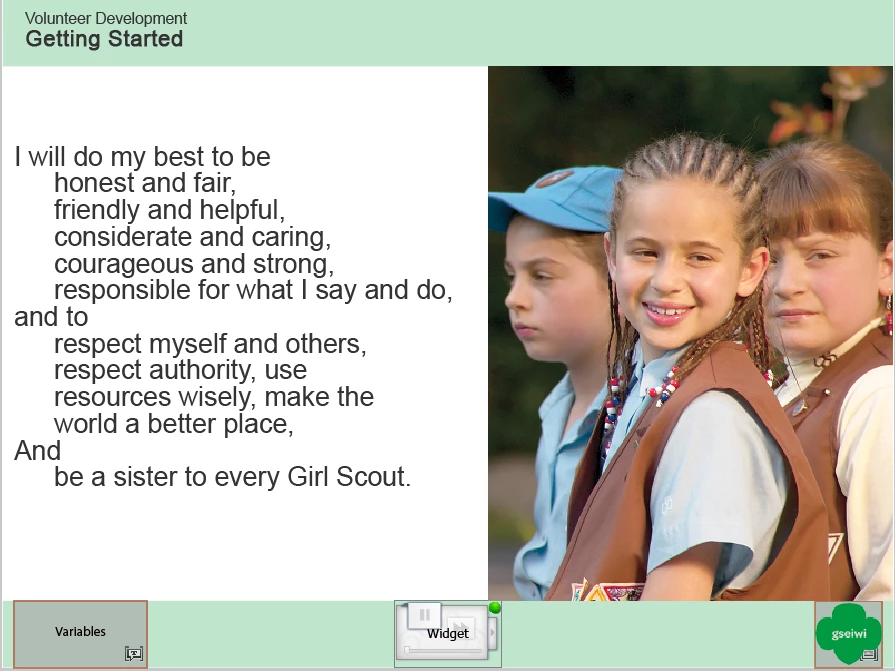
The following shows the final layout after manual adjustment of the placeholders:
Another example showing the final layout after manual adjustment of the placeholders:
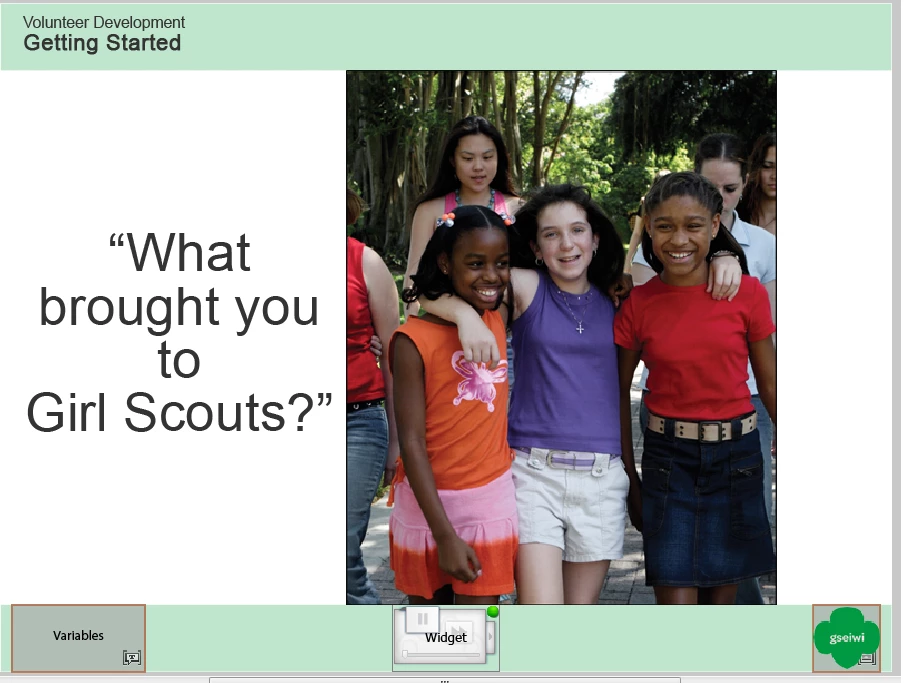
So, how do the placeholders help since I have to manually adjust everything upon import or text entry?
I watched the 1'26" Master Slide-Template on-demand webinar with "viswanat@adobe.com" (I didn't catch his full name; he is a colleague of "Dr. Pooja").
 AdChoices