
Image Sizing Problem (Default and All States)- Responsive Project
Hello All,
I'm using the Adobe Master Slides in the Responsive Project to create the Click-Reveals (Content 07, in particular). Of course I ran into this problem on a Friday night after Support Chat closed (ugh!), so I'm hoping a more seasoned vet could tell me what I'm doing wrong. Pretty new to Captivate, but have thick skin, so feel free to poke fun if I'm an idiot here! Here are the results, the process I used is below that:
I'm putting the LMS version (after publishing and uploading the SCORM file) and the same slide and state as seen on the Preview Project in Captivate. All Preview versions are sized properly, functioning properly. The image and states are all still sized improperly, overlapping the navigation button that are in the bottom fluid box. I've republished the SCORM file twice, and reuploaded a total of four times, but :
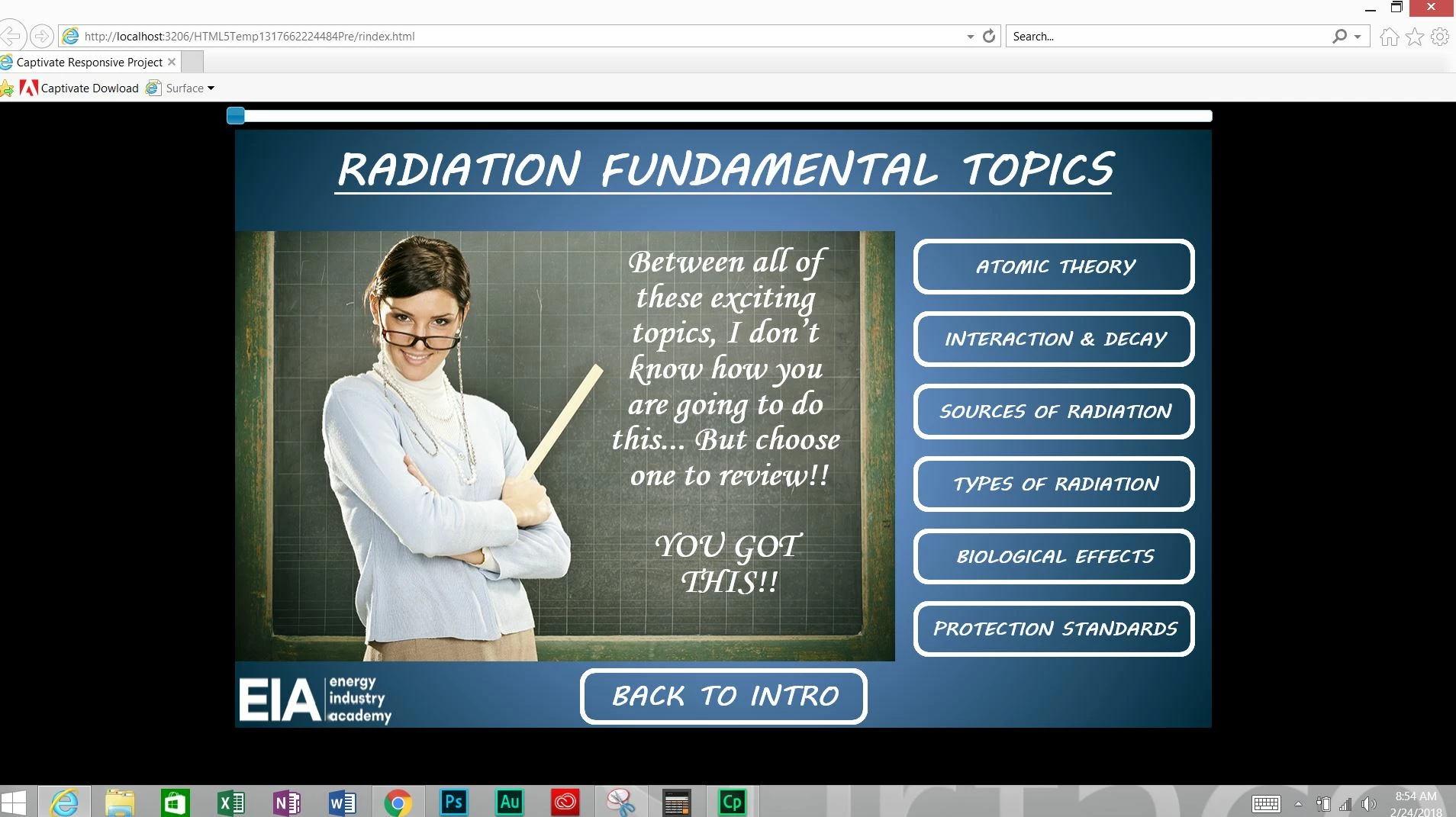

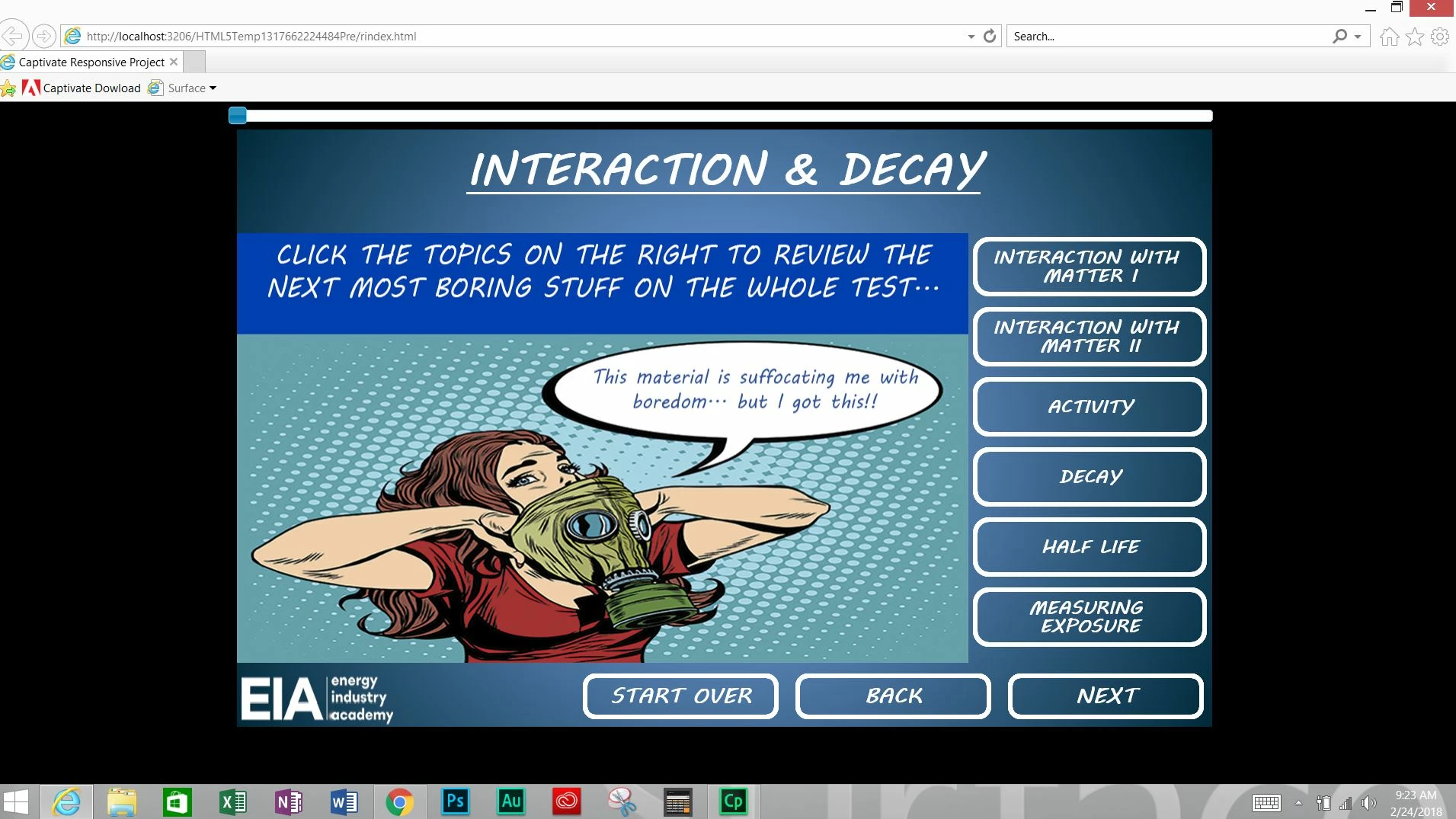
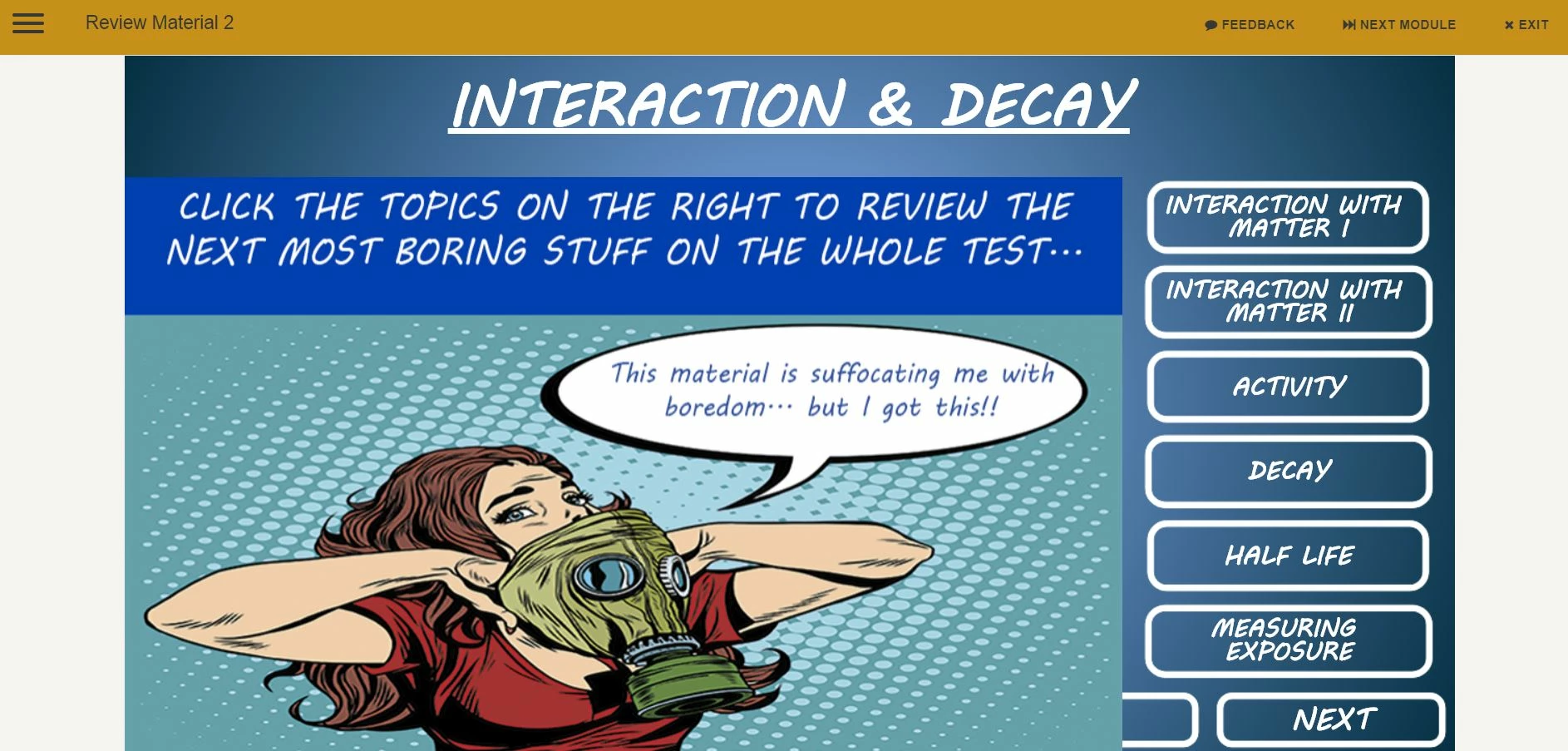
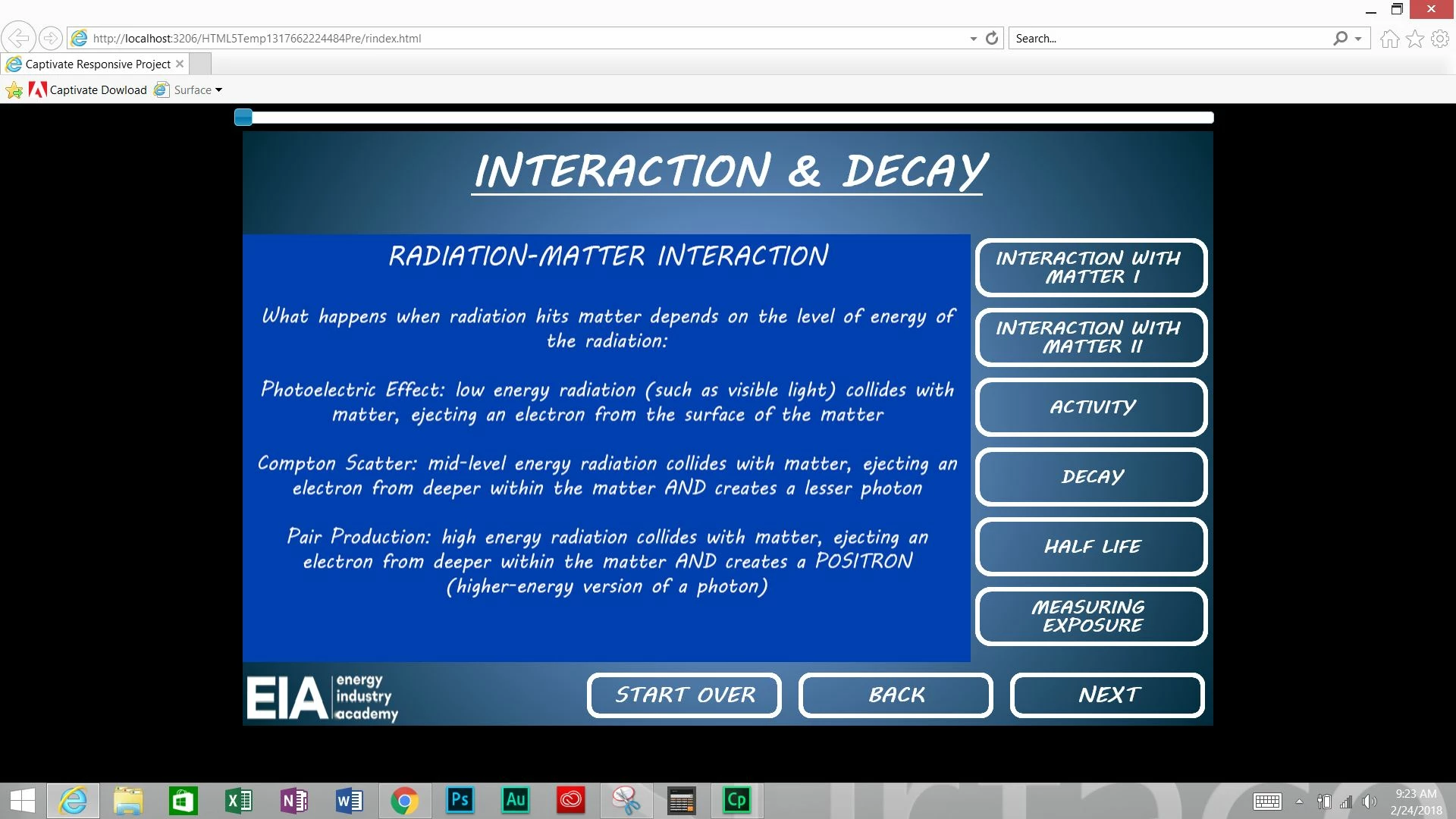
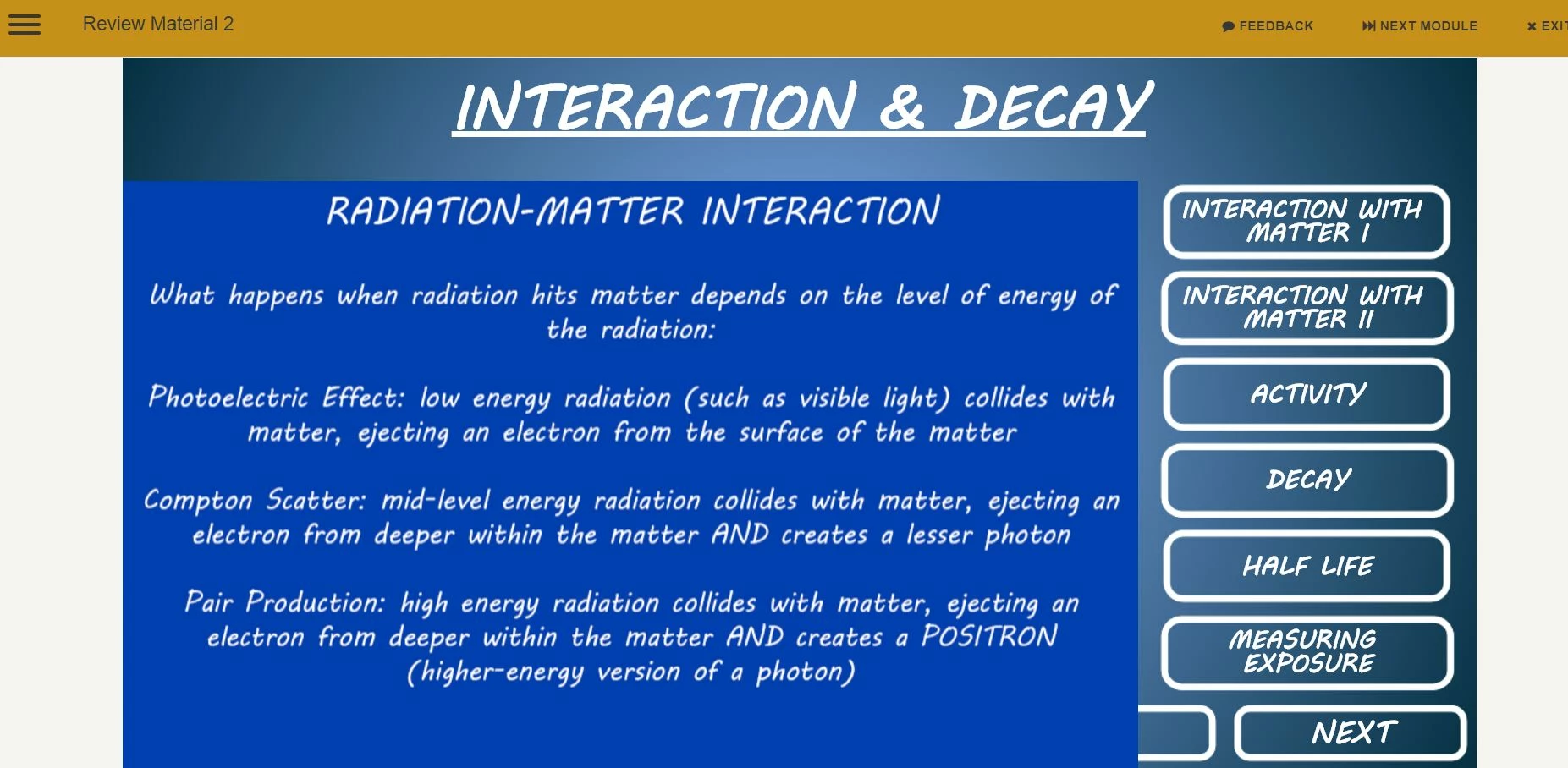
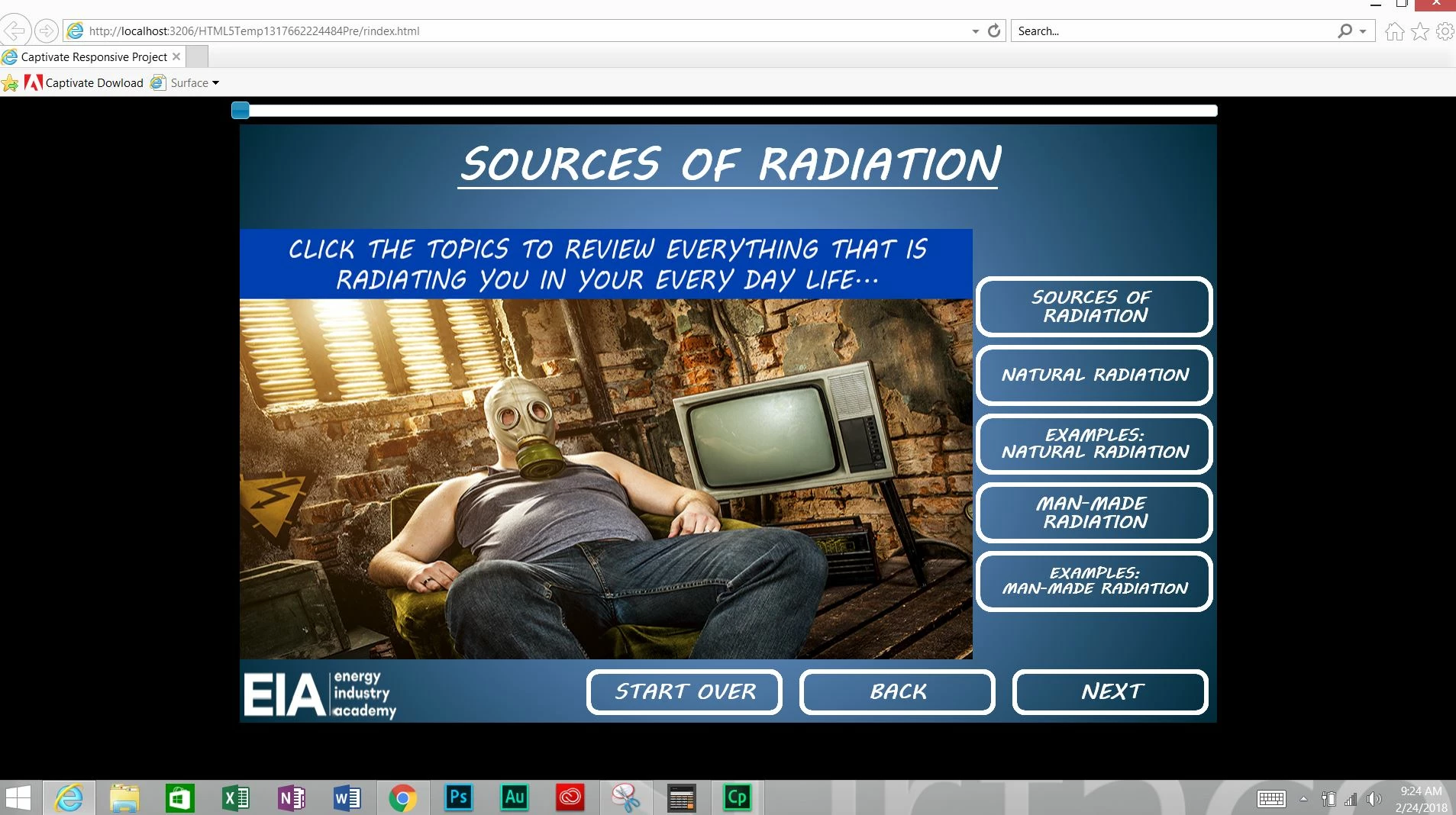
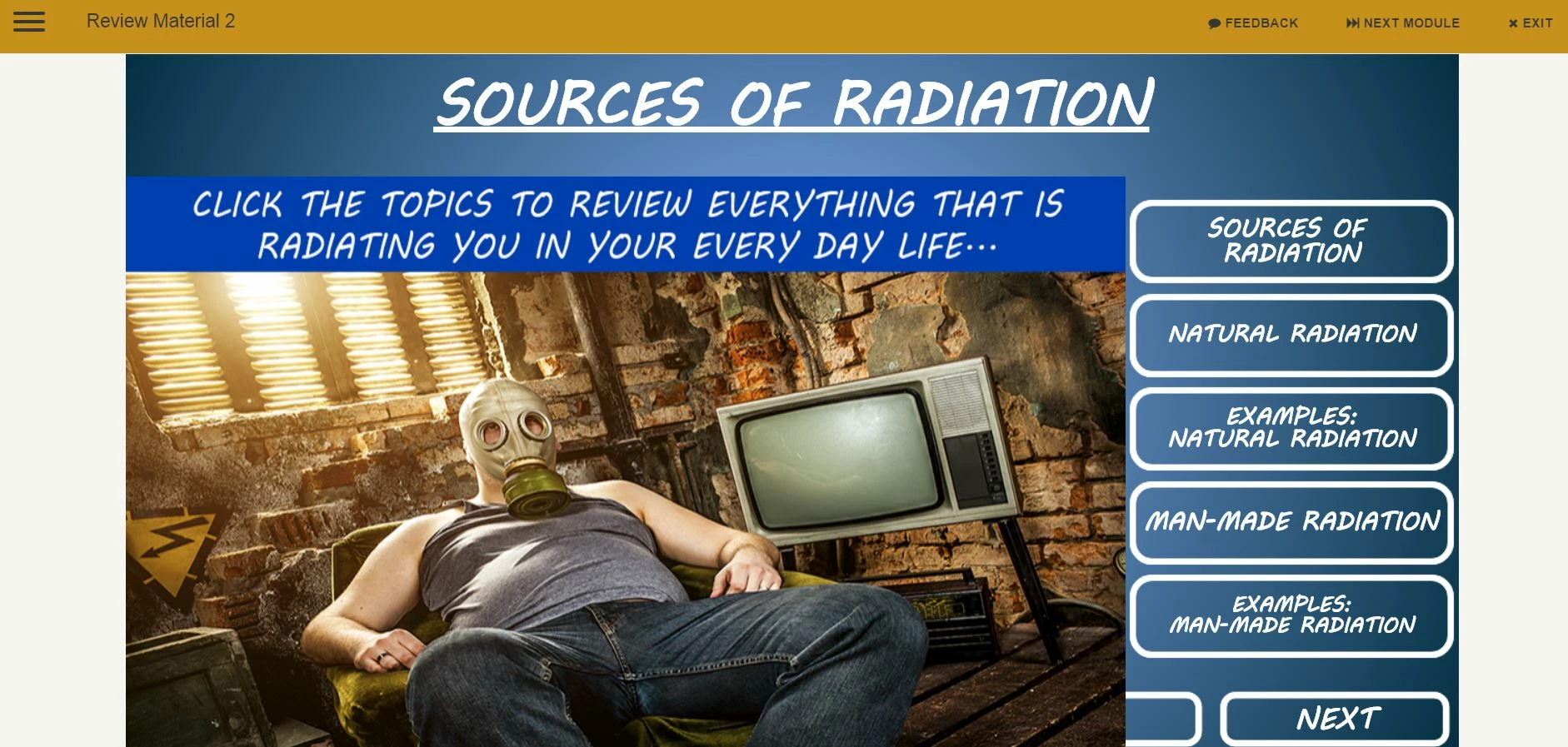
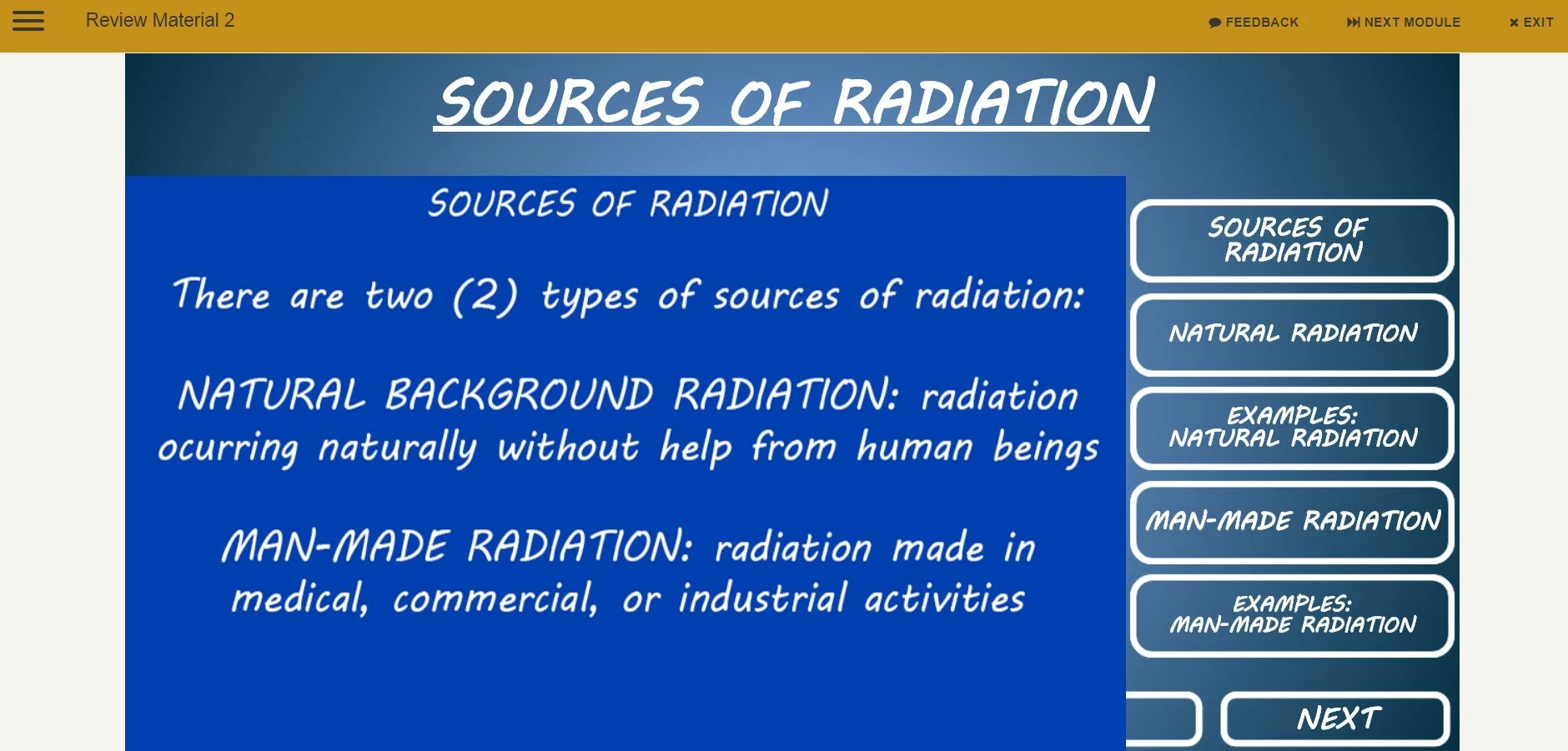

It is across all images, even ones without Click-Reveal functions- using Content 03 from the stock Master Slides. So I'm guessing I'm doing something wrong with the Content/Image Placeholders when I'm resizing the fluid boxes. Here's the process I used for the Click-Reveals, Content 03 slides were done similarly:
-Created a Content 07 Slide, typed title, deleted the Subtitle text and made the fluid box as thin as possible (this expanded the parent fluid box holding the Content Placeholder and Buttons up, maximizing the size of the Content)
-Expanded the child fluid box with the Content Placeholder right to expand the Content display, taking away space on the Buttons fluid box
-Unlocked the Content Placeholder from the fluid box, expanded it to the size of the fluid box (W: 960 H: 560), deselected "Unlock from Fluid Box" on the Properties.
-Inserted Default State JPEG into the Content Place of the material at the exact size of the fluid box (sized to W: 960 H: 560), created states and loaded same sized JPEGs for the states
-Duplicated/deleted buttons, labeled and programmed them to "Change State of"
-Added buttons for navigation to the bottom fluid box (logo is on Theme slide)
Everything looked right on the Preview Project, so I published (.zip, SCORM 1.2) and loaded it to the LMS when I saw the problems. I thought perhaps I was screwing up by unlocking the content placeholder and resizing it, then relocking it, so I tried simply loading an image without every unlocking it and it showed up small and centered in the Preview Project (didn't fill up the fluid box). Now that I write this out, I didn't publish that version and see it in the LMS. Given the different appearance between the two now, maybe I should've done that.
OK don't want this to become a stream of consciousness post... If anyone out there sees what I'm doing wrong and is working the weekend, I'd appreciate any guidance!! Otherwise, I'll be first in line for bothering Support on Monday. Thanks!
-Chris


 AdChoices