May 11, 2010
Question

Images not appearing on slide

  • May 11, 2010
  • 4 replies
  • 2552 views

I am using Captivate 4, Windows XP.

For some time now I have been working, without any problems as foolows:

Taking screen shot using Snagit. Editing image and then saving to folder.

Adding the image to Captivate slide via the insert image option.

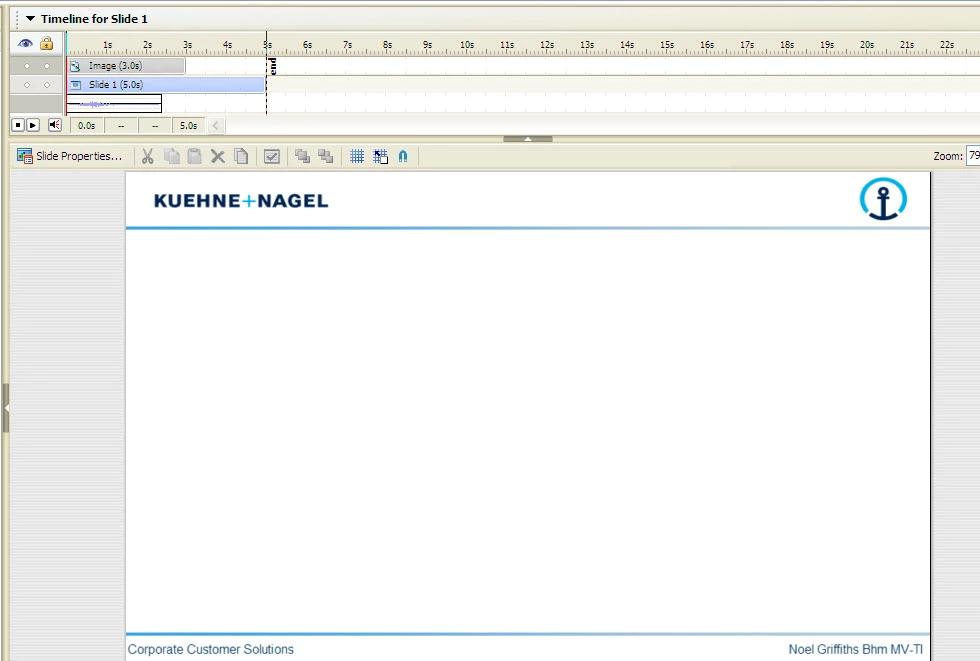
Suddenly today, after selecting required image and clicking on "insert" from within Captivate, the image does not appear on the slide.

However there is an "image" in the timeline, but if you right click on this.. and then go to "properties", nothing come up.

Attached is an example...there are no other images on the slide (header/footer is merged onto slide), so cannt be a case on image is "behind" something.

I have on-going problems with Captivate when connected to company network...very slow and most times I get message telling me Captivate is not responding...and I have to wait and wait until it kicks in to life. Could this be related?
Noel

Staffordshire

England

This topic has been closed for replies.

4 replies

Participant
July 12, 2010

Hi all,

I have read the threads that are associated with this post and am wondering if any further solution has been found.  I am working on a presentation in Captivate 4 (as I have many times before), and I am getting frustrated with the copy/paste function as I see others have.  It will work for a few minutes as I am copying from PowerPoint or SnagIt and pasting in Captivate; however, much to my chagrin after about 2 or three times of copying and pasting, the pictures/text boxes will no longer appear in Captivate.  I then have to close Captivate and reopen which we know takes a bit of time. I can't do this every time as my project is going to get quite large, and I don't want to waste time.  In the projects that I created prior to the most recent update I did not have this problem, and it is only in Captivate where I have it.

Any suggestions?

July 12, 2010

I haven't found a solution. I just gave up an rerecorded the project. Sorry!

Thank you,

Sarah


SARAH WILLIAMS | INSTRUCTIONAL DESIGNER | inContact

May 25, 2010

This same issue began happening to me today as well.  I have performed this same action hundreds of times and today it started giving me the same issues as described above.

I am working locally on my computer with no network issues.

Does anyone have any ideas?

Captiv8r
Legend
May 25, 2010

Hi Sarah

You might try converting the image to a different type. For example, if it's a PNG, convert to GIF, JPG or BMP. Then try adding it and see how it goes.

Cheers... Rick

Helpful and Handy Links

Captivate Wish Form/Bug Reporting Form

Adobe Certified Captivate Training

SorcerStone Blog

Captivate eBooks

Lilybiri
Legend
May 12, 2010

Hello Noel,

A lot of issues have been posted on this forum relating to connection with a network, but never saw something like you mentioned since I follow this forum regularly (since abt 14 months). Did you try (if possible of course) to disconnect from the network and check if the same problem occurs? I suppose CP-files are located on your own HDD?

Lilybiri

May 12, 2010

Hi Lilybiri,

Thanks for yours. I may have two two different problems or just one problem that has a knock on effect.

First (and main) problem I experience is when working in Captivate 4 and I am connected to company network. If I open another Captivate project at same time as first, often I get a "freezing" situation and message at the top of the Captivate screen "not responding". After a minute (approx), it comes back to life, but the next mouse click produces "not responding" again. This can happen 2-3 times before it kicks into life and I can start work. However the "not responding" can occur again later when working on the project. I believe this "not responding" issue might then corrupt the project and any future images I attach to a slide cannot be seen. When working off the network I do not get "not responding" issue.

My projects are located on my HDD. I have also created a new temp directory via CP settings to a folder on local drive on my PC - as suggested by CPGURU Michael, but this has not helped.

I have asked out IT people to help, but as I am one of only a few in my company using Adobe Captivate and having problems, they are unable (unwilling) to help!

Noel

Staffordshire

England

Captiv8r
Legend
May 12, 2010

Hi Noel

What happens if you convert the images to a different format? Do they show then? For example, if they are PNG, convert to BMP or to GIF. Then import.

Another thought is to ask if they show in the Library. If so, do they then show up of you drag from the Library to the Stage?

Sometimes I've seen Captivate ignore some images for whatever reason. And it seems when that happens, they have always been PNG. Then again, I have to balance that by saying that I tend to primarily work in PNG. So it may simply be coincidental.

Cheers... Rick

Helpful and Handy Links

Captivate Wish Form/Bug Reporting Form

Adobe Certified Captivate Training

SorcerStone Blog

Captivate eBooks

Inspiring
May 11, 2010

just a thought..double click the image in the timeline and make sure transparency isn't set at 100% or something silly.

May 12, 2010

Thanks for the thought/suggestion. The images are not transparent

....the timeline says they are there, but you cannt see them and if you add another image, you cannt see

that one either.