
Interactive screen - Click box or something else?
I'm using Captivate 8 with Windows 10. I have the latest download of Captivate.
This is a two-part question.
First, Adobe Captivate help tells me I can insert a click box by doing this:
- Open the slide to which you want to add a click box.
- Select Insert > Standard Objects > Click Box. A click box appears on the slide.
- Size and drag the click box as desired.
- Double-click the Success, Failure, or Hint captions to edit the text.
My problem is with #2. My Insert menu does not contain "Standard Objects." Where did it go? If I'm not using a click box, what should I use? (see part two below).
Second: I'm not sure I know how to make things happen the way I want them to.
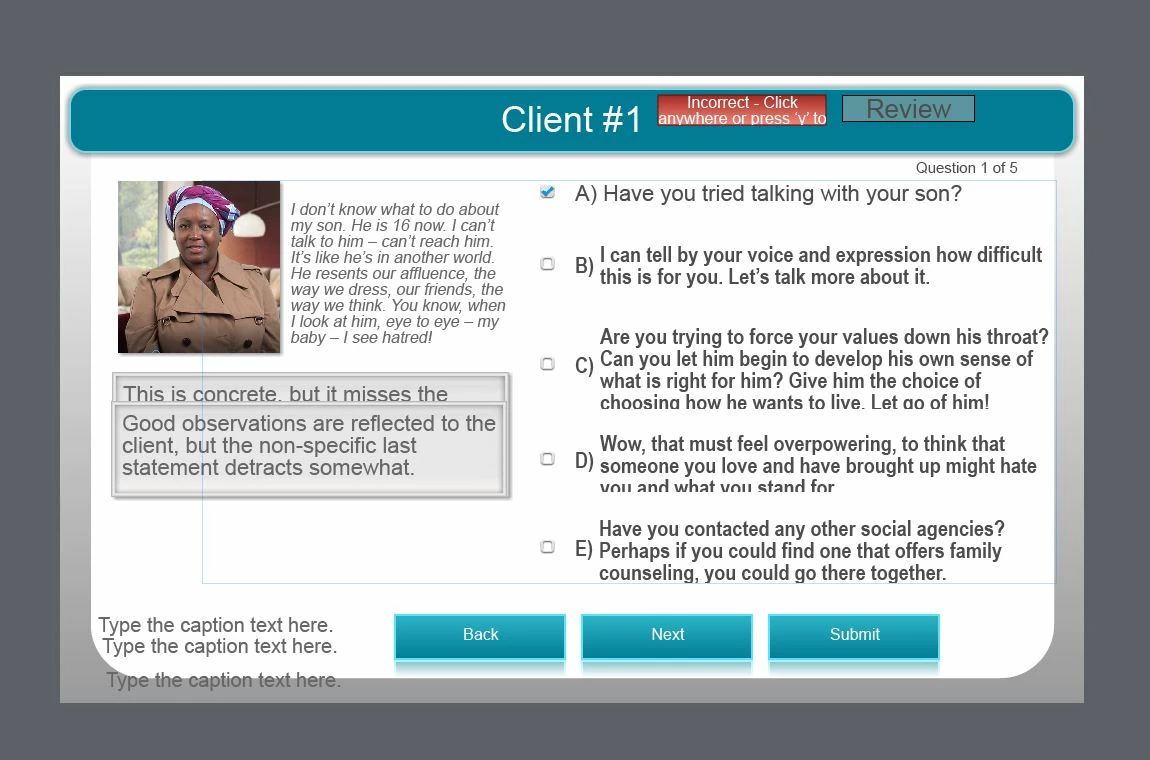
The screen below shows a picture of the client, a transcript of what she said, and five possible responses. Feedback for two of the responses are shown, although they are stacked so you can only read one. They will all be hidden until a response is clicked. (The caption text boxes at the bottom and the feedback boxes at the top are not being used at this point.) Feedback should appear when the user clicks one of the possible responses and then clicks Submit (although I would be happy to let the Submit button go if that is possible). Clicking the feedback box hides it again. The user is free to click each response and close its feedback box multiple times. There is no "right" or "wrong" here, and it isn't a quiz.
It seems to me that I did this very recently, but I can't remember how. 🙂 I started out using the quiz multiple choice slide, but that's too restrictive. I know there's a way to do this ...


 AdChoices