Known Participant
April 18, 2018
Question

Issues with Captivate Cropping Web Object Videos

  • April 18, 2018
  • 4 replies
  • 635 views

I've been working with Captivate for several months, and I've had continued issues with Captivate improperly displaying videos that I try to embed as web objects. Specifically, Captivate seems to always be altering my videos in undesirable ways. I worked around this in the past by having videos start at a smaller size and encouraging users to utilize YouTube's full screen feature. For new courses that I'm building out, though, I want to have the videos fill most or all of the screen. Naturally, I want the videos to appear in my courses the same way they do when they're rendered.

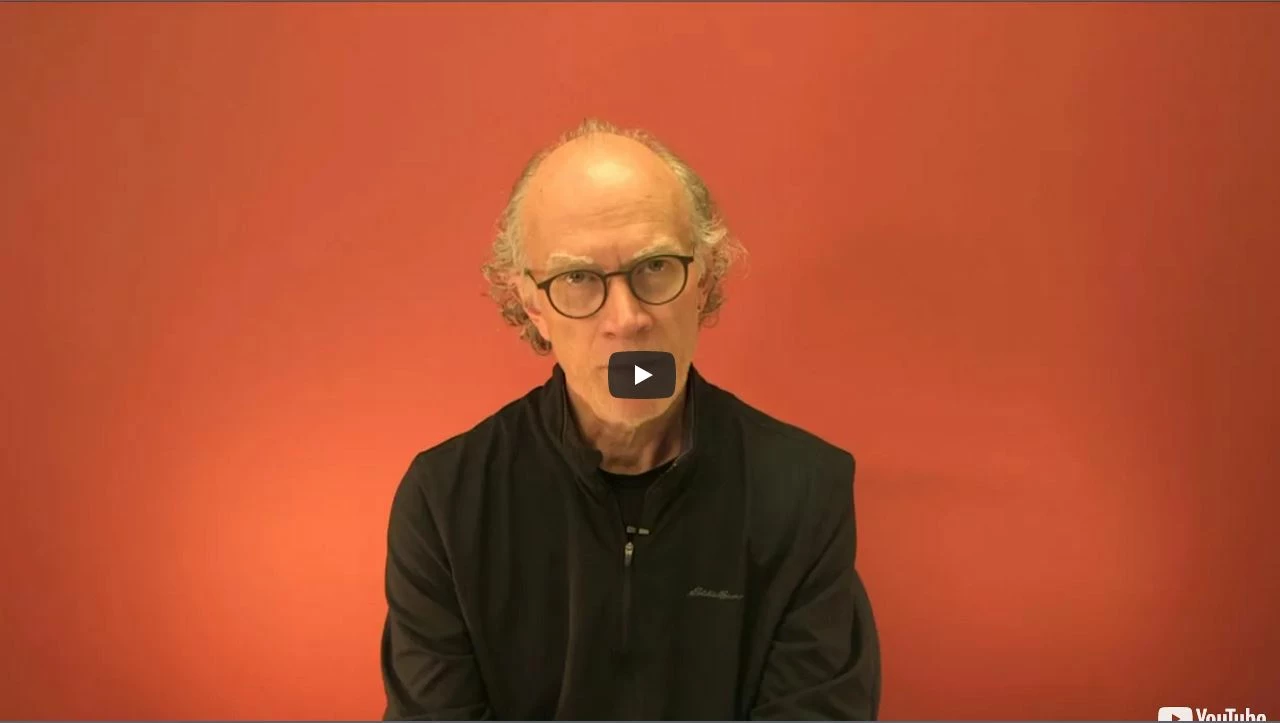
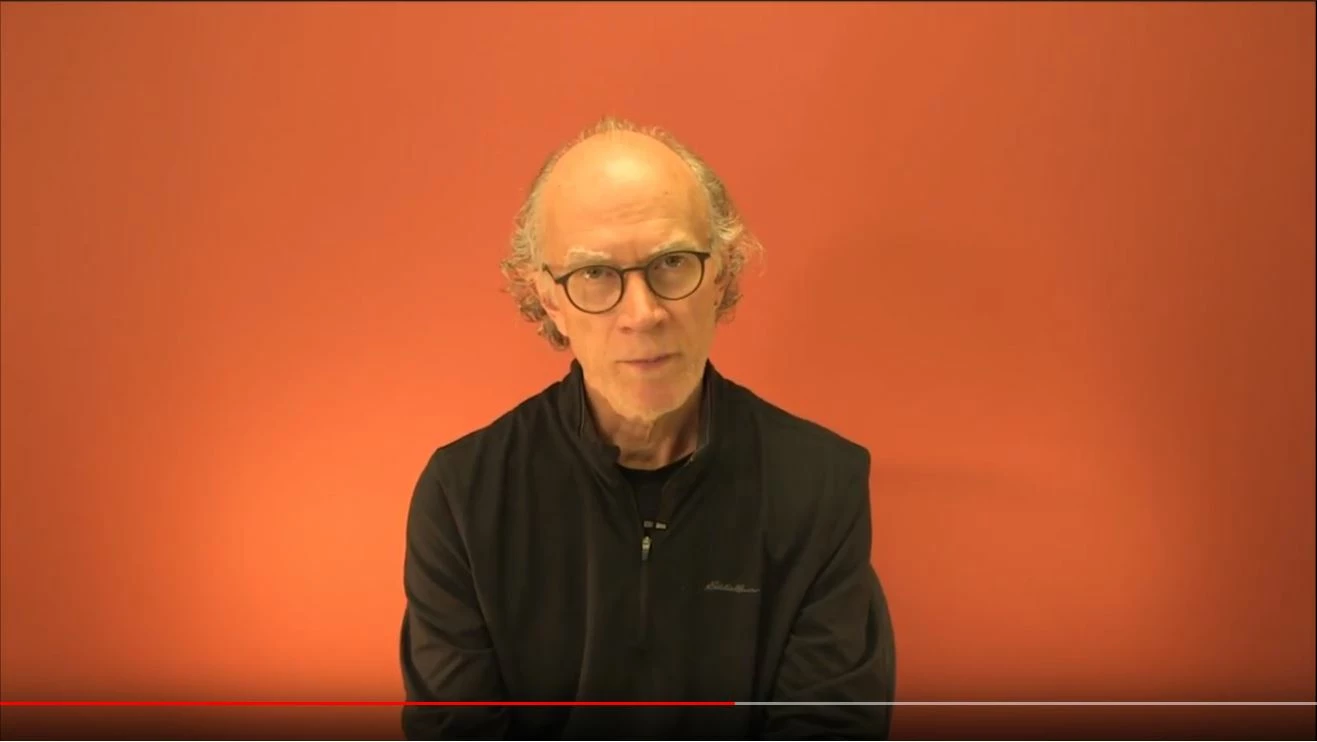
To try and troubleshoot this issue, I've been sizing a video (embedded as a web object) at the same dimensions it was rendered (1280 x 720). The same issues appear with different dimensions, though, even while making sure that the aspect ratio remains accurate. Captivate is cropping my video at the bottom in a noticeable way, that appears both in the web object preview (while course building in Captivate) as well as the published course. While inside Captivate, it doesn't look like there's any cropping on top of the video. Looking at the published version, though, some of the top is replaced by a black bar. Most of my tests have been done with a video via YouTube. I tried embedding a video from Vimeo as well; the same issues were present, except that the top was actually cut off both inside Captivate and in the published course.

I'm attaching some examples of what I'm talking about below. The first image is how my video appears in YouTube, the second image is how it appears while course-building in Captivate (slightly shorter on bottom, with the YouTube logo cut-off), and the third image is how it appears after the course has been published (part of the bottom is still cropped off, and there's a black bar at the top).

I'm using the 64-bit version of Captivate 2017, 10.0.0.192.
    This topic is closed to new replies. Start a new post to keep the conversation going.

    4 replies

    Known Participant
    April 24, 2018

    I'm still struggling with this issue, after spending an inordinate amount of time trying to address it. I'm surprised it's not something that there have been more discussions about.

    I did discover that utilizing the YouTube widget will actually size my video properly. Unfortunately, I can only get the widget to play properly through the preview option (F11), and when I try to publish my course the slide with the widget is not functional.

    I saw some other posts in the forum about similar issues, where it was suggested that using the 'YouTube Fixed' widget would get things to work, but that did not change anything for me. I also saw something suggesting that the F11 preview works because it's utilizing HTML5 instead of SWF, but it does not work for me either way.

    When I try running the published course directly from my computer, it takes some time for the widget to load but when it's done the slide just stays blank where the widget should be. When I try running the published course on Scorm Cloud, a YouTube video window shows up where it should but it states 'An error occurred. Please try again later'.

    It's quite frustrating that I'm not able to properly embed a video into a course through Captivate; this seems like it should be a given. As things stand, I might need to end up purchasing and learning an entirely new authoring tool just so that I can have videos display properly!

    Any guidance is greatly appreciated.

    RodWard
    Community Expert
    Community Expert
    April 25, 2018

    Have you tried using the Web Object instead of the YouTube widget?  You can use the embed code from YouTube there as well.

    Known Participant
    April 25, 2018

    Thanks for the suggestion, Rod, but bringing in video as a web object is what I had primarily tried first and what was giving me all of the cropping and sizing issues. Please see my initial post for details.

    Yesterday evening I was finally able to get the YouTube widget to work for me, though frankly I don't know how or why-- I had tried several different iterations of the widget without success, but somehow managed to hit a working combination of the right widget iteration and settings. I'll note that the course had to be published to my LMS or SCORM Cloud in order for the widget to display properly. Rod, I think it was actually your advice on another forum post that reminded me I needed to test things that way every time.

    Using the YouTube widget makes me a bit nervous, as I see that there have been some massive issues with it in the past when Google / YouTube changed their API. It looks like I'll have to just keep my fingers crossed that something like that doesn't happen again, since I'm not able to get videos to display properly as web objects.