Known Participant
April 29, 2015
Answered

Make Captivate behave more like Powerpoint?

  • April 29, 2015
  • 1 reply
  • 381 views

Hey all,

I'm working on a project where we want to use Captivate as our platform (so it's HTML-friendly and responsive), but we'd like for it to behave more like Powerpoint. The two main features we'd like to have are:

  • Allow for a mouse-click anywhere on the screen and/or keyboard shortcut to advance the presentation, rather than having to click a specific button to continue
  • Allow for there to be objects that appear in succession on the same slide. If there's a square, a circle, and a triangle on a slide, what's the best process for having them fade in one at a time? It seems like click boxes and pausing might be the way that we have to do this, but I'm hoping there's an easier alternative. (or one that makes more sense to me)

Any help is greatly appreciated.

Thanks
This topic has been closed for replies.
Correct answer Lilybiri

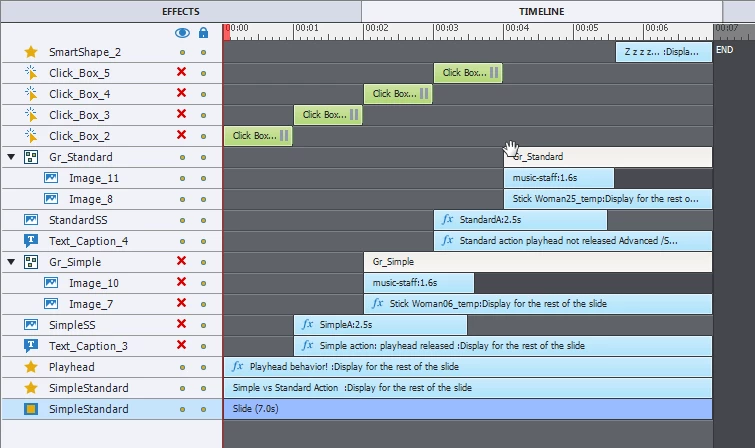
You need only a click box if you want to control the appearance of the next object by a click. If they can appear automatically after each other (in sequence, is also possible in PPT) you don't need click boxes. Here is a pretty complicated example, where I needed clicks for a presentation on an Adobe Summit:

You see 4 click boxes, which I put on top of each other on a specific location of the slide, which is possible because they are staggered, not active at the same moment. They have the action 'Continue'. I didn't put them over the whole slide, because there was also a shape button functioning as Next button that is not visible here because it is on the first slide, timed for the rest of the project.

1 reply

Lilybiri
Legend
April 29, 2015

I will never understand why PPT seems to be the holy cow, it is a great presentation tool with the usual MS quirks and bugs, but for eLearning?

OK, here some answers

  • Put a click box on each slide that is timed for the rest of the slide, resize it to the slide size and set its Success command to 'Go to Next slide'; can even be done automatically if you import a PPT
  • Time everything in PPT and set the sequence of the objects to appear On Click and import the PPT. No control anymore, but you end up with a movie that will respond to your clicks.

If you want a presentation, created from scratch in CP, you'll need the click boxes with Continue as command. Not so hard, once you get the hang with shortcut keys for copying; moving on the Timeline etc.

Known Participant
April 29, 2015

Thanks for your reply! It was very helpful.

I would like to create the presentation from scratch in CP. But one question about the click boxes...will I need as many click boxes as there are items that I'd like to appear per slide? In the triangle/square/circle example, will I need three click boxes all set to continue?

Also, if I do need three click boxes, would I make them all the size of the slide? And where in the timeline do they go? Immediately after the previous item appears? This part is what's most confusing to me about CP right now.

Thanks again

Lilybiri
LilybiriCorrect answer
Legend
April 29, 2015

You need only a click box if you want to control the appearance of the next object by a click. If they can appear automatically after each other (in sequence, is also possible in PPT) you don't need click boxes. Here is a pretty complicated example, where I needed clicks for a presentation on an Adobe Summit:

You see 4 click boxes, which I put on top of each other on a specific location of the slide, which is possible because they are staggered, not active at the same moment. They have the action 'Continue'. I didn't put them over the whole slide, because there was also a shape button functioning as Next button that is not visible here because it is on the first slide, timed for the rest of the project.