

Participating Frequently
May 10, 2022
Question

multi column of checkboxes selection

  • May 10, 2022
  • 1 reply
  • 348 views

Hi,

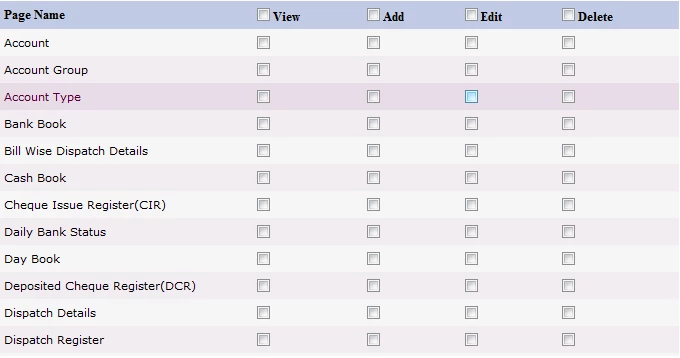
In captivate, how can I make a multi column of checkboxes selection like the picture below? 

Thanks!
    This topic has been closed for replies.

    1 reply

    RodWard
    Community Expert
    Community Expert
    May 10, 2022

    Look in the Learning Interactions for the Checkbox widget.  That would be one way to add an array of checkboxes like the ones shown in your diagram.  However, you will likely be disatisfied with the amount of customisation available with this widget.


    Another possibility is to set up a Shape Button with custom object states to create the illusion of a checkbox.  You would also need to set up Advanced Actions (most likely Shared Actions) that allow you to change the state of each button when clicked to simulate the effect of selecting the checkbox. 


    Be warned that what you are trying to attempt there can get quite complex if you also have custom interactivity and User Variables attached to these checkboxes.

    Participating Frequently
    May 10, 2022

    Thank you so much for your reply.


    I'll make the shape button.


    Have a nice day 🙂

    Lilybiri
    Legend
    May 10, 2022

    To add some more tips to Rod's great answer.

    You could also use bitmap images or SVGs used as button, it is not necessary to have a shape button which has the big advantage that you can define its object style. SVG as button has the advantage or remaining crisp at any size.

    Do not reject the Checkboxes interaction because it can be quite powerful and its inbuilt features will save you a lot of time. It has less styling options, but you can add multiple checkbox interactions to a slide. 

    If you keep with a custom button (shape, image or SVG) and you want to 'do' something with the result:

    • Get rid of the Rollover and Down states and keep only the Normal and the Custom (which shows the selection) state. That will allow you to use 'Go to Next State' to toggle the button between the two states infinitely, which may save you time especially if you opt to go for a shared action (to be recommended indeed).
    • For the associated variable: choose a Boolean variable, so that you can use the Toggle command instead of Assign, same reason as for the two states, saving time.
