Known Participant
April 23, 2016
Answered

Multi State Objects - How to Create an active/down state AND a visited state Captivate 9

  • April 23, 2016
  • 2 replies
  • 2313 views

Hi

I am hoping that someone might be able to help me understand how I am best to achieve having an 'active/down' state and a 'visited' state.

I have a screen with a number of buttons - when the learner clicks a button they are shown different information (easily click reveal sort of interaction) that I can now do with the multi state object functionality in Captivate 9.

However can I use 'states' to show they have visited a button.

The scenario is as follows:


Screen has 10 buttons.

E.G. Normal (not yet visited) - button is blue.

Active/Down (learner has selected button)  - button is purple.

Visited - button is green.

Thank you.

Lisa 

This topic has been closed for replies.
Correct answer Lilybiri

Sorry, but Lisa is NOT asking about the InBuilt states (Normal, Rollover, Down) at all! Read the question carefully, please.

She is asking about a 'Clicked' state, which is NOT and InBuilt state at all.

@Lisa  The easiest way is with states. I mostly use shape buttons, because they are so much more flexible than the older types of buttons. You see in this Object State panel, that I changed the text on them for Rollover and Down state, that is impossible for Text and Transparent buttons, and for image buttons text must be in the image which means that every time you want to change the text you have to recreate the three images. Not very user friendly, because it even has to happen in another program.
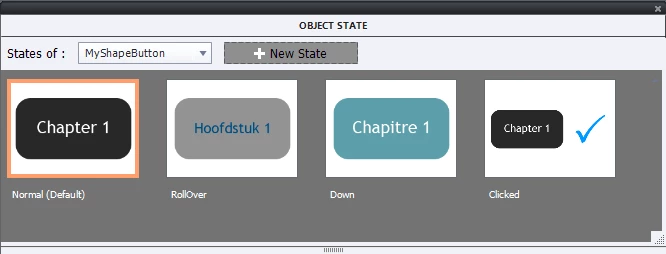
You see that on top of the three InBuilt states I created a custom state 'Clicked'. Do not let you confuse by this panel: the button has the same size as in the InBuilt states, but the thumbnails have a fixed size, hence the last state is showing more of the stage than the three InBuilt states.

If you want the Down state to be the same as the Clicked state, you can do that perfectly as well, but I wanted to show that it is a different state. With this setup you can have the Clicked state replacing the Normal state (beware: the Rollover and Down states will remain the same) after having clicked the button with this work flow:

  • Create a standard advanced or shared action (in this article I used shared actions: 1 action = 5 Toggle Buttons - Captivate blog
  • Add the command 'Change state of MyShapeButton to Clicked
  • Put the command that you want to be executed by that button (like Jump to Slide X)

If you are navigating away of that slide, the state 'Clicked' will only be preserved in 9.0.1.320 - not in the previous version - if you check the option 'Retain State on slide revisit' which you'll see in the upper part of the Properties panel of the button.

Let me know if this is what you are looking for? If you want to have the Rollover state to be changed as well, you'll need two buttons, and will have to replace the first button by the second one that shows all states in a Clicked version.


2 replies

Participating Frequently
April 23, 2016

Hi Lisa. Two options for you

1. If you are inserting a button (Interactions > button thend you can create an image button with these states and name them image_up.png, image_over.png and image_down.png. then you just choose the up button and captivate does the rest.

2. This is the best option in my opinion. You can insert a smart shape and tick the box in properties to use a button. As soon as you do that in captivate 9 below the tick box you'll see new states for up down and over. Click the edit states button and you can change the look and feel for each of states by selecting the state thumbnail and changing properties in the normal way.

Comment Moderator: both propositions are not talking about having a 'clicked' state but only about having the normal states for buttons: Up (labeled 'Normal' in CP9), Rollover (or Hover, or Over) and Down. Having a Clicked state for the same button is not possible with image buttons, it can be done with States in CP9 only. Look further in the thread for explanation.

Lilybiri
LilybiriCorrect answer
Legend
April 23, 2016

Sorry, but Lisa is NOT asking about the InBuilt states (Normal, Rollover, Down) at all! Read the question carefully, please.

She is asking about a 'Clicked' state, which is NOT and InBuilt state at all.

@Lisa  The easiest way is with states. I mostly use shape buttons, because they are so much more flexible than the older types of buttons. You see in this Object State panel, that I changed the text on them for Rollover and Down state, that is impossible for Text and Transparent buttons, and for image buttons text must be in the image which means that every time you want to change the text you have to recreate the three images. Not very user friendly, because it even has to happen in another program.

You see that on top of the three InBuilt states I created a custom state 'Clicked'. Do not let you confuse by this panel: the button has the same size as in the InBuilt states, but the thumbnails have a fixed size, hence the last state is showing more of the stage than the three InBuilt states.

If you want the Down state to be the same as the Clicked state, you can do that perfectly as well, but I wanted to show that it is a different state. With this setup you can have the Clicked state replacing the Normal state (beware: the Rollover and Down states will remain the same) after having clicked the button with this work flow:

  • Create a standard advanced or shared action (in this article I used shared actions: 1 action = 5 Toggle Buttons - Captivate blog
  • Add the command 'Change state of MyShapeButton to Clicked
  • Put the command that you want to be executed by that button (like Jump to Slide X)

If you are navigating away of that slide, the state 'Clicked' will only be preserved in 9.0.1.320 - not in the previous version - if you check the option 'Retain State on slide revisit' which you'll see in the upper part of the Properties panel of the button.

Let me know if this is what you are looking for? If you want to have the Rollover state to be changed as well, you'll need two buttons, and will have to replace the first button by the second one that shows all states in a Clicked version.

Participating Frequently
April 23, 2016

My apologies. I did reply to Lisa privately re a custom visited state and shared actions. Didn't get around to updating it here but won't now as you cover it.

Known Participant
April 23, 2016

I think that I may have to do this using Advanced Actions and Variables still like in Captivate 8? Is this right?
