sam_amara
Known Participant
July 17, 2023
Answered

Multiple Clicks Possible on Submission Button - Constant Score Increase - Changing Answers Possible

  • July 17, 2023
  • 2 replies
  • 1413 views

Good evening, all; 

I'm hoping to get a bit of support with a tester I've been trying out. In a project I'm working on, I wanted to create a sort of non-quiz KC type activity that keeps a score on the screen. I created a separate single-slide project from scratch just to test to see if I could do it and was kind of pleased when it worked...in principle that is: the user selects the correct answer, clicks submit, sees positive feedback and the score goes up by 10 points or the user selects the wrong answer, clicks submit, sees negative feedback the score decreases by 10. The 'submit' action is limited to one attempt (see image below):
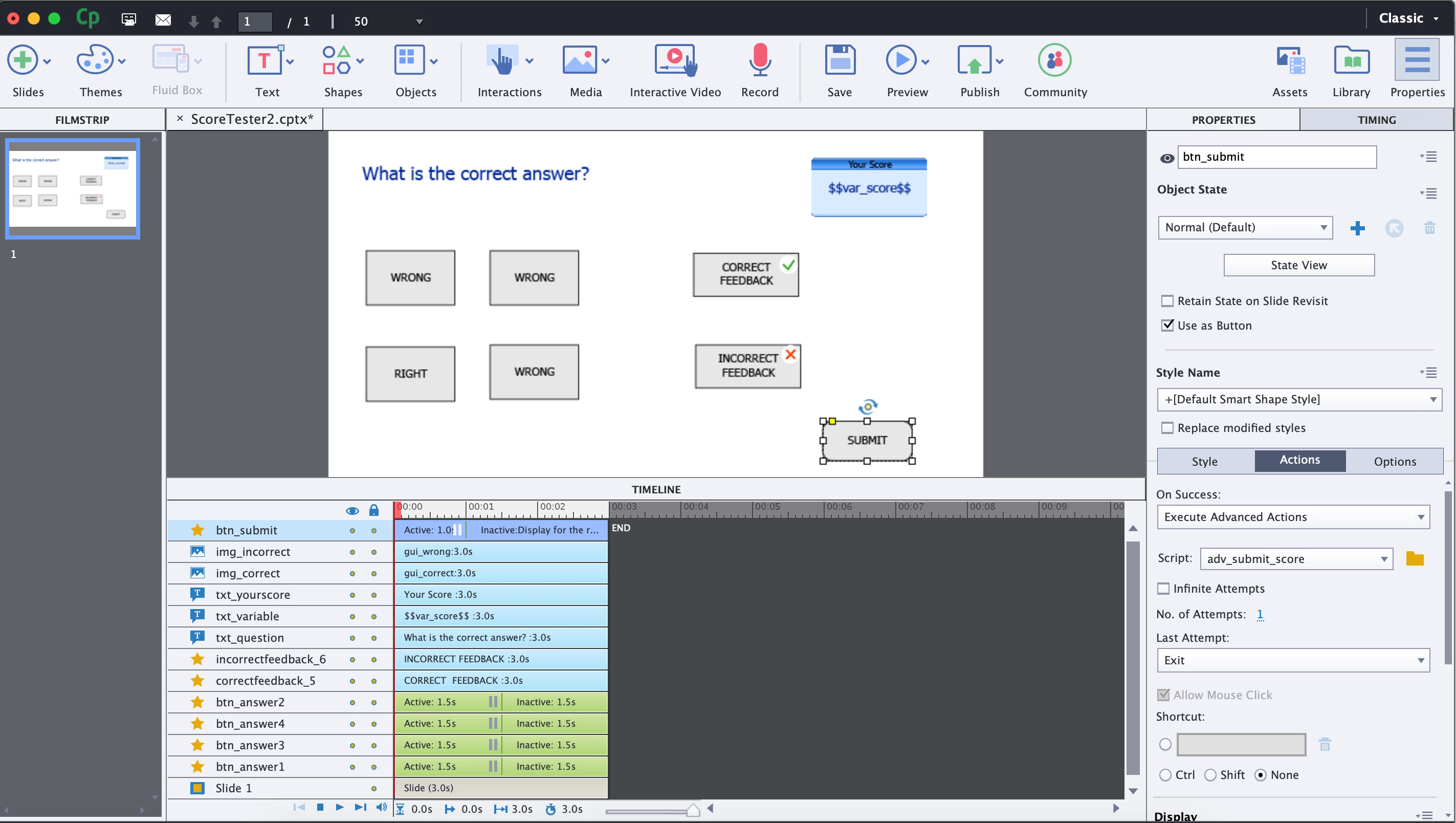
 

  • The first problem is that I can choose the wrong answer and just keep clicking Submit over and over (even though it's set to one attempt...?) and the score continues to decrease.
  • The second problem is that I can then just click the correct answer (even though it's set to one attempt...?) and then just keep clicking Submit over and over again and the score continues to increase (See both issues in the attached video).

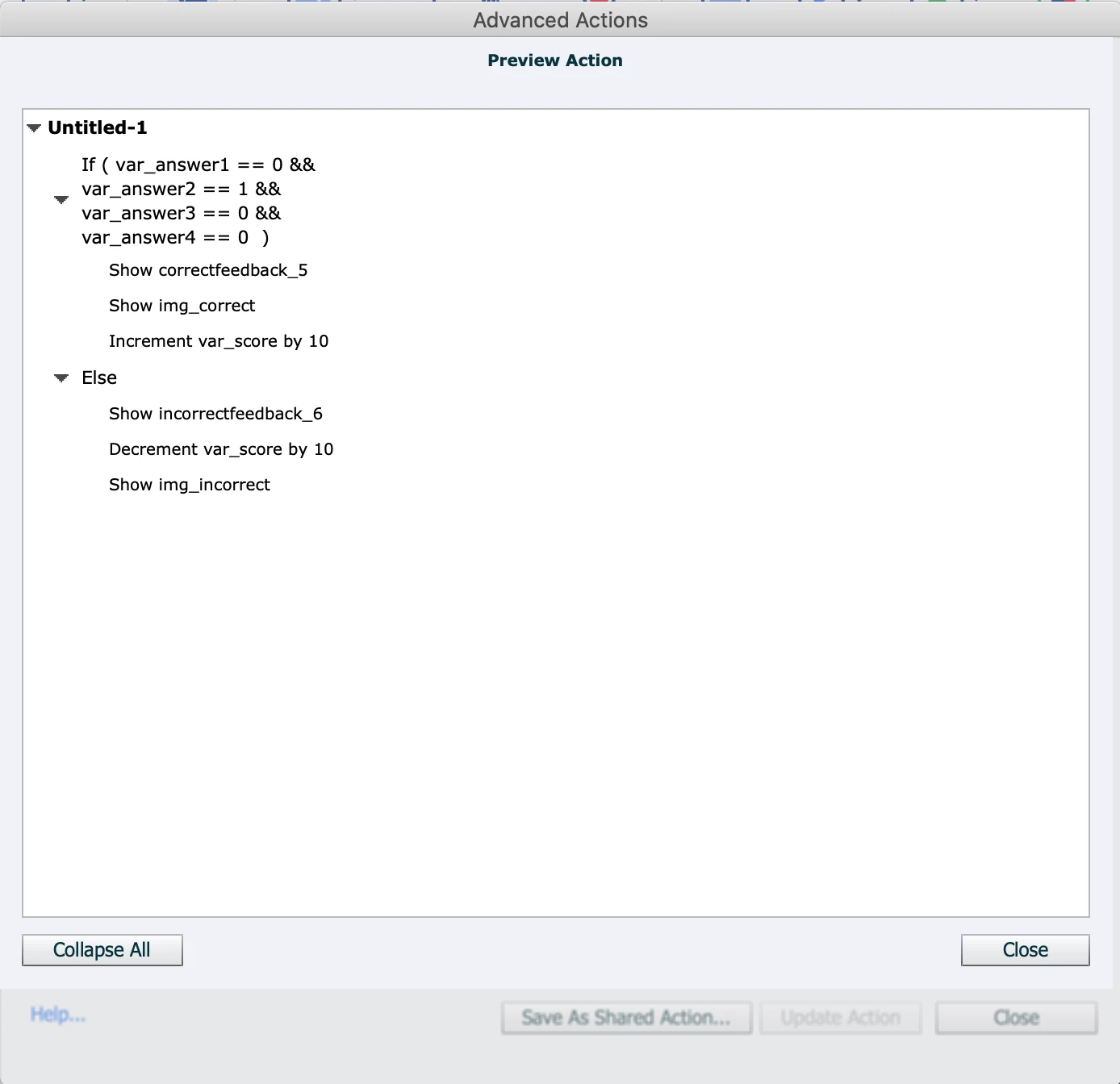
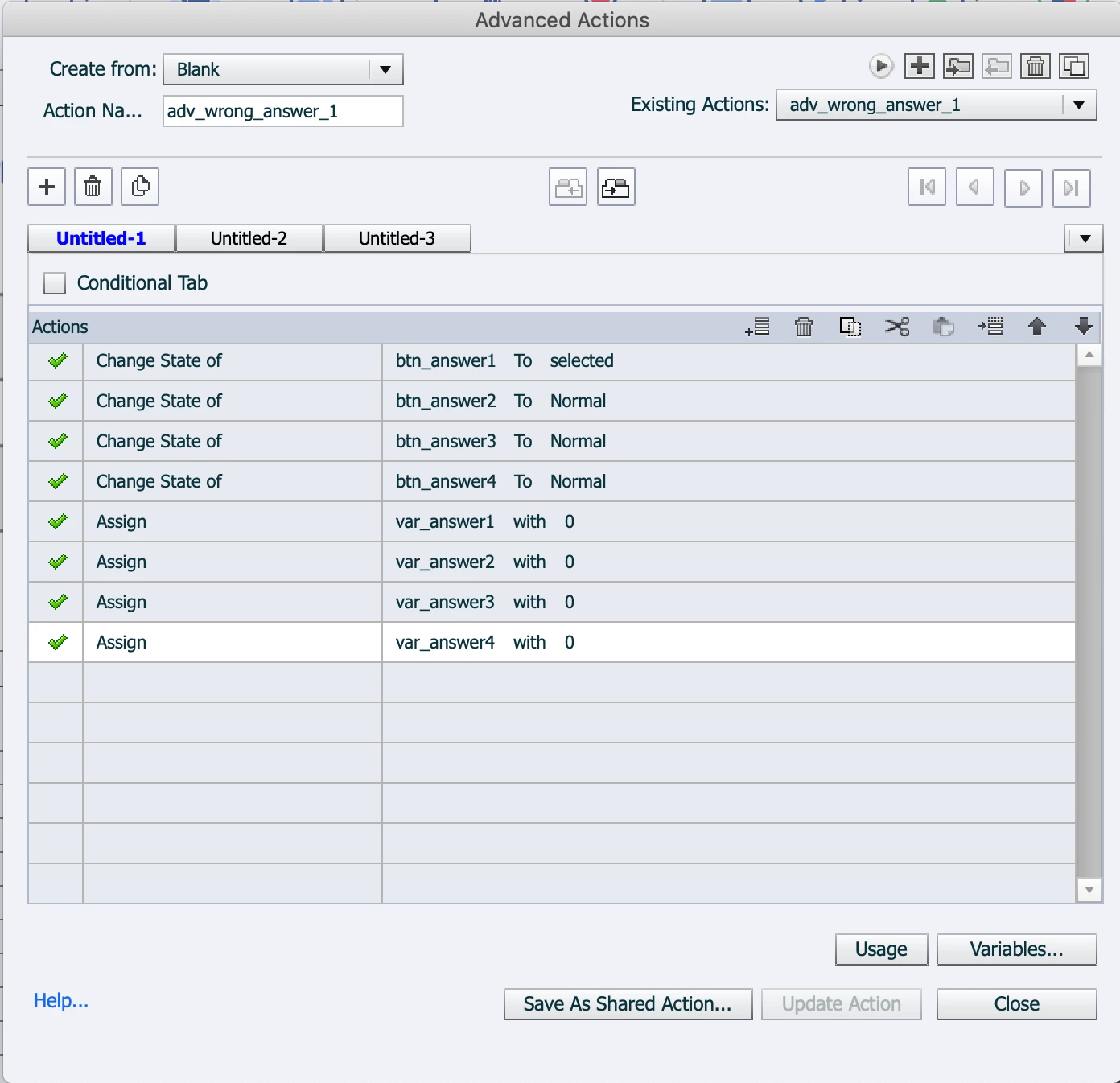
I have variables and three advanced actions: one for when someone clicks on the correct answer, one for when someone clicks on the incorrect answer and one for what happens when they click on Submit: 
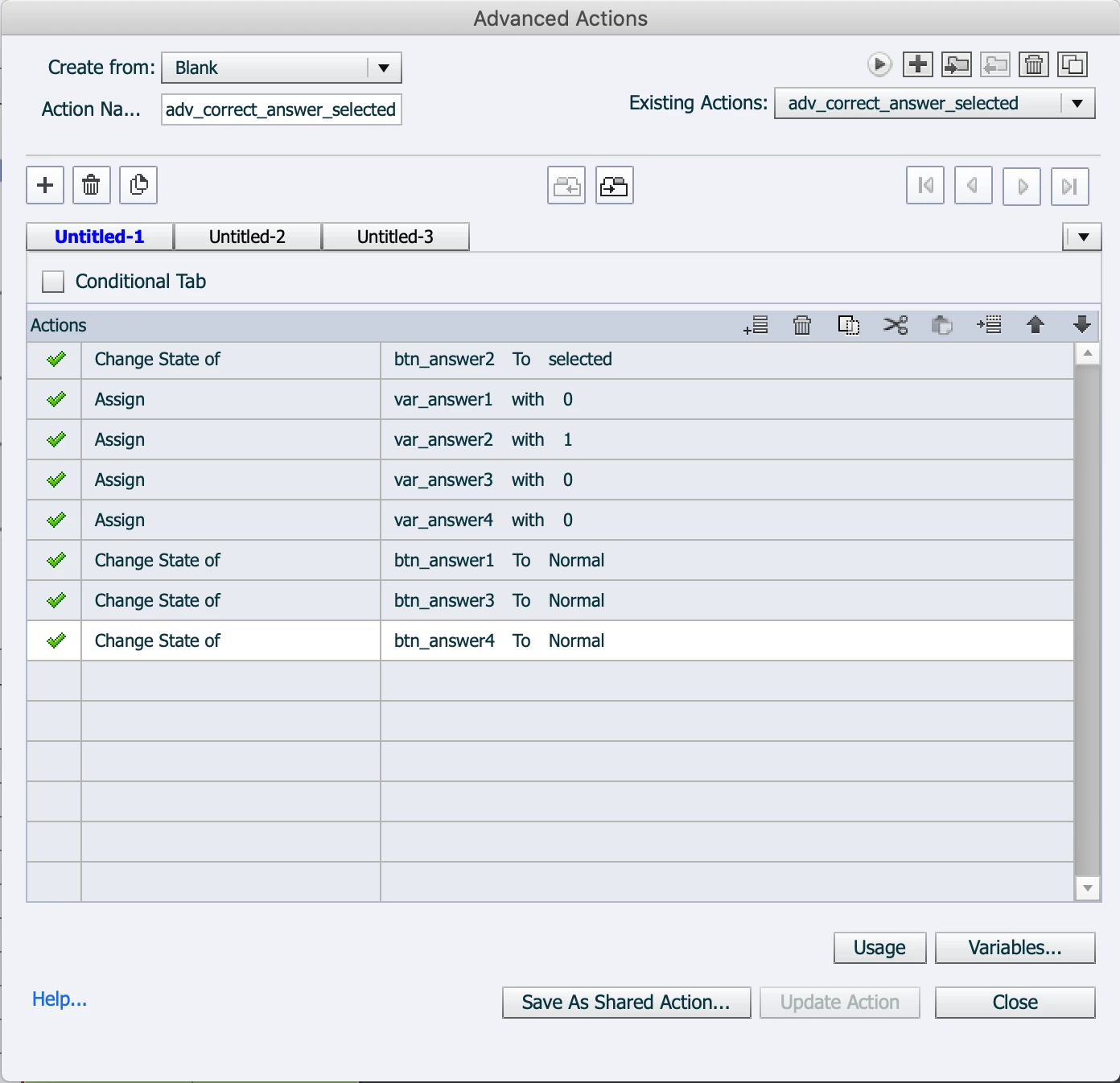
I don't uderstand why those two issues are happening. Likely I'm overlooking something simple and/or this activity wasn't as simple to create as I thought. 

Any ideas or suggestions would be appreciated!

Thanks in advance 🙂

 

    This topic has been closed for replies.
    Correct answer Lilybiri

    You need to really limit to one attempt.  There are a couple of possibilities:

    1.  Disable the Submit button when it has been clicked by adding that action to both the Success and Failure action. That will be the most foolproof. You keep the Submit button available, so it can be clicked as many times as the learner wants.
    2.  Use the Delay command to keep the Feedback message for 3 (or more, up to you) seconds, and add than the command 'Go to Next Slide'.


    2 replies

    Dirlo
    Inspiring
    July 18, 2023

    Hello !...

    I also made such quizzing slides...

    Maybe you can simplify them by deleting the "submit button" and attached your actions directly to the answers, by clicking on them.

    So you'll need only one correct and one incorrect actions...

    And so you won't need all these variables any more (var_answer1...)...

    And if you desable the answering-buttons when clicked, you also don't need to care with the changing states !...

    I don't know if I'm very clear...

    So here is a simple example of this :

    https://soutien67.fr/tableau/CP/CP-M-C10_1/index.html

    😉

    sam_amara
    sam_amaraAuthor
    Known Participant
    July 18, 2023

    @Dirlo - merci! This is indeed a very nice and simplified solution. Thank you for sharing! I will certainly have a closer look as I think this will serve well in another part of the project (and perhaps this one). Thanks again!!

    Lilybiri
    LilybiriCorrect answer
    Legend
    July 17, 2023

    You need to really limit to one attempt.  There are a couple of possibilities:

    1.  Disable the Submit button when it has been clicked by adding that action to both the Success and Failure action. That will be the most foolproof. You keep the Submit button available, so it can be clicked as many times as the learner wants.
    2.  Use the Delay command to keep the Feedback message for 3 (or more, up to you) seconds, and add than the command 'Go to Next Slide'.


    sam_amara
    sam_amaraAuthor
    Known Participant
    July 17, 2023

    As always @Lilybiri thank you so much for your feedback and suggestions. Disabling the Submit button will do exactly as I need. Thanks 🙂

    Lilybiri
    Legend
    July 17, 2023

    If you allow multiple visits to this slide, don't forget to Enable the Submit button with the On Enter event of the slide.