Known Participant
January 17, 2016
Answered

Need slow, step-by-step instructions on creating an advanced action - Captivate v9

  • January 17, 2016
  • 1 reply
  • 1675 views

If someone is willing to help, it would be greatly appreciated... the "codes" and choices in the dropdowns on the Advanced Action screen make no sense to me. I need verrry slow, step-by-step instructions for the complete idiot.    General "if... then" steps would help, but here is what I'm trying to do specifically:

On my screen I have three statements, each with a checkbox. The user has to check all three boxes before the Next button will take them to the next screen. If they only check one box or two boxes, a text box needs to appear when the Next button is clicked.

I *think* I have the necessary components on the screen, but need to verify that too. The three checkboxes are Smartshapes with two states (unchecked and checked), the Next button is a Smartshape (no states), and the text box that needs to appear when user clicks Next with less than three checkboxes is also a Smartshape (no states).

If you can help, awesome... let me know what other info might help...

Chuck
    This topic has been closed for replies.
    Correct answer Lilybiri

    Ok, I'll use transparent shape buttons for the checkboxes. It's when I get to the Advanced Action screen that I need slow, simple, step-by-step instructions, with as little extraneous info as possible... just the steps. I'm thinking there are probably separate actions I need to set up, but again, not sure about that either... Need steps for:

    1. How to make the text box appear when the user clicks Next with only one or two of the checkboxes clicked (and stay on that screen).

    2. Moving to next screen if they click and all three checkboxes are checked.

    If you're wiling and able to lay these steps out for me on the Advanced Action screen, that would be great. If not, I'll keep searching for some kind of general Advanced Action tutorial. The links you provided are helpful to a degree, but without the steps on the Advanced Action screen, I'm lost.


    Create 3 user variables: v_one, v_two, v_three with a default value of 0. They will track if the check box has been marked or not. Value=0 means not checked, Value=1 means checked.

    The images for the check boxes have two states:  Normal (no checkmark) and Checked, the image itself I will label Im_one, Im_two, Im_three

    Create the Text caption or shape with text, label it Message and make it invisible in output (eye icon on Properties panel).

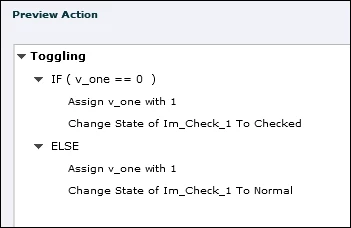
    Each of the transparent shape buttons over the images has to trigger a conditional action; I would create a shared instead of an advanced action. It will look like this (example for first action):

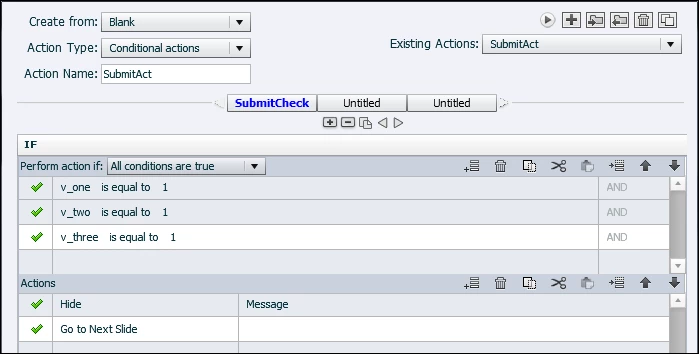
    As for the Submit button, this conditional advanced action will do:

    The ELSE part has only one command: "Show Message"

    Be sure to put the pausing point for the 4 shape buttons at the same place.

    1 reply

    Lilybiri
    Legend
    January 17, 2016

    Each shape button has always three InBuilt states! What do you mean with a Next button that has no states? Look in the Object Style Manager to the category Shape: you will see that all shape styles have always 3 InBuilt states: Normal (default), Rollover and Down.

    Since you have to click the check boxes: those have to be Shape buttons as well, or you cannot click them. Again: they need 3 InBuilt states. You can add a custom state as well. I have examples in this blog post:

    1 action = 5 Toggle Buttons - Captivate blog

    Why do you not use the checkboxes learning interaction? That learning interaction has user variables associated, with as many variables as you have checkboxes. In your case: three. I used this checkboxes interaction in this blog post:

    Tips - Learning Interactions - Captivate blog

    What has to happen when the three checkboxes are checked? Only going to the next slide?

    Known Participant
    January 17, 2016

    The checkbox interaction doesn't let me customize the look of anything... I need to have more options, so I'm trying to create the actions with Advanced Actions.

    Yes, I see the three states on the Next Button now... I didn't know they were there. I haven't changed them in any way. The checkboxes are Smartshapes, with two states... unchecked and checked... they are clickable, and show the checkmark when clicked. Do I need to change them to Buttons so they have three states for what I'm trying to do?

    And your last question... yes, when the user clicks Next and all three boxes are checked, it only needs to progress to the next screen. When they click Next and only one or two boxes are checked, a text box needs to appear.

    Thanks for your help... as mentioned in my initial question, I'm just looking for someone who's patient enough to give me step-by-step instructions for these actions.

    Lilybiri
    Legend
    January 17, 2016

    They have to be shape buttons, because a click has to do more than just change to another shape. You have to toggle a variable, that tracks if the that checkbox is set to another state, which is not possible if it is not a shape button. Did you read those articles for which I provided a link? For the check boxes you have two options:

    • You are OK with just changing the normal state when clicked (as I demonstrated in that first article)? That article explains how to create an extra custom state on top of the three InBuilt states.
    • You use a transparent shape button (or a click box) on top of the two images: one without and one with a check mark.

    That is first what you have to decide. In the first scenario, you'll have the same Rollover and Down state for one shape button. In the second scenario the user will not see any state, because the three InBuilt states have to be made 'invisible' by setting the Alpha to 0 and the stroke width to 0. Click box is easier (has no visibility) but cannot be timed for slides in sequence, something you probably don't need.