abl349
Participant
June 2, 2015
Answered

New to Captivate - Image Resize

  • June 2, 2015
  • 2 replies
  • 3085 views

Hello,

I've just started with Captivate, and have version 8.  I previously used PowerPoint 2010 and find that there are not the same edit capabilities with images.  Are there instructions that I am missing that will allow me to simple resize a jpg or image without distortion?  Even if I resize outside Captivate and bring in through media the image resizes itself.  I don't use Photoshop so am hoping for simple solutions.  Thank you.
This topic has been closed for replies.
Correct answer Captiv8r

Hi there

To rescale images without distorting them, you need to ensure you adjust both width and height by the same amount.

If you are one that likes to resize using the click and drag method, press and hold the Shift key as you click and drag a corner sizing handle.

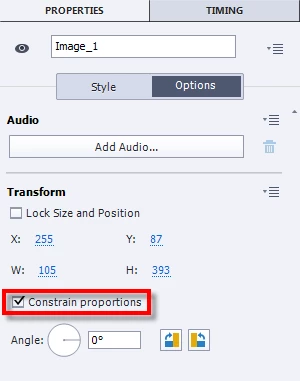
If you prefer to use the properties panel, you need to ensure the option "Constrain Proportions" is enabled.

Cheers... Rick

2 replies

abl349
abl349Author
Participant
June 2, 2015

Thank you.  That did the trick on images that I could import without being distorted from the get go!  I didn't remember that constrain proportions would allow me to edit the size without having to change each coordinate.  I will get there!

Captiv8r
Captiv8rCorrect answer
Legend
June 2, 2015

Hi there

To rescale images without distorting them, you need to ensure you adjust both width and height by the same amount.

If you are one that likes to resize using the click and drag method, press and hold the Shift key as you click and drag a corner sizing handle.

If you prefer to use the properties panel, you need to ensure the option "Constrain Proportions" is enabled.

Cheers... Rick