


December 2, 2014
Question

Options missing from Properties window for smart shape

  • December 2, 2014
  • 20 replies
  • 13934 views

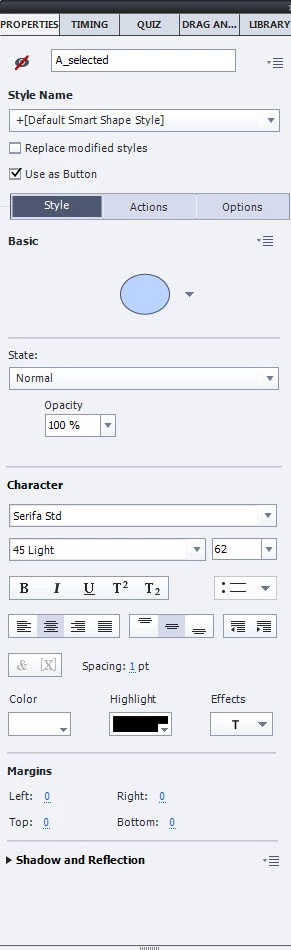
I feel really stupid. I recently updated my Captivate 8 to 8.0.1.242 and now I can't figure out how to change the color of my smart shapes. I don't see the fill or stroke settings. Is there somewhere new I should be looking? Shouldn't they be under the "State" area? All is see is the opacity setting.
This topic has been closed for replies.

20 replies

Participant
November 25, 2021

Hello there,
I was experiencing the problem you mentioned and a similar problem in Adobe Captivate 9, which I used before. One of the problems is exactly what you mentioned, and the other is that the area where we check the font properties is not visible. Now I am using Adobe Captivate 2019 version 11.5.5.553. And I am still having this problem. I have no idea why, but when I close the program and open it, the font properties not showing up fixes my problem. I'm having the same problem again in a very short time. While working on a project I have to turn it on and off many times and it's frustrating. I have the same problem even when I reset my preferences. I would be glad if you can suggest a solution.

TLCMediaDesign
Inspiring
November 29, 2021

This still happens, the only way I've found is to close Captivate and re-open.

Timothy Bergkvist
Inspiring
November 29, 2021

Try storing your cache and working files on a non-networked folder such as C:\Temp. Captivate doesn't work very well on networked folders or folders that are regularly backed up by enterprise software. I think it might have something to do with file-locking during the backup. It's a shot in the dark, I know, but this problem has persisted for many years and shows up seemingly at random. I haven't had it happen to me in over a year, so I suspect I'm doing something right. Either that or I've been extremely lucky.

Known Participant
December 1, 2020

Hey y'all, that there version of Cp yore workin' on is now old and smells like a cow pie. If'n you update the application from the menu Help>Check for Updates, you'll notice that the latest version is now 11.5.5.553


Now if you'll pardon me, I gots ta get back to ropin' some steers.


Signed,

An Old Cowhand/Captivate User

January 8, 2019

January 2019, Captivate version 2019 and this issue is still NOT solved and this thread has been set to "Presumed Answered". It is NOT answered and is again affecting my system with a vengeance.

Official line from Support if you report it as a bug is to clean preferences. This DOES NOT always work. Neither does cache clearing, restarting, or anything else rather than "waiting and hoping for the best".

Lilybiri
Legend
January 8, 2019

You know I do follow all threads on the forum, and I already answered that I never had that problem appearing since CP2017. This means it is an individual issue on your system, and I wonder if it is due to Captivate or to some other cause?  I use Captivate on 3 systems, including a limited Surface Pro, an old desktop (Win7) and a powerful gaming laptop.  Quite a diversity of systems. I needed to clean the Preferences in older versions once in a while but cannot remember doing it since 2 years (except when installing a patch). There must be a conflict with something,  cannot be solved in a user forum like this.

January 8, 2019

I agree that the problem won't be solved in this forum, but I'm annoyed that Adobe have set the thread to 'answered' and I think it's important that

a) Users with the same problem finding this thread realise that all the fixes listed might and might not work, and that the problem is still not fixed in January 2019

b) As I've had no meaningful response from Adobe Support and they appear to be doing nothing about it in at least two years, I think it might be useful to embarrass them in a public forum. This issue has cost me about 100GBP already today.

Participating Frequently
November 13, 2018

I agree. But this might not be a bug in Cp. If a component doesn't load due to an error with something like the file being corrupt on your hard drive, it won't prevent Cp from loading. Instead, the error is ignored and Cp continues to load without the component. I found out that I get this problem sporadically. It clears itself up all on its own. This happens, I believe, because on my enterprise network, the files are periodically locked for syncing. I moved my cache to a local drive that isn't synced (C:\Temp) and it hasn't occurred since. Some possible solutions might be, as @Lilibiri suggested, running as Administrator, use Spinrite (grc.com) on your hard drive to fix problems, or troubleshooting when this happens and trying to find a corresponding trigger.

Participant
November 11, 2018

I am using 2019 and I just ran into the issue. Been trying to solve it for 2 days now. I am beyond pissed off. This is costing real money! Where is Adobe??? Not one comment?

Lilybiri
Legend
November 11, 2018

I am sorry, but this is a user forum, not Adobe support. As I wrote before, I never had the problem anymore since CP2017, not in CP2019. Wished I knew what is causing this. Do you run Captivate as Admininstrator? Do you clean cache regularly? Everything is installed on your system, and the paths are pointing to folders on your system?

Participating Frequently
October 17, 2018

This is still an annoying bug. Trying everything listed above doesn't always work. If you try them again, it might work. I suggest keep repeating: Clear cache, close Cp, Clear cache, open project. Attempt to change smartshape properties. Try again. Reboot, etc.

Adobe, this is a very old bug. Please fix it. I suspect it may lie somewhere in the routine that selects which properties are available for the selected object. I'm guessing that it runs into an un-handled exception along that thread and relies on the parent thread to handle the exception--ignoring the display of that part of the panel. This is just a guess. Please fix.

Lilybiri
Legend
October 17, 2018

Which version are you using? I rarely had this problem with CP2017, and up till now never with CP2019.

Participating Frequently
October 17, 2018

Captivate 2017, version 10.0.1.285

Participant
August 9, 2018

This is ridiculous!!  This issue has been occurring in the software since 2016 (more than 2 years) and nothing has been done to fix it.  I am beyond mad!! My smart shapes worked just fine yesterday and today bam, it no longer works and I am missing the properties.  Nothing has changed on my end except I shut down my PC and turned it back on!!  I have wasted over an hour trying everything in this thread and nothing. I guess I need to stand on my head now.

How can we develop without being able to change a smart shape from the color of white.  Does adobe not read these forums and see the issue product owners are facing and fix those issues. 2 years is a little excessive for a problem to be existing with nothing from the product developer on a fix!!

Lilybiri
Legend
August 9, 2018

It is a user forum, I'm just a user. You tried everything? Run as Administrator, clearing cache, cleaning Preferences? Post

Participant
August 9, 2018

Yes I tried everything.  I restarted Captivate several times, I tried restarting my PC 3 different times.  I finally gave up.  Maybe tomorrow when I launch Captivate it will amazingly reappear.

Participant
May 31, 2018

I've been encountering this same issue for a while now.  I've been relying on hitting the tab key after selecting the font name and then copying/pasting the field in order to see what the text size is.  However, now that I'm also trying to add bullets to a text box now, I'm stuck without resolving this.

Suggestions I have seen from other forums suggest ensuring that your display custom scaling option is turned off, ensuring the maximum resolution is turned on for your monitor, disabling/re-enabling the custom workspace option, resetting the Captivate preferences, and reinstalling Captivate...all to no avail for me.

However, I'm starting to think this issue may have something to do with my fonts.  This problem may have started when I added fonts that had longer names.  Within Captivate, it seems like the font selection box is expanding to fit the full name of the font (even if it means going off of the screen and cutting off the other buttons and options contained in the properties panel).

I think there may be three possible solutions to this issue:

  1. Adobe patches/hotfixes the software so that the font selection box stays at a fixed width (even if it cuts off the full name of the font).
  2. Adobe patches/hotfixes the software to allow users to expand the size of the windows/toolbars/panels like every other Adobe product (e.g., clicking and dragging the edge of a toolbar to show/hide items contained therein).
  3. Manually shortening the fonts with longer names (or deleting problematic fonts altogether).

Solutions 1 & 2, if Adobe was willing to provide such support to its users, would ensure this issue is resolved now and in perpetuity with little to no effort required by the end user to remedy this situation.  Solution 3 is more problematic.

It's virtually impossible to rename a font once it has been installed in Windows without totally corrupting it; from what I have read on other forums, this was so the people that created the fonts wouldn't have their fonts plagiarized and resold...so in essence, the font designers do not want you to rename the fonts.  I just spend about an hour with our IT folks and we were unable to rename any of the installed fonts.  Additionally, renaming the font might not solve the problem since the name that appears in the properties control panel window reflects the name metadata contained in the file (and does not reflect the actual file name of the font).

Unless Adobe is able to provide hotfix for this issue, I'll have to copy/paste bullets from some other application and will have to continue to guess what my font size is within text boxes...

Participant
May 31, 2018

Update to this: I tried "hiding" the longer named fonts and that didn't help.

Inspiring
May 17, 2018

Using CP 9 and this issue is still happening. The "fix" is not the problem - we all know to reboot, restart, spin your chair, etc.  The fact that this still happens is both par for the course and disappointing.

Participant
February 14, 2018

I was having the same issue and after googling (is that a word now?) a bunch of stuff and came across this forum. After reading some replies, I went to the Project Info... section, under File and in the General Settings, checked the box next to "Enable customer workspaces/panels...," then restarted captivate. Surprise, surprise... it worked. I can now edit the shapes again. Not sure it if will stick, but it's working for now.

Lilybiri
Legend
February 14, 2018

You are switching to the Expert UI, by setting the Preferences, General settings (not Project Info, that a totally different option). Preferences can be foud under the Edit menu (Windows) or the Captivate menu (Mac).

The mentioned features can also disappear in that interface (I never use the Newbie UI). Resetting the workspace sometimes helps, in wrose ases you needs to restart Captivate.