
NotefrmSue
Known Participant
January 2, 2017
Answered

Org Chart Timing Question (Adobe Captivate 8)

  • January 2, 2017
  • 1 reply
  • 386 views

I am very new user to adobe captivate 8.   I am trying to create an org chart in adobe captivate 8 that is interactive.  I set up each of the roles below using smart shapes, and then set them up to act as  buttons.    I have the timing that each role of the chart will appear and as you click on each of the roles (buttons) the text you see pictures in the screen shot will appear.    The audio will tell end users to click on each role to learn more about roles and responsibilities.     It's functioning ok but not great.   Any suggestions for the following problems:

For timing the roles/responsibilities do appear when you click on them but I want them to disappear when you click on a different role and can't figure out how to make that happen.

Suggestions for making lines between the roles so it looks more like an org structure chart.   I'm afraid if the screen resizes the lines won't match up with the shapes if I draw them

Can I force the viewer to click on all of the items before being able to proceed?

How do I make the slide reset so if someone is on the next slide and hits back it restarts?
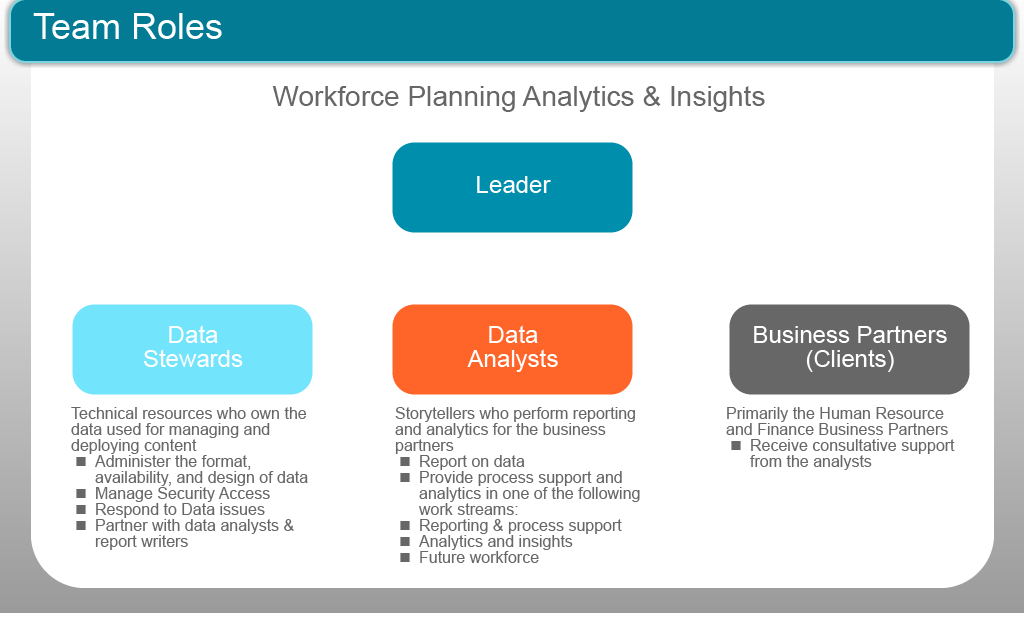
Hierarchy example for adobe chat.fw

This topic has been closed for replies.
Correct answer Lilybiri

I would have liked to see a screenshot of the Timeline.

You need to have the shape buttons pausing at the same time.

Create a Next button, that is hidden in Output.

The 'texts' to appear should be grouped. I will label that group Gr_Text

You need a user variable for each shape button, which will act as a Boolean to track if that button has already been used/

I will label them v_Leader, v_Steward, v_Analyst, v_Client.

Since you want to be able to reset the slide when revisiting, create an Advanced action to be triggered On Enter for that slide.

That action should reset all variables to 0, should hide the group Gr_Text, and the Next button:

   Assign v_Leader with 0

   Assign v_Steward with 0   Assign v_Analyst with 0

   Assign v_Client with 0

   Hide Gr_Text

   Disable Bt_Next

   Hide Bt_Next

For each shape button you'll need a conditional advanced action with 2 decisions:

  First decision 'Always' will be a mimicked standard action because of the condition that is always true:

      IF 1 is equal to 1

         Hide Gr_Text

         Show Tx_Leader                 this Tx_ will have to be edited for the duplicate action for the other buttons

         Assign v_Leader with 1       this v_ will have to be edited for the duplicate action for the other buttons

  Second decision 'CheckNext'

     IF v_Leader is equal to 1    AND

         v_Steward is equal to 1    AND

         v_Analyst is equal to 1    AND

         v_Client is equal to 1

    Show Bt_Next

    Enable Bt_Next

1 reply

Lilybiri
LilybiriCorrect answer
Legend
January 2, 2017

I would have liked to see a screenshot of the Timeline.

You need to have the shape buttons pausing at the same time.

Create a Next button, that is hidden in Output.

The 'texts' to appear should be grouped. I will label that group Gr_Text

You need a user variable for each shape button, which will act as a Boolean to track if that button has already been used/

I will label them v_Leader, v_Steward, v_Analyst, v_Client.

Since you want to be able to reset the slide when revisiting, create an Advanced action to be triggered On Enter for that slide.

That action should reset all variables to 0, should hide the group Gr_Text, and the Next button:

   Assign v_Leader with 0

   Assign v_Steward with 0   Assign v_Analyst with 0

   Assign v_Client with 0

   Hide Gr_Text

   Disable Bt_Next

   Hide Bt_Next

For each shape button you'll need a conditional advanced action with 2 decisions:

  First decision 'Always' will be a mimicked standard action because of the condition that is always true:

      IF 1 is equal to 1

         Hide Gr_Text

         Show Tx_Leader                 this Tx_ will have to be edited for the duplicate action for the other buttons

         Assign v_Leader with 1       this v_ will have to be edited for the duplicate action for the other buttons

  Second decision 'CheckNext'

     IF v_Leader is equal to 1    AND

         v_Steward is equal to 1    AND

         v_Analyst is equal to 1    AND

         v_Client is equal to 1

    Show Bt_Next

    Enable Bt_Next

NotefrmSue
Known Participant
January 2, 2017

That was very helpful.   It enabled me to find the advanced actions which before this point I couldn't even find.    I bought a book on amazon but it hasn't been very helpful to me.    Before I could try to follow your suggestions though, I need a little more direction about where or how to set up a user variable for each button.   I can't thank you enough for what you did tell me.  I thought for sure there must be more actions available and your response forced me to dig a little deeper.     THANK YOU!

Add your reply

Lilybiri
Legend
January 2, 2017

Project, Variables.

Add New

Name; type in a name (I suggested names)

Click Save.

You don't have to type in a (default) value, because you'll set up the value in the On Enter action.

Using Advanced actions instead of simple actions (since you are on CP8) will also prevent that the playhead is released. I explained this in a blog post, which has a link to a YouTube video as well:

Why choose Standard over Simple action? - Captivate blog

About books; not many good books around, sorry to say so.