brandonh44957168
Participating Frequently
March 1, 2017
Answered

Pause slide until user clicks playbar

  • March 1, 2017
  • 3 replies
  • 3851 views

Hi all, I am creating a project that will only utilize the project playbar to advance slides. How can I pause a slide until someone selects next or previous in the built in captivate playbar?

This topic has been closed for replies.
Correct answer Lilybiri

This is the quickest way:

  • Open the Master slide panel
  • Insert a shape button on the main master slide, you can make it invisible to the user by setting the Alpha for the fill to 0 and the stroke width to 0 as well.
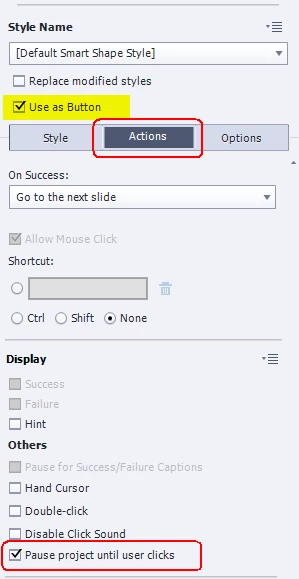
  • Go to the Actions tab of that shape button to verify that the option 'Pause Project until'.. is checked
  • All slides based on master slides that do embed the main master slide objects will now be paused at the end of their timeline. If you use a master slide that doesn't have those main master slide objects (Title master slide is an example) you copy/paste that button to that master slide as well.

3 replies

brandonh44957168
Participating Frequently
March 2, 2017

That worked, I finally understood what you meant today. Went and added a shape to the masterslide and hid it (note the shape has to literally be within the display screen, it cant be off to the side). This paused the project but allowed it to continue when selecting the playbar. Thanks so much!

Lilybiri
Legend
March 2, 2017

When you drag an object in the scratch area it will no longer be part of the published file, loses its functionality. Same as for hidden slides. Glad you figured it out. I really recommend to read the articles about the Timeline. All links can be found in this overview:

Challenges for Starters - Captivate blog

brandonh44957168
Participating Frequently
March 1, 2017

Ok maybe I'm going crazy but I create a smart shape, put it in the project, make it a button but the option for pause project until user clicks is not displayed. Is this a setting?

Lilybiri
Legend
March 1, 2017

Are you on the Actions tab? On the Main master slide? I showed you a screenshot.

I didn't ask: which version of Captivate are you using? The screenshot is taken in CP9, but is the same in CP8.

Lilybiri
LilybiriCorrect answer
Legend
March 1, 2017

This is the quickest way:

  • Open the Master slide panel
  • Insert a shape button on the main master slide, you can make it invisible to the user by setting the Alpha for the fill to 0 and the stroke width to 0 as well.
  • Go to the Actions tab of that shape button to verify that the option 'Pause Project until'.. is checked
  • All slides based on master slides that do embed the main master slide objects will now be paused at the end of their timeline. If you use a master slide that doesn't have those main master slide objects (Title master slide is an example) you copy/paste that button to that master slide as well.
ruthg84
Known Participant
March 1, 2017

Does this mean that if the user clicks on any other object on the slide, the project will continue? Or is it only if the user clicks on the shape button?

Lilybiri
Legend
March 1, 2017

You can make that button very small, so that they cannot click on it. You are only using it for the Pausing point. You can even change its action to No action.  You wanted to enable continue to Next slide only by the button on the playbar, correct?