April 2, 2013
Question

Placeholder buttons

  • April 2, 2013
  • 2 replies
  • 420 views

Hello,

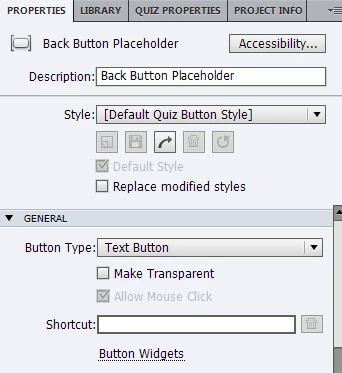
I'm trying to add a place holder button (like the default ones that are inside the quizes) to my theme master slides. I can't seem to figure out how to do this. I was able to make a Smart Shape (using a fill for an image) into a button, which worked for the majority of my content. However, I want to make a slide in the master theme that will link to an external website, which will be different for each project. With the Smart Shape i can't customize the url unless i go into the theme and change it (which I don't want). What I do want is to just be able to change the url directly on the slide - since the same master slide might be used in multiple locations with different links in it.

The buttons in the Quiz are set up like this so they can be moved and edited once they have been inserted into a project. Ideally I want to be able to make a button in the same way, to provide a basic template but still allow control for individual slides where needed.

Any ideas?

This topic has been closed for replies.

2 replies

Lilybiri
Legend
April 3, 2013

If you want control over that interactive object, as Vish points out, is to put that object on the first slide and time it for the rest of the project. Mostly you'll want also to check the option to place it always on top. Then you'll have control over that object (it has and ID, which the objects on master slides never have). Have a look at my comparison between shape button on master slide and timed for the rest of the project:

http://blog.lilybiri.com/why-i-like-shape-buttons-captivate-6

The Quiz buttons are a totally different breed. I do not see any work flow to have the same behavior for custom (shape) buttons.

To make it more flexible, you could use a variable to store the URL and use an advanced action to open the URL. Then you'll only have to change the content of the variable in some way.

Lilybiri

Participating Frequently
April 3, 2013

Hello there,

Main objective of placing the object on master slide is to have same instance with same functionality across all the slides. If you want to achieve as you described, I would suggest you to create different master slides based on different requirements.

There is another route which is little complicated compared to the earlier one, you can place the smart shape in the first slide, set the timing as rest of the project, and hide that shape on only those slides where the behavior is different. You need to place a different shape on those slides again, and hide it on those where it is not required.

Thanks,

Vish