March 27, 2012
Question

Placing 2 images on a slide at same distance away from left and right edge

  • March 27, 2012
  • 2 replies
  • 566 views

Captivate v5.5

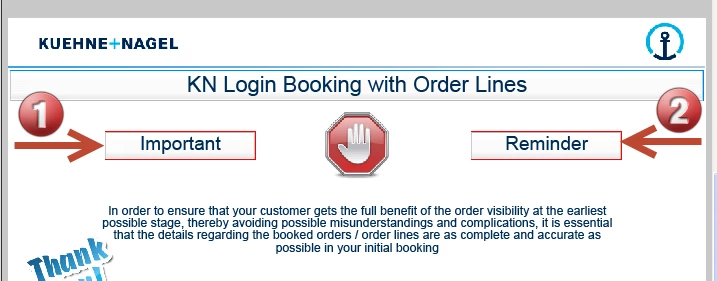
I have two images (1 and 2 above) that are the same size and I want to ensure the right edge of one on the right (Reminder) is the same distance from the right side of the slide as the left edge of one on the left (Important) is from the left side of the slide.

The X coordinate tells me the one of the left is 139 from the left side - but how can I quickly and easily ensure the right edge of the one on the right is also 139 from the right side of the slide ?

I have tried working with the grid and counting the number of grid dots on left and doing the same on the right....but there must be a smarter way.

Noel

    This topic has been closed for replies.

    2 replies

    RodWard
    Community Expert
    Community Expert
    March 27, 2012

    You don't need anything to help you with positioning an object a given distance from the left side.  Just select the object, go to Properties > Transform and set X to whatever spacing you wanted.

    For the right side, I just dump a highlight box on screen, set it's width to the number of pixels I need for the spacing and then move my other object's edge over until it just touches the left edge of my spacer.  Afterward, delete your spacer or just drag it off into the scrap area so that it doesn't get published.

    All of this only takes a couple of moments to accomplish.

    March 27, 2012

    Hi Rod,

    Thanks for your workaround.

    I have tried it - it works but as I said in my reply to Lilybiri - it would be nice if Adobe gave us a smarter way of doing this and others like it.

    Noel

    Lilybiri
    Legend
    March 27, 2012

    Feature request, Noel, I did...

    Lilybiri
    Legend
    March 27, 2012

    Hi Noel,

    It would be great if one could group those two objects and then center them horizontally on the slide, but another feature request I'm waiting for having it available finally

    You have to know that aligning,moving, resizing is always starting from the registration point, which is the top left point of the bounding box of the object. Those coordinates are in the X/Y in the Transform accoridion of its properties. In that same accordion you have the width of the object (again width of the bounding box). So you'll need to do some maths, sorry:

    One example= if the resolution of the slide is 800x600, and the width of your rectangles is 120pixels, you need a X-coordinate of : 800 - 120 - 139 = 541

    Or another way (but not when you already have 139px fixed:

    Put left object at coordinate X=0, then use shortcut SHIFT-RIGHT to move it 10px to the right or CTRL-RIGHT to move it 16px (hope it is correct, no CP here) to the right. Put the right object at X-widtht of the object and move it the same number of clicks to the left with the same shortcuts as the left object.

    Lilybiri

    March 27, 2012

    Hi Lilybiri,

    Ctrl+Right arrow = 16 points

    Shift+Right arrow = 10 points

    Thanks for the suggestion and together with Rod's reply I have a "workaround"...but it would be good if Adobe came up with a more sophisticated / smarter / quicker way to work with the positioning of images on the slide.

    Noel