LMG7Gross
Participating Frequently
November 24, 2015
Answered

Problem with Effects in Captivate 9

  • November 24, 2015
  • 1 reply
  • 1003 views

I have two issues.  First I can't find the timing properties menu option.  It is missing from my Window menu.  As are other menu options.  This makes me think there is another menu I should be accessing.  I can't figure it out.

Second, I want to adjust the effects when I have multiple effects.  In all of the presentations I view - users slide an effect on the time to adjust when it starts and stops.  I can't view these options.  
This topic has been closed for replies.
Correct answer Lilybiri

You have to enable them, normally they are enabled by default using Window, Effects so you must have turned them off? I regret that this option is not available in the Timing panel, which should be relabeled 'Effects panel'.

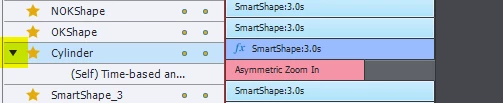
Looking closer at your screenshot, it is enabled but you forgot to use the expand icon left of the object, it is an image in our case. In this screenshot it is expanded, in yours it is collapsed:

1 reply

Lilybiri
Legend
November 24, 2015

I suspect you are using Newbie UI. Try using the Expert one, by checking the 4th option in the Preferences: "Enable custom workspaces....'. You will have to restart Captivate. See if you can see the Timing Properties panel in the menu now?

I do not  understand your second question at all. Effects are now integrated in the slide timeline. You need the Timing Properties panel to add effects and/or to change duration etc. But you can also move the effects Timeline in the Timeline panel and use all the shortcut keys to move or to resize the effects timeline (with arrows, shift-arrow, ctrl-arrow ....).

In this old blog post you'll find the shortcut keys for the timeline.

LMG7Gross
LMG7GrossAuthor
Participating Frequently
November 25, 2015

Thank you for the information on the expanding the menu.  The other problem I am trying to describe - is my inability to adjust the timing of an effect using the object as it is found in pink on the timeline.  I've attached 2 images.  The first image is my timeline as I see it.  You can see the project timeline and the image I have created affects for.  You can see I have 2 effects.  So that I can make one occur and then after a specific time - have the other occur - I should have the ability to move these affects on the timeline.

  The second image is of a project/demonstration from an online discussion of what I "should" see on the timeline.  Those pink items represent the effect - which I should be able to slide to adjust.  I don't have these on my timeline (see first image).  I am so frustrated.  I hope you will be able to help.  I am certain it is something simple.

RodWard
Community Expert
Community Expert
November 25, 2015

Go to Window menu > Effects > Enable Effects in Timeline