Dear Lilybiri, thank you again for your quick response!
Unfortunately I can neither see the folder "utils" nor "CleanPreferences" in my Local folder (Local/Adobe/Captivate etc.). Probably because this is my local folder. I don't have the appropriate rights for the admin folder.
Our IT support will try your solution bit it will probably take a little longer... :/
Til then I've found the following solution for myself (I think you also suggested it in another forum):
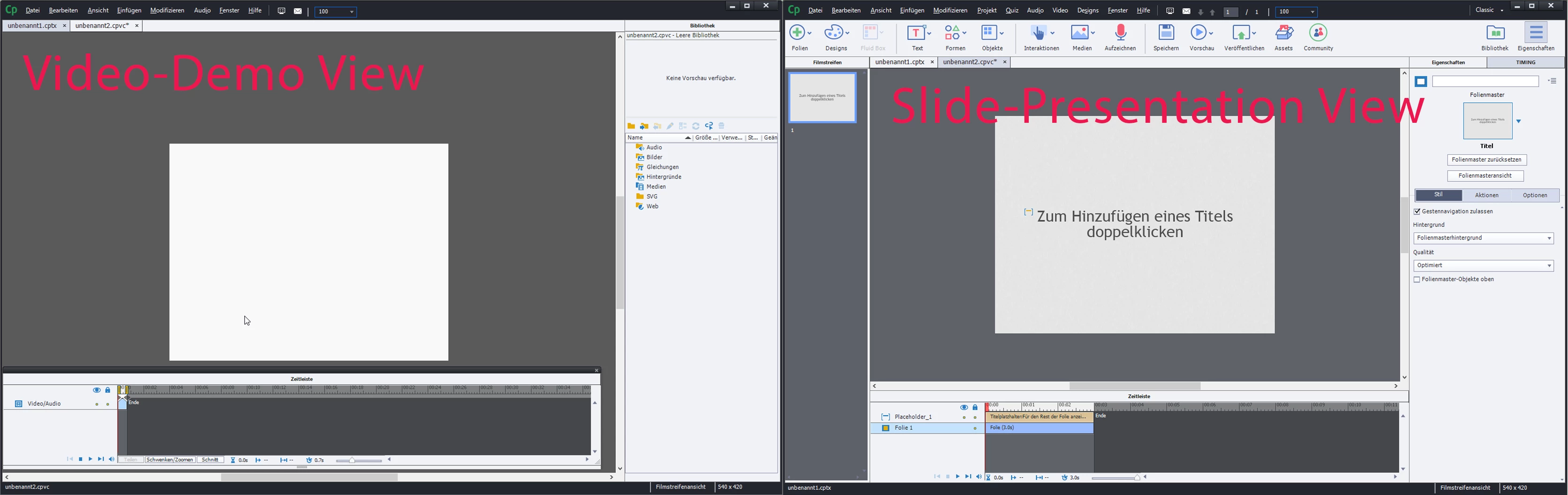
I start with a normal slide project and add the video demo. This way all menus and the customary view are just where they should be.
Thank you very much for your helpfulness!
WIshed I would dare to write in German which I can speak, but am afraid of making too much 'Fehler'.
Can you follow my step-by-step explanation:
- Close Captivate
- Look in your profile for c:\users\xxxxxx\AppData\Local\\Adobe\Captivate 10.0
- Rename that file (or delete it, but by renaming you have a backup)
- Restart Captivate, a new folder will be created. That Captivate 10.0 folder is the Preferences folder for this version.
The folder named 'Captivate 10.0 IS THE PREFERENCES folder. It is not labeled 'Preferences' because you can have several versions of CP. There is no file to run to delete that folder as is the case for the one in the 'utils' folder. You just either delete that Captivate 10.0 folder or you rename it to have a backup.



 AdChoices