
Published Video Demo Distorted
Good morning,
I downloaded the Trial Version of Captivate yesterday...trying before buying. I am an absolute novice using the tool, so appreciate your patience and assistance on my questions below.
After installing, I created a Video Demo, aim is to create a tutorial of an Excel tool.
I used the “Application” setting for the recording:
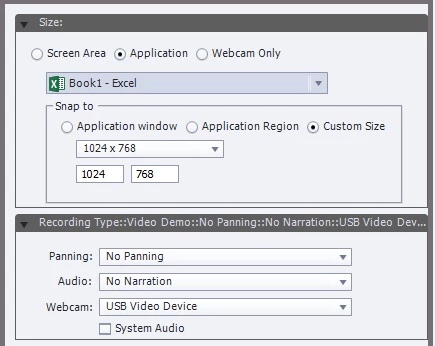
The preview automatically shown after the recording and video displayed in Captivate after selecting “Edit” are both crystal clear, but there is a strange black box showing, which I could manually select and delete:
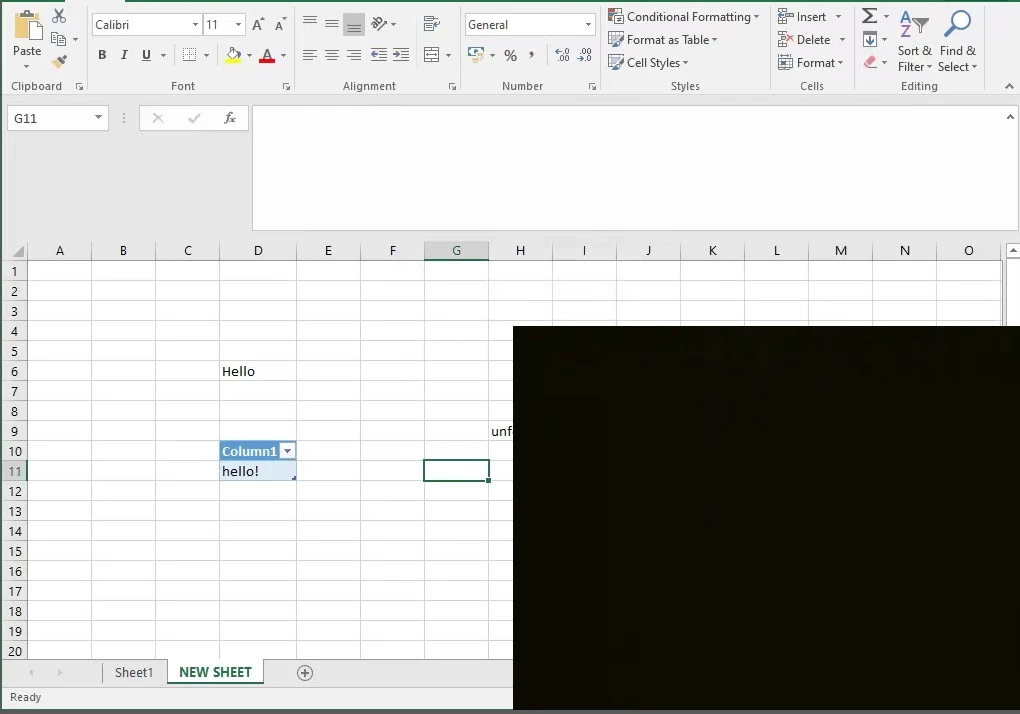
Why is this black box being displayed? Is there anyway of removing before/after recording automatically?
After Publishing the recording, the video is distorted. I have tried different custom sizes for the recording:
- 1920 X 1040
- 1396 X 768
- 1280 X 692
- 1024 X 768
- 836 X 626 – although this size is far too small
1024 X 768 … seems to work the best, but the video is still far too blurry in places, especially if I need to produce and send to a client in the future.
Perhaps there is a simple fix by adjusting the settings or using a different size, so the output is as crystal clear as in the actual preview?
Otherwise, perhaps there is an alternative fix by editing in Premiere Pro? We have the full CC license package.
Many thanks for your feedback and assistance,
Cara


 AdChoices