Inspiring
May 27, 2017
Answered

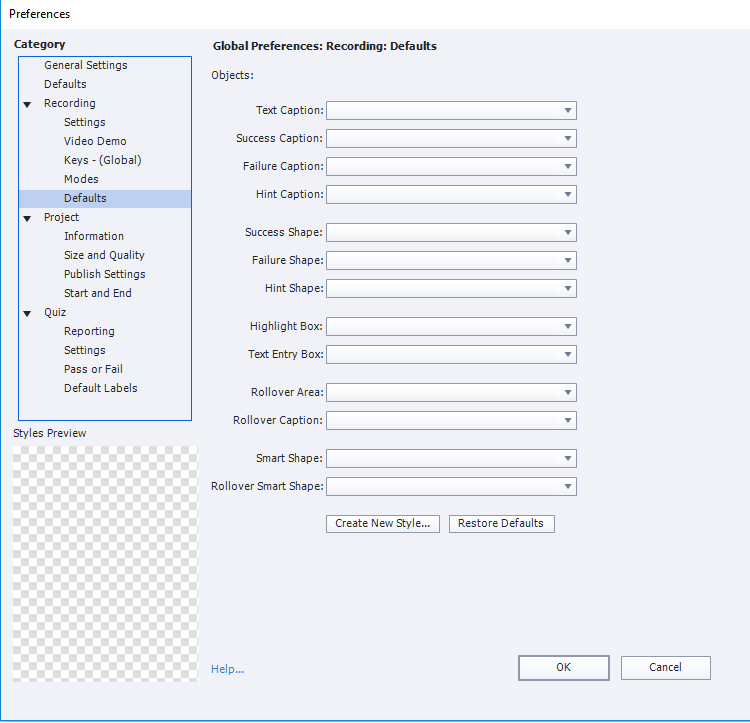
Recording Defaults returning NULL values, crashing app.

  • May 27, 2017
  • 4 replies
  • 916 views

When I attempt to Create new style or Restore defaults the app is crashing. 

Version 10.0.0.192

Sadly...reinstalling had no impact.

**EDIT** Deployed on a new workstation, everything was fine until I tried to create my own defaults. I was able to do so and save. Started a software simulation, then in review noticed my defaults were not implemented. Tried to go set my defaults and when I selected "OK" a number of "unable to delete object" errors were shown... the next time I tried to open defaults all of my data was gone once again.

 Bug

This topic has been closed for replies.
Correct answer adam_Feenics

After working with Adobe support it was recommended that in my case I do not modify the preferences prior to recording, but rather modify them from within the project view itself. 

1. Create blank project.

2. set preferences.

3. Add new software simulation.

This workflow seems to be working for me now but the error shown in the video is still present when taking that path.

4 replies

adam_FeenicsAuthorCorrect answer
Inspiring
June 1, 2017

After working with Adobe support it was recommended that in my case I do not modify the preferences prior to recording, but rather modify them from within the project view itself. 

1. Create blank project.

2. set preferences.

3. Add new software simulation.

This workflow seems to be working for me now but the error shown in the video is still present when taking that path.

Dominic Michael
Adobe Employee
Adobe Employee
May 29, 2017

Hi,

   It looks like the default theme is corrupted. No need to reinstall Adobe Captivate, please go to C:\Users\Public\Documents\Adobe\eLearning Assets\Layouts\10_0\en_US location and rename/delete your default theme.

Launch Adobe Captivate and continue working.

Can you please detail us the steps lead to this state?

Thanks.

Inspiring
May 29, 2017

Thank You! I renamed the 10_0 directory and it was rebuilt when I launched the app. It worked but I'm not able to make any changes to my defaults/themes without having the app crash again.

I created a quicktime capture showing the steps.

https://youtu.be/xlqtFhTEEUc

RodWard
Community Expert
Community Expert
May 29, 2017

Adam,

One thing I noticed while watching your Youtube video was that you just cloned one of the Default styles as it was and added a number on the end.  But those default styles have square brackets in their names, and I have sometimes seen these characters cause issues when used as names of other objects in Captivate or in certain fields.

Could you try an experiment for me and instead of using the same characters in the default object style name, could you try using a different name that had no punctuation characters at all in it?

Do you get the same result? (It's a long shot, but should only take you a couple of moments to test out.)

Lilybiri
Legend
May 28, 2017

Someone else had the same problem, I believe staff has helped out, but no idea how (patch?).

Inspiring
May 28, 2017

If a hot fix had been implemented I would assume that my latest revision would have the fix? In any case, I am disappointed that I've lost my entire weekend of productivity to this bug. 

RodWard
Community Expert
Community Expert
May 28, 2017

Open Preferences > General Settings > Default Locations

Where are the two fields pointing to?  Are those folders on the C drive of this workstation?

And are you launching Captivate with Run As Administrator privileges?

Inspiring
May 28, 2017

Rod, thanks for your reply.

For both workstations I left the default paths C:\Users\Account\Documents\. The second workstation is using a single SSD with no partitioning. 

Running as admin makes no difference in either case.

RodWard
Community Expert
Community Expert
May 29, 2017

Your issue suggests that Captivate is unable to write to or access the folder where your preferences are located. 

That folder is buried down inside the folders of your user profile at this location:

C:\Users\YOU\AppData\Local\Adobe\Captivate 10.0

My guess would be that for some reason (probably due to security restrictions imposed by IT at your company) this folder at some point is denied access to Captivate and at that point you get this error or the app crashes.  Maybe you should feed this information to your IT department and ask if there is any way they can relax the restrictions. 

IT workers will usually have higher permissions than you do.  So getting them to log on with their own Admin profile and then going through the same actions that produce the crash for you might show that the issue is permissions-based.