


Legend
June 16, 2022
Answered

Repositioning hotspots in 360 slides 'blindly': Looking for workaround

  • June 16, 2022
  • 1 reply
  • 273 views

Hi Captivate legends.


I am looking for a work-around to get 360 interactive images working on computers that do not display them inside Captivate (this is a realworld issue).


We are running 2019 Release, 11.5.1.499 (no ability to update to later version, I believe this matches Update 3).


Published projects and previews properly show the 360 slides, so WebGL in browsers is supported. However, the Captivate 360 slide appears blank (screenshot below), with just a visual visible in the Filmstrip.


The process we use currently:

  • Use the 'Add Project Background' to bring the image onto the slide as the + icon is not available.
  • A hotspot can be added and formatted and selected for editing in the Timeline. However the hotspots appear in the 'centre' with seemingly no way to reposition them 'blindly'


Has anyone discovered any technique or work-around that will allow us to blindly reposition the hotspot?
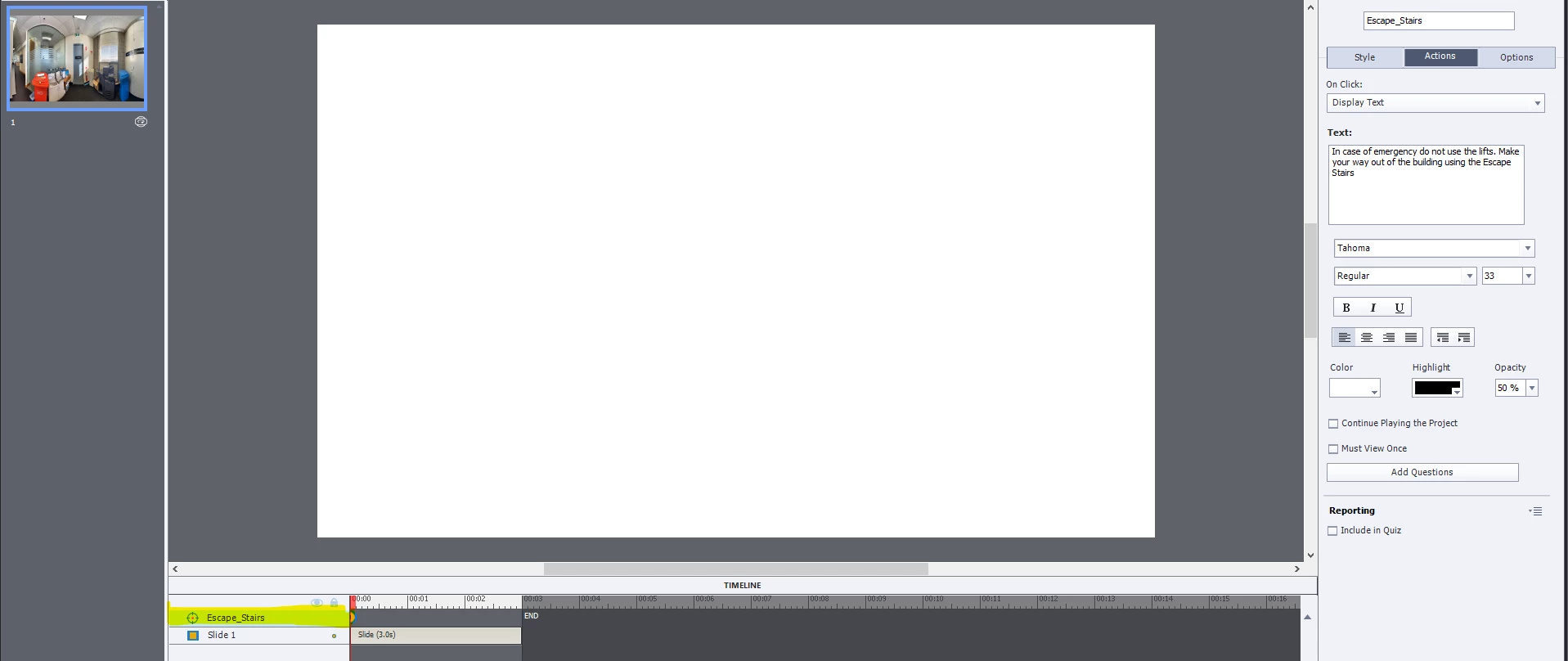


Thanks so much. (Got my fingers crossed there is a work-around for this).


Cari

    This topic has been closed for replies.
    Correct answer Cari Jansen
    No I reckon the issue is more likely related to graphics display…

    I have uncovered a bit more about this: laptop is plugged into a Docking station and connected to two monitors… IF I remove it from docking station and relaunch Captivate it works OK. So it appears the WebGL graphics card support might be lost through docking station connection.

    Also, if I launch Captivate without docking station connected, then connect the docking station: it works too.

    In other words: As long as I do not relaunch or launch Captivate when the laptop is connected to the docking station it continues to work fine.

    Bizarre issue, but glad I found my own work-arround 😃

    Cari

    1 reply

    RodWard
    Community Expert
    Community Expert
    June 16, 2022

    Are you saying that in Edit mode you are unable to move a Hotspot to a different position on the slide?


    When you first add a hotspot to a 360 slide it will always put the object smack in the middle of the stage area.  But you should be able to move that object by just dragging it with your mouse in Edit mode.


    The line item of the timeline that shows the same hotspot only allows you to determine at what point in playback that the hotspot becomes visible.  The timeline does not govern WHERE on the slide the hotspot will be positioned.


    If your Edit view does not show the 360 photo, perhaps you need to use a smaller resolution photo.  How big (in megabytes) are the photos?  The ideal file size in my experierence is around 1 megabyte. 


    You can test whether the issue might be the photos you are trying to use.  Just try inserting one or more of the 360 photos that Adobe has used with their own 360 sample project.  Those photos are about 1 megabyte. If they are able to appear in your own project, then it would seem to indicate the issue might be something related to the files you are using.

    Cari JansenAuthorCorrect answer
    Legend
    June 16, 2022
    No I reckon the issue is more likely related to graphics display…

    I have uncovered a bit more about this: laptop is plugged into a Docking station and connected to two monitors… IF I remove it from docking station and relaunch Captivate it works OK. So it appears the WebGL graphics card support might be lost through docking station connection.

    Also, if I launch Captivate without docking station connected, then connect the docking station: it works too.

    In other words: As long as I do not relaunch or launch Captivate when the laptop is connected to the docking station it continues to work fine.

    Bizarre issue, but glad I found my own work-arround 😃

    Cari