
Participant
July 25, 2015
Answered

Reset button on Drag n Drop

  • July 25, 2015
  • 1 reply
  • 604 views

I've added ticks and crosses using text captions in a drag n drop.  Then have add advanced actions so that they show up when the items are dropped on the drop target.  This part is working well but when I reset it the ticks and crosses stay there.  Can anyone help me with having them also disappear when the reset button is clicked? 
This topic has been closed for replies.
Correct answer Lilybiri

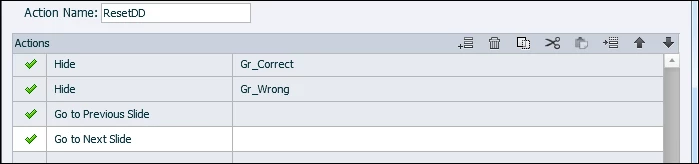
I quickly created such an example. Trigger this action by the Reset button:

First two statements you have to replace by what you want to hide (use grouping). Then the D&D slide is left Go to Previous Slide), and immediately followed by getting back to the D&D slide. Since you left the D&D slide, it will have been reset.

1 reply

Lilybiri
Legend
July 25, 2015

You cannot script the Reset button, it is a built in button that will only reset the drag sources.

What do you really want? I'm asking this, because the Drag&Drop is also totally reset when you re-enter that slide. You cannot use the Reset button, but could create a custom button, that navigates the user to another slide (previous?), and immediately gets back to the Drag&Drop slide. With that work flow you'll have an On Enter event for the Drag&Drop slide that you can use to hiding all the the custom items (ticks/crosses) that you have added to the slide.

Participant
July 25, 2015

Thank you Lilybiri!!  I would like to have 2 buttons.  1 that says 'check answers' (this I created with the 'submit' button and set to jump to the next slide but only works when all correct).  the other button to reset the quiz but also make the ticks and crosses disappear.  I like what you have said but don't completely understand how to do it.  I do know how to add a button and make the ticks and crosses disapear (and jump to other slides etc) but how to make it reset as you mentioned before.

So appreciative!

Stacey

Lilybiri
LilybiriCorrect answer
Legend
July 25, 2015

I quickly created such an example. Trigger this action by the Reset button:

First two statements you have to replace by what you want to hide (use grouping). Then the D&D slide is left Go to Previous Slide), and immediately followed by getting back to the D&D slide. Since you left the D&D slide, it will have been reset.