Known Participant
May 1, 2016
Answered

Responsive design, positioning and arranging objects problems on Quizzing Master Slides

  • May 1, 2016
  • 2 replies
  • 872 views

Hello there

I've just upgraded to Captivate 9 and would like to move to responsive designs.  Some problems however.

First, When I try to alter the positions of some objects on slides in Master View, the Object Position under the Position tab have Left and Right greyed out.  I would, for example, like to move and position the answer boxes in the MCQ design ('Type item 1 here' etc) to the left of the slide to make way for images on the right.  For some reason I'm not allowed to do this no matter what position tab settings I try (and I think I have tried them all).

Second, the 'arrange' menu item is greyed out and if I put images on the slide, they fall behind the objects already there and cannot be 'brought to front'.  I'm not sure why new objects (i.e. images) fall behind the other objects permanently.

This means I can't move some existing objects as I would like to and I can't put images on top of them either.

Quite clearly I am doing something wrong but, search as I might, I can't find answers and I'm starting to think better to go back to non-responsive designs.

Grateful for any help anyone can give.

Richard

    This topic has been closed for replies.
    Correct answer Lilybiri

    Your question is not totally clear to me, but can offer you already some explanations.

    Quiz slides have very strict rules. All embedded objects, those are the objects without an individual timeline, are always on top of the stack. You cannot have custom objects to show up above one of the embedded objects. I found some exceptions as described in this article:

    Buttons on Question/Score Slides in Captivate 6? - Captivate blog

    What I told now is not specific to a responsive project, but to all projects.

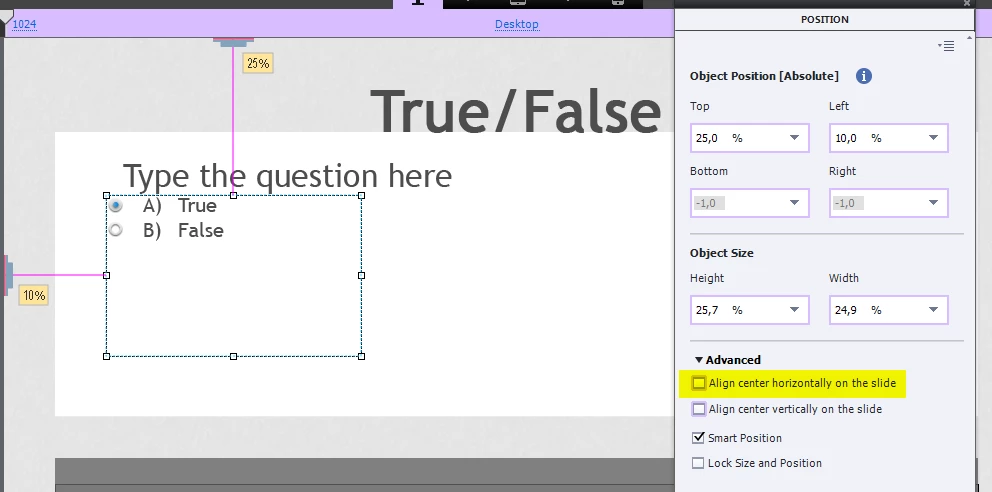
    As for positioning, see what you mean: you cannot resize the individual answer boxes, nor the global question box on the master slide but you can on individual quiz slides. Look at this slide:

    I started by looking at the Advanced setting: default it is set to align horizontal, be sure to uncheck that option.

    For the answers: select the global box that has all answers. You can see that I changed its size, and its position.

    Hope this can help?

    2 replies

    Known Participant
    May 2, 2016

    Thank you.

    Yes, I understand you very well.  I'm just saying that, for responsive design work, the interface is more complicated than it should be and has a few too many quirky bits to it for my liking or taste.  My view is that it could and should be better and more usable than it is.

    And yes, I agree with you, the Adobe people do have a tendency to over-blow their products and tend to gloss over any shortfalls the software might have.  I use InDesign all the time and there are a number of longstanding problems in it which have not been fixed. Adobe Bridge is also suffering problems at the moment.

    Like I said, I upgraded to Captivate 9 in order to take advantage of responsive design but, having experienced the design restrictions which you have kindly identified, I'm not sure it is worth it.

    I guess there's no much else to be said really but thank you for you help and advice.

    Richard

    Lilybiri
    LilybiriCorrect answer
    Legend
    May 1, 2016

    Your question is not totally clear to me, but can offer you already some explanations.

    Quiz slides have very strict rules. All embedded objects, those are the objects without an individual timeline, are always on top of the stack. You cannot have custom objects to show up above one of the embedded objects. I found some exceptions as described in this article:

    Buttons on Question/Score Slides in Captivate 6? - Captivate blog

    What I told now is not specific to a responsive project, but to all projects.

    As for positioning, see what you mean: you cannot resize the individual answer boxes, nor the global question box on the master slide but you can on individual quiz slides. Look at this slide:

    I started by looking at the Advanced setting: default it is set to align horizontal, be sure to uncheck that option.

    For the answers: select the global box that has all answers. You can see that I changed its size, and its position.

    Hope this can help?

    Known Participant
    May 1, 2016

    Many thanks,

    The problem I face is that it isn't exactly easy to put images into the slides if you want to use responsive slides - especially if you would like to use the themes supplied with Captivate 9.  Nor is it easy to arrange objects because of the rules which put the embedded objects on top.  This makes absolutely no sense to me but I am sure there are reasons for this.

    I don't understand why the Left and Right (Object Position [Absolute]) in the Position pane remain greyed out.  It would appear objects can be moved up and down but not left and right. They all seem to default to being centred on the slide. 

    I've been fiddling with settings all day to try and make Captivate work for me in the responsive sense.  Eventually I gave up and I have gone back to non-responsive slides which makes me wonder why I upgraded to Captivate 9!!!

    All in all it adds up to serious limitations for me when trying to use responsive slides in Captivate 9.  The whole reason I upgraded to Captivate 9 was to move to using responsive slides.  Not so sure that was a good move now.

    Many thanks for your help.

    Best Wishes

    Richard

    Lilybiri
    Legend
    May 1, 2016

    Did you look at the screenshot I put in my last answer? By default, under Advanced, the option to center horizontally is checked. Just uncheck it and you'll be able to give a left value as I did for that example on the screenshot.


    But this is NOT possible on the master slide, only on normal slides. I'm sorry, must be linked to the theme, not sure.