


Participant
April 5, 2023
Question

Responsive project. Alignment/size of text changing in multistate objects when preview/publish

  • April 5, 2023
  • 2 replies
  • 436 views

I am having trouble with text in a multistate object changing the alignment or even its size when it is in preview mode and when published (to HTML5 and Scorm 1.2). It is a responsive project and all fluid boxes look ok when I adjust layout preview in Captivate, and all style settings are how I want them, but when I preview and/or publish, some of them decide to go wonky and change alignment (eg bullet points not aligning) or change text size (sometimes multiple text sizes in the one section).

Screenshots are attached so you can see what I mean. What can I do to fix this?
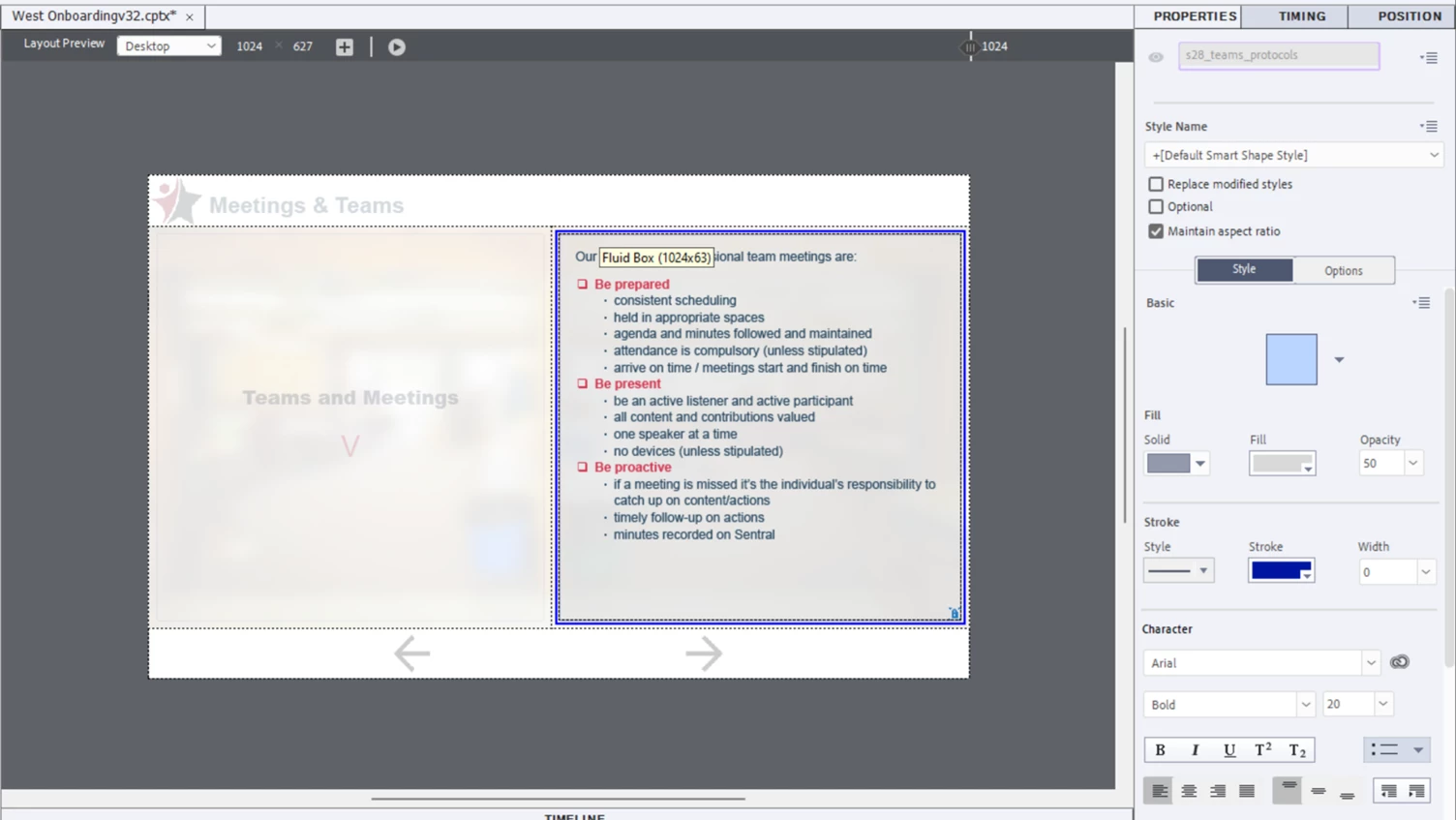
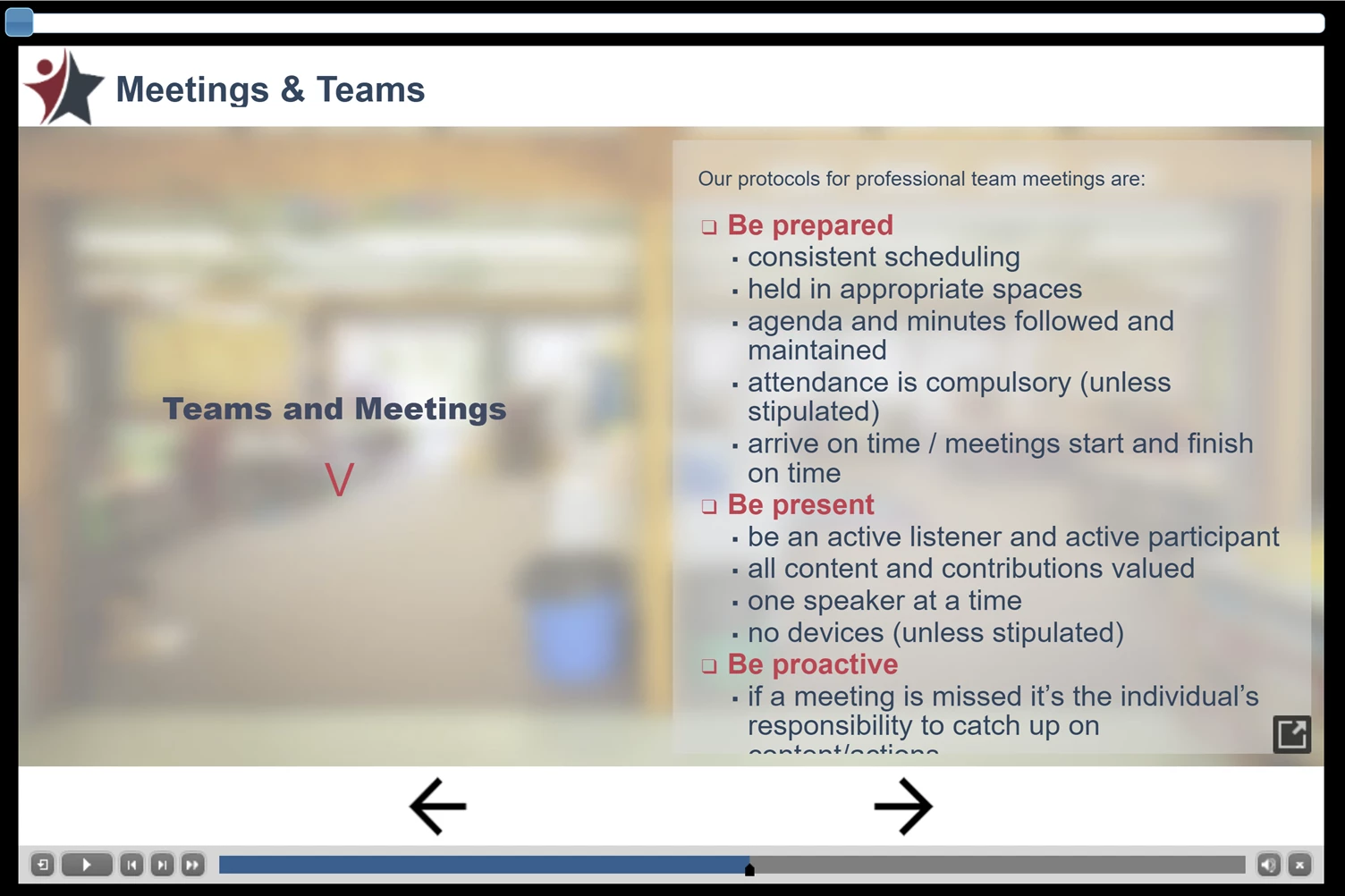
I'm using Captivate 11.8.1.219

Thank you

    This topic has been closed for replies.

    2 replies

    Lilybiri
    Legend
    April 5, 2023

    Some missing information: setup of the Fluid Boxes? Is this multistate object in a normal or a static Fluid Box? Fluid Boxes are not really meant for such complicated text styles. You have already the icon popping up which would allow the learner to display all the text. The default style is overridden, so you didn't create any object styles neither.

    Moreover: what is the minimum font size? By default it is set to 14pt which is way to big for most mobile screens. Did you test this in other browser resolutions? You only posted screenshots of the desktop view. Are you sure to need a responsive project?

    Participant
    April 5, 2023

    Thanks Lilybiri. The fluid boxes are normal, not static. The minimum font size is the default 14, I have not changed that. I haven't tested the published copy in other devices yet. Responsive project was the most suitable for the audience (school staff) to be able to access the content on the go from their mobiles. But I am new to Captivate, so this has been a learning opportunity to discover and solve all the quirks that Captivate has. The odd thing is that the majority of the slides are fine, just a few randomly go weird, and there doesn't seem to be a pattern to it if they are text heavy or not. I appreciate your help.

    Lilybiri
    Legend
    April 5, 2023

    Please lower the minimum font size to 10 or 8pt. 

    Do not forget to check in other resolutions, because such a very heave text filled slide may not be displaying well on smaller browser resolutions.  The multistate object is in a normal fluid box, hope you kept the same shape as in the Normal state. You are new to Captivate? May I see the setup of the Fluid boxes for that slide? And its timeline. Fluid boxes workflow is all but simple, notwithstanding what the marketing tells. I have almost two decades of experience with Captivate, and it took me a couple of months before I got bit familiar with Fluid Boxes. The weird behavior may be due to the setup of those fluid boxes, and maybe (as I see a lot during jobs) even objects which are not in a fluid box.

    RodWard
    Community Expert
    Community Expert
    April 5, 2023

    Did you cut and paste text into the Fluid Box from some other source (e.g. a Microsoft document or presentation)?


    If so, that could be part of the cause.  Pasted text might have maintained original formatting and this can have unpredictable results.


    The first thing I would suggest is that you copy the text into a plain text editor such as Notepad to strip out any formatting and then paste the text back into a blank Fluid Box as plain text.  Then try formatting from within Captivate only.  If you have different Custom Styles applied to each section of the text, that might also be part of the issue.

    Participant
    April 5, 2023

    Thanks for your help and suggestions Rod, I will give that a try. Most of the text was typed directly in and formatted within Captivate, but I'm prepared to try anything to fix it! I will let you know, thanks.