Participating Frequently
May 10, 2017
Answered

Retained Button State on Same Page

  • May 10, 2017
  • 1 reply
  • 626 views

Hello,

I am trying to create a page where buttons are clicked to build a meter.  This is all one slide, but I am not sure how I change the state of the button and continue to have that state. I essentially want to indicate that the button has been pressed with the color green.  I tried to create an advanced action that hides the button on click, and then shows a copy of that button underneath as green.  It doesn't seem to be working.  The other option I considered is to create a separate page for every click that has the changed button (color) state -- but this would be tedious.  

Is there a way to create a different state for a clicked button on the same page?

Screenshot Meter

This topic has been closed for replies.
Correct answer Lilybiri

Which version do you use, please? I suspect it is not the latest, because CP2017 has a new InBuilt State for buttons, called 'Visited'. You have to create that 4th state (in CP2017), it is not created automatically but when it exists it will show up automatically when you have clicked the button.

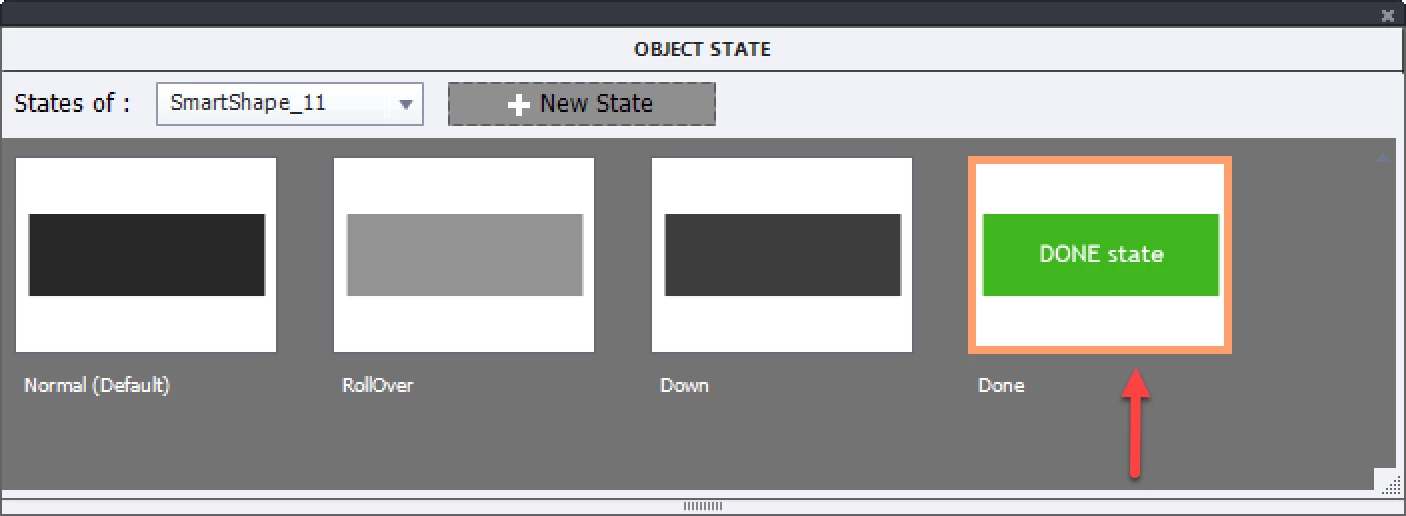
For previous versions you need to add a custom state in the Object State panel, in your case with the green color.

You don't tell which action exists already for that button, but you'll have to add the command:

    Change State of button to Done     in my example forgot to label the shape button SmartShape_11

If you had already a simple action for that button, you'll have to create a standard action with the same command as the simple action + the command I showed above.

If you want to keep that state when returning to the slide, don't forget to check the option 'Retain State'.

1 reply

Lilybiri
LilybiriCorrect answer
Legend
May 10, 2017

Which version do you use, please? I suspect it is not the latest, because CP2017 has a new InBuilt State for buttons, called 'Visited'. You have to create that 4th state (in CP2017), it is not created automatically but when it exists it will show up automatically when you have clicked the button.

For previous versions you need to add a custom state in the Object State panel, in your case with the green color.

You don't tell which action exists already for that button, but you'll have to add the command:

    Change State of button to Done     in my example forgot to label the shape button SmartShape_11

If you had already a simple action for that button, you'll have to create a standard action with the same command as the simple action + the command I showed above.

If you want to keep that state when returning to the slide, don't forget to check the option 'Retain State'.

tpriddlenew
Known Participant
May 10, 2017
"If you want to keep that state when returning to the slide, don't forget to check the option 'Retain State'."

@lilybiri where do I locate this? I've had a bit of a scan, but can't find that checkbox...

Lilybiri
Legend
May 11, 2017

In the Properties panel for the multistate object: