Known Participant
January 21, 2017
Answered

Scripting and variables in a jeopardy game

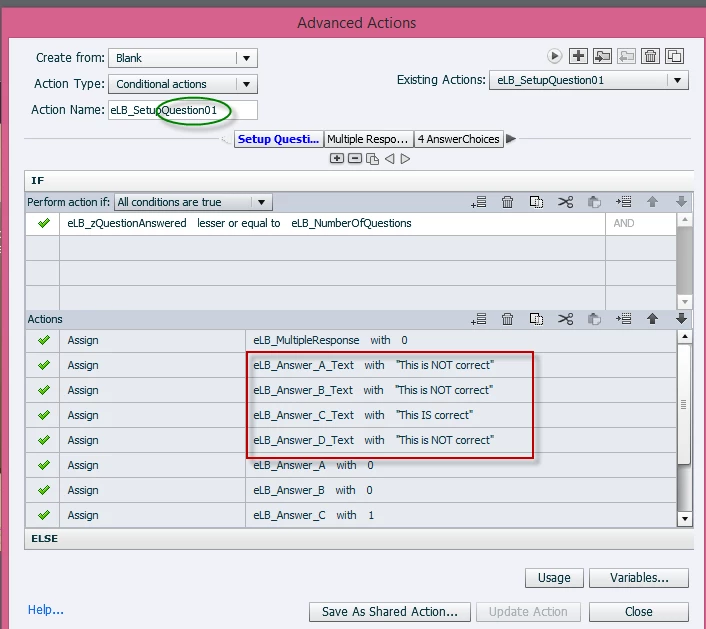
Hi everyone, I'm using the Jeopardy game developed by eLearningBrothers.com, but I'm not savvy enough with scripting and variables to be able to figure this out myself.  What I need to be able to do is customize the individual answers, as shown below.  The default answers are "This is NOT correct" and "This is correct," as you can see.  Does anyone know how I can I modify the existing variables so that I can enter my own answers?

Thank you,

Robyn
This topic is closed to new replies. Start a new post to keep the conversation going.
Lilybiri
LilybiriCorrect answer
Legend
January 21, 2017

Can you ask this on the eLearning Brothers site, please?

Personally I don't like the way these advanced actions are set up at all. To allow customisation this could have been done in a more friendly way. choose Literal and type in your correct/incorrect message. About the labeling: is there no Help or explanation around? Having elb in every name is just branding and makes it more complicated. It is much more useful to see which names are for variables, which for other objects. Sorry for the comments.

To change the literal text "This is NOT Correct', double click on it, choose 'literal' from the dropdown list (has only two items: variable and literal), type in the text you want (no need to add the doube quotes, they will be added automatically when the literal has several words with spaces in between). Confirm by Enter.

I don't know why you marked the name of the action with a green ellipse.

14 replies

Lilybiri
LilybiriCorrect answer
Legend
January 21, 2017

Can you ask this on the eLearning Brothers site, please?

Personally I don't like the way these advanced actions are set up at all. To allow customisation this could have been done in a more friendly way. choose Literal and type in your correct/incorrect message. About the labeling: is there no Help or explanation around? Having elb in every name is just branding and makes it more complicated. It is much more useful to see which names are for variables, which for other objects. Sorry for the comments.

To change the literal text "This is NOT Correct', double click on it, choose 'literal' from the dropdown list (has only two items: variable and literal), type in the text you want (no need to add the doube quotes, they will be added automatically when the literal has several words with spaces in between). Confirm by Enter.

I don't know why you marked the name of the action with a green ellipse.

Translate
Known Participant
January 21, 2017

Thank you for your help. Both eLearning Brothers and Adobe are closed today ...

>

Translate
Lilybiri
Legend
January 21, 2017

To see that double-clicking, watch the video in this very old article (sorry, I have plenty of blog posts with tutorials about advanced actions, variables, shared actions, but not many videos):

Video tutorial: Advanced conditional action for customized feedback

Translate