Inspiring
April 19, 2022
Question

Shared Action Help

  • April 19, 2022
  • 1 reply
  • 200 views

Hi,

I'm wondering if I can make a button's functionality a shared action. Each of my slides has the option to display the narration text by clicking that button. So upon entering a slide the narration text object isn't visible, but clicking the button makes it visible.
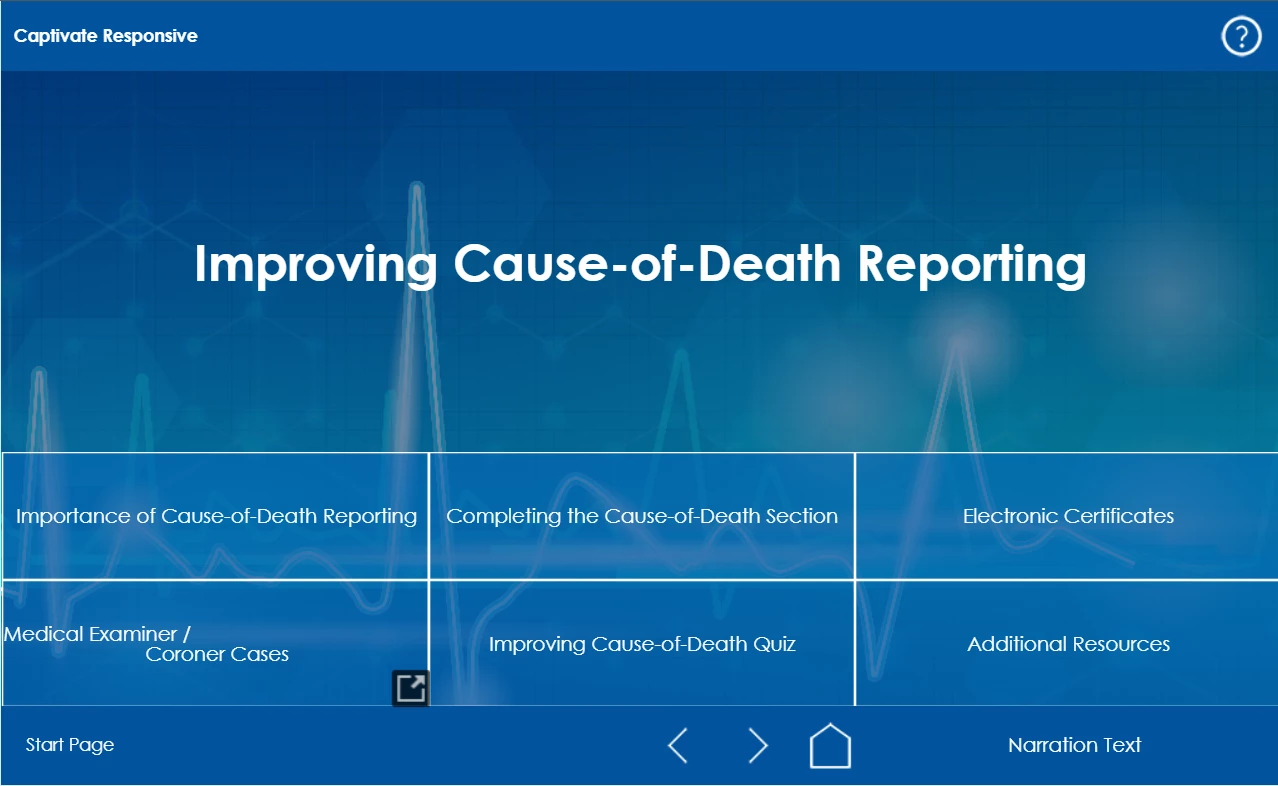
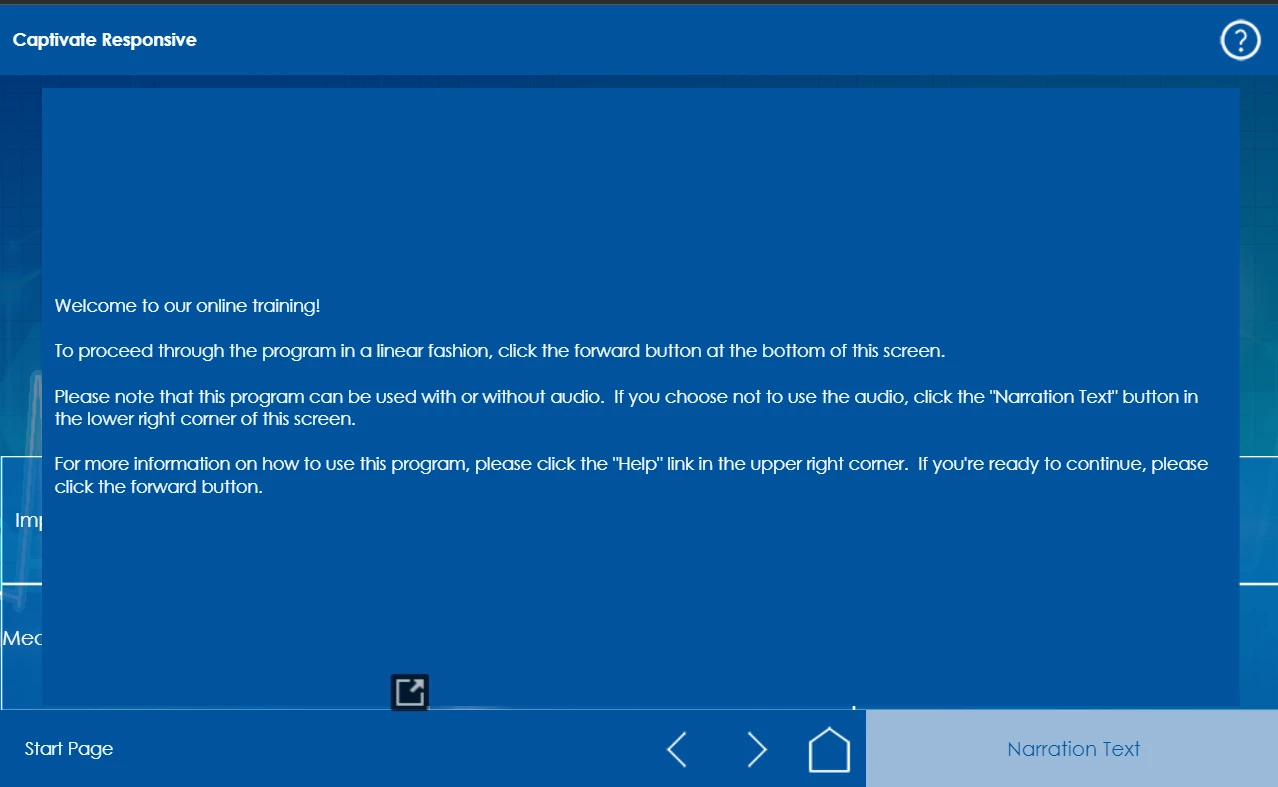
I'm doing an update on a old project and I wanted to know if I could create a Shared Action rather than duplicating the Advanced Action for this button on every slide. Here's the Advanced Action:
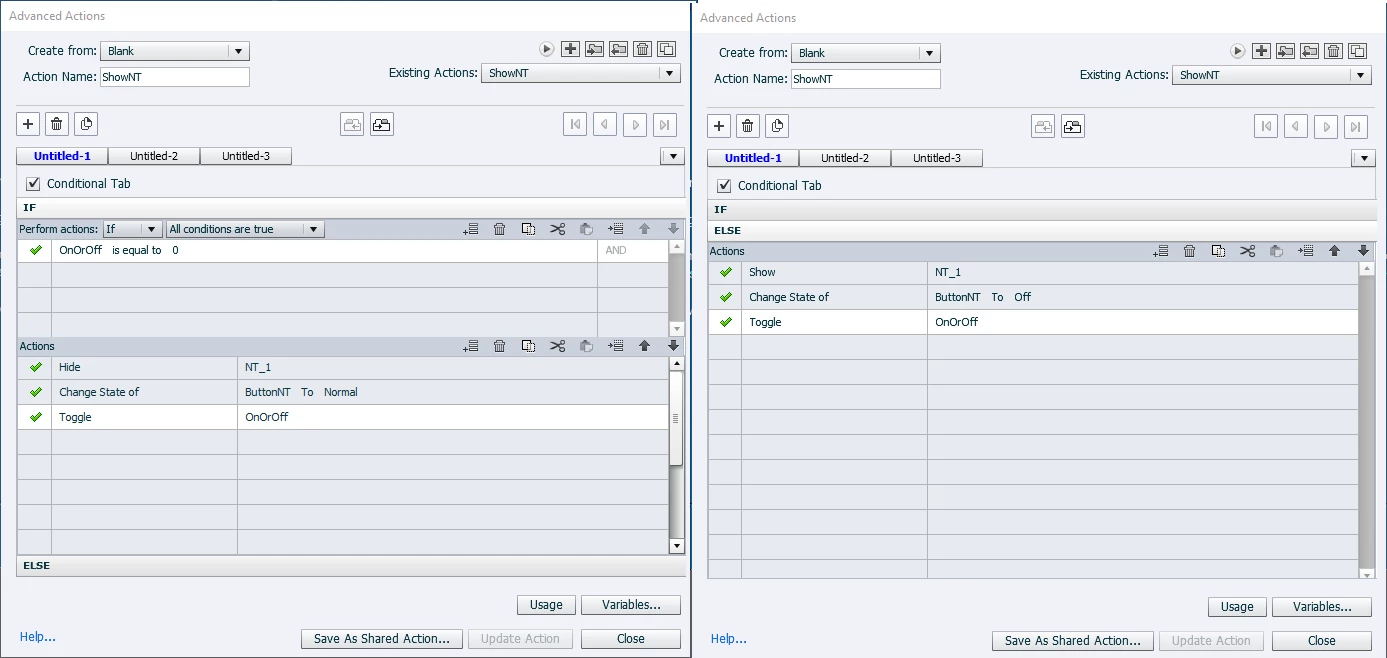
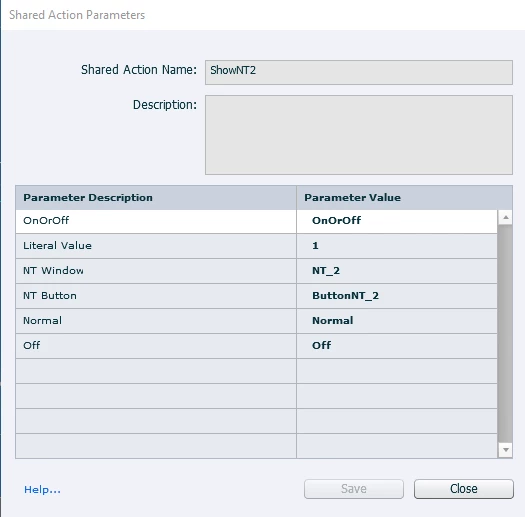
I saved it as a Shared Action and tried changing the parameters to correspond with the object and button on the next slide. The button (ButtonNT_##) changes states but the narration text window (NT_##) doesn't appear. 

Here are the Shared Actions I created:
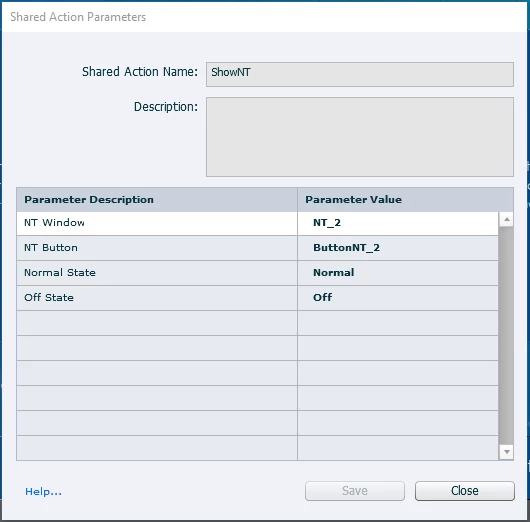
Does anyone have an idea of what I'm doing wrong? Or should I just do like last time and duplicate the Advanced Action for each slide and change ButtonNT_## and NT_## for each?


Thanks 🙂


    This topic has been closed for replies.

    1 reply

    Lilybiri
    Legend
    April 19, 2022

    It has no sense to declare the Boolean variable OnorOff, nor the literal 1 as parameters since they never have to change. 


    You are not clear on some details:

    • You use the button 'Narration' to trigger that action, and that button will set the variable to its correct value: 1 if the narration needs to show text, 0 if not. But what about the audio? It is not muted when text appears.
    • The button has a custom state 'Off'. I would prefer the command 'Go to Next State' over the specification for the state. The custom state will replace the Normal state and vice versa. It means one less parameter.
    • What about the setting for 'Retain state when revisiting ....'? Has that been activated?
    • If the Narration has been clicked on one slide, you want to keep it that way? If yes, you'll need to trigger the same action On Enter for the next slides. Did you do that? Or do you prefer the learner to click the Narration button on each slide?

    BTW: it is easier to read an action if you post a screenshot of the Preview window instead of the AA dialog box.

    Maybe have a look at my recent blog post:

    http://blog.lilybiri.com/tip-5-parameters-shared-actions


    Kenny5FB6Author
    Inspiring
    April 19, 2022

    Here's the action preview to make it clearer:

    • The audio isn't muted if the text appears. Slide audio plays automatically. The user can click a separate button to disable audio altogether or to play or pause the audio on the slide.
    • Ah, thank you for that! So my second action under If would be Go to Next State ButtonNT and under Else: Go to Previous State ButtonNT.
    • I haven't activated Retain state when revisiting...
    • I prefer the learner to click the narration button on each slide.
    Lilybiri
    Legend
    April 19, 2022

    No, you don't need 'Go to Previous State' at all, just 'Go to Next State'. If the state is Normal, it will switch to the custom state, if it is the custom state it will switch to the Normal state. Similar to the Toggle command, provided you have only one custom state Off. Have a look at:

    Multiple Toggle buttons with ONE Shared Action - eLearning (adobe.com)

     Since you want the learner to click the Narration button on each slide, you will need to reset the situation on each slide with the On Enter action. It will be limited to resetting the variable to 0, since you don't retain the states:

    • Assign OnOrOff with 0
    • Continue (may be unnecessary but I don't have a screenshot of your timelines.

    You can find a lot of blog posts about shared actions both on my personal blog and in the eLearning community.