Participating Frequently
May 16, 2017
Answered

Show playbar when all click boxes have been clicked

  • May 16, 2017
  • 1 reply
  • 600 views

Hi,

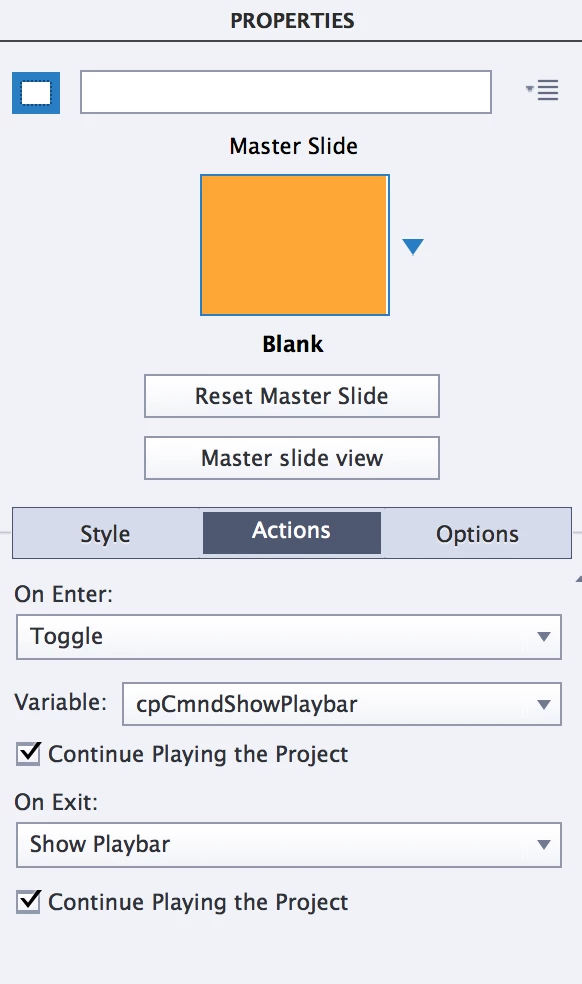
I have a slide where I have multiple click boxes. I want to hide the playbar on this slide until all the click boxes have been clicked and then put it back on. However, even though I click on all the boxes the player doesn't come back. I've tried multiple configurations of settings but nothing has worked Do you know how to set it up correctly?
This topic has been closed for replies.
Correct answer Lilybiri

Thank you so much!


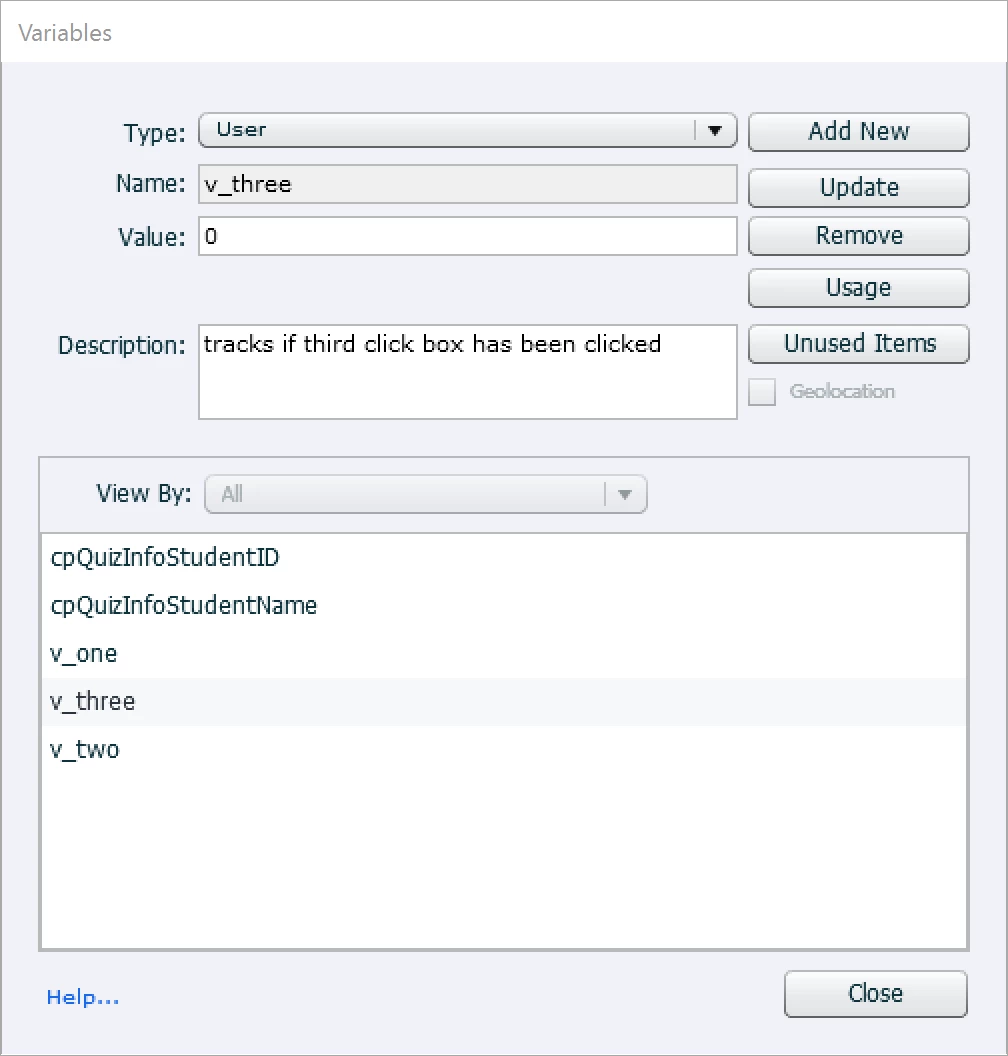
I created 3 user variables (you may need more, same number as click boxes), v_one, v_two and v_three:

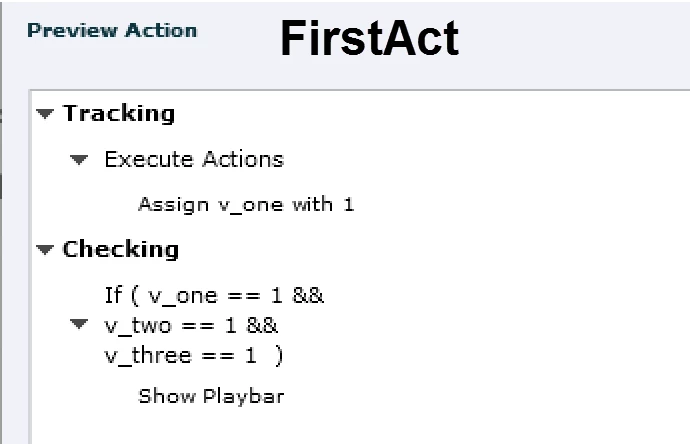
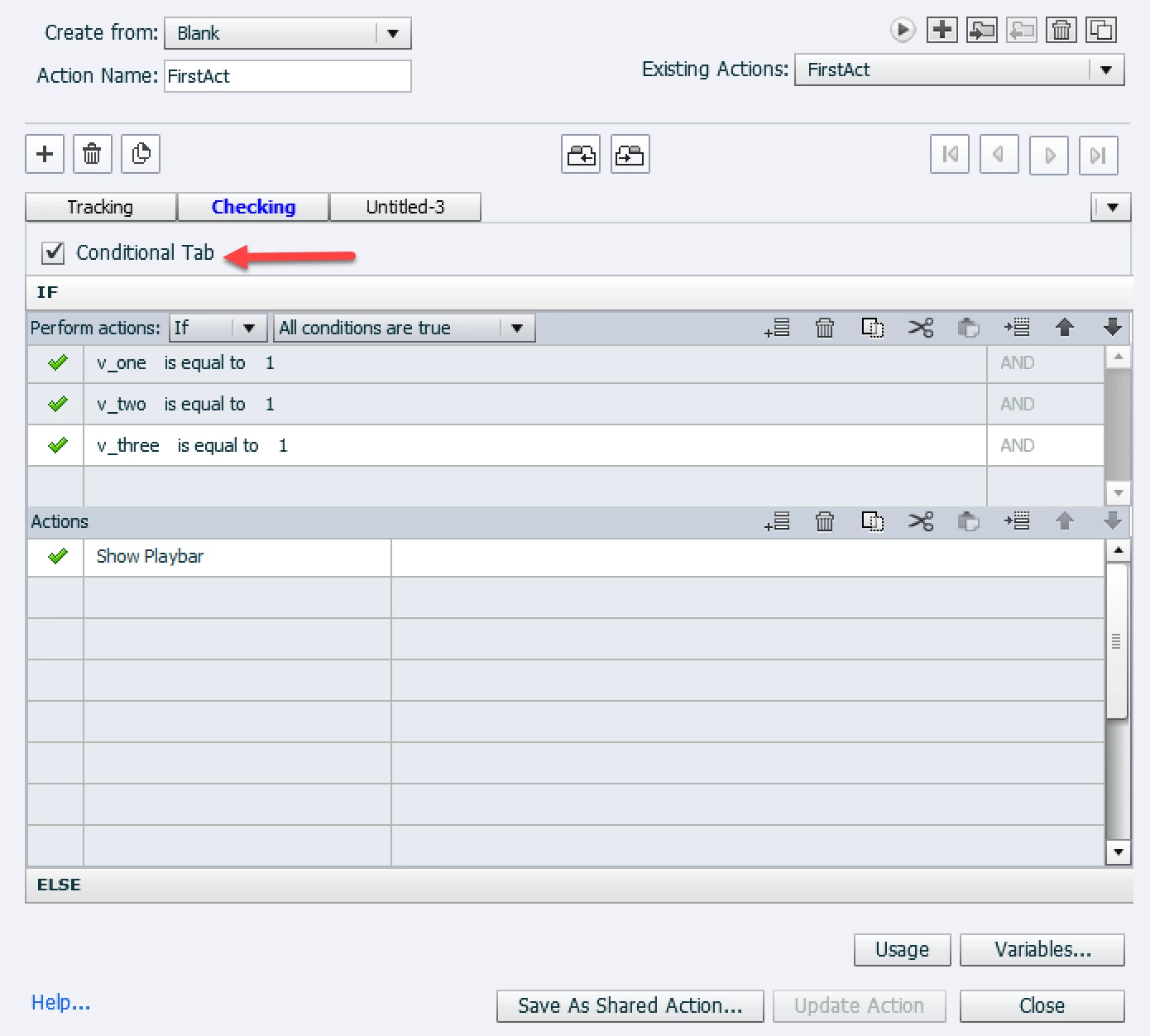
This is the Preview for the Advanced action to be triggered by the Success event of the first click box; it has 2 decision blocks. The first (Tracking) is a standard  (Conditional action not checked), the second is a conditional (see last image) :

You can duplicate this action for the other click boxes (see article about Advanced Actions), and you have only to change the first decision block, replacing the variable.

1 reply

Lilybiri
Legend
May 16, 2017

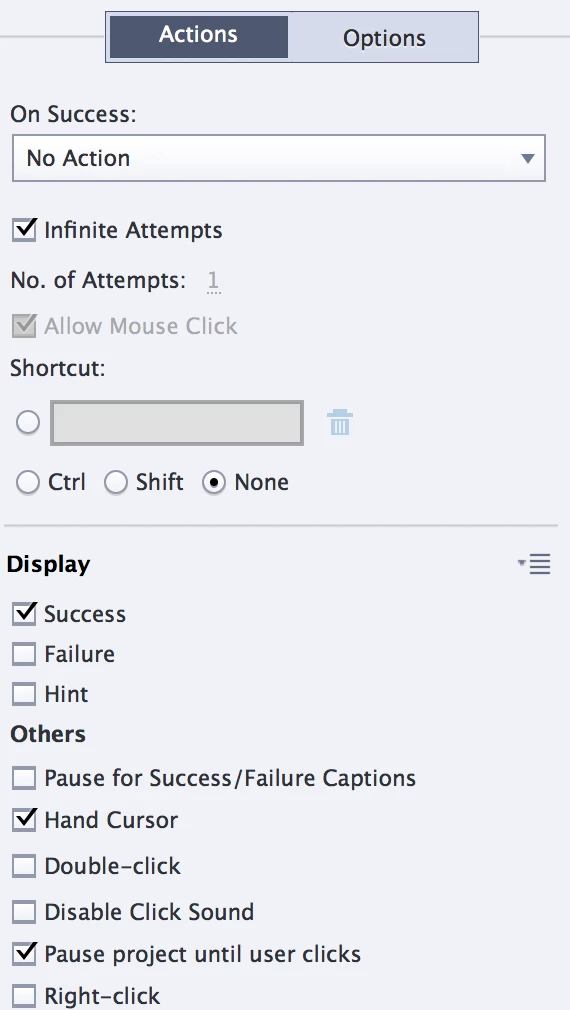
I see that you have No action for the click boxes, but that will not work. Each action, like showing the playbar, has to be triggered by an event. You show an action, which is triggered by the On Enter event of the slide but that event only occurs when you ENTER the slide. The events to be used are the Success events for the click boxes. Since you allow infinite attempts, a click box that has been clicked can be clicked again. So you'll need to create one user variable (Boolean) for each click box, with a default value of 0. It has to be toggled to 1 when the click box is clicked, AND you have also immediately to check if all variables have been toggled to 1, show the playbar when that has happened.


How to do this in an advanced action, depends on the version you are using. Can you please mention the version number?

Participating Frequently
May 16, 2017

Thank you so much for your answer! I'd love to learn how to create those variables... so useful! If you could let me know how to add them or where I could find a step-by-step tutorial I would be so grateful!

I'm using Captivate 2017.

Lilybiri
Legend
May 16, 2017

This is very old, but explains about creating the variables:

Curious about Variables in Captivate? - Captivate blog

Recently I blogged about the new Advanced Actions dialog box in 2017:

Advanced Actions Dialog box in Captivate 2017 - Captivate blog

I will quickly create the Advanced action for one of your click boxes and post a screenshot, did not yet create a blog post for this version.