hms413
Participating Frequently
June 6, 2016
Answered

Size of styles

  • June 6, 2016
  • 1 reply
  • 242 views

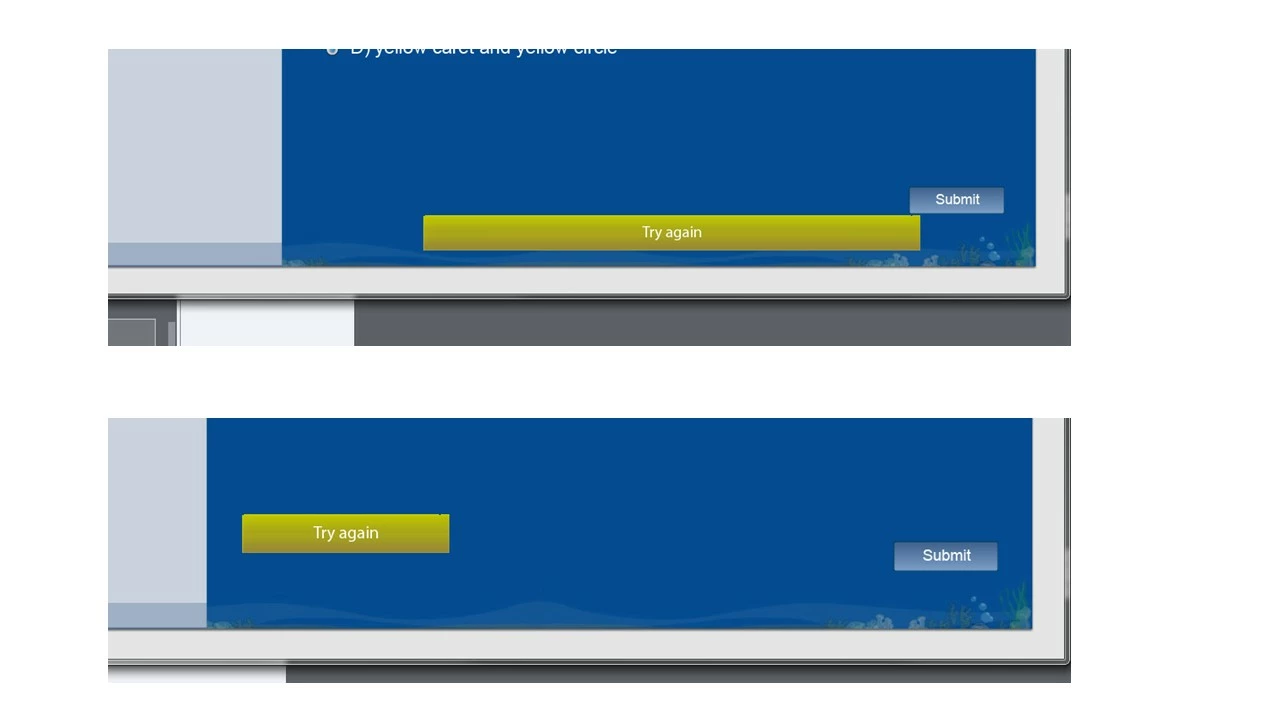
Within Captivate 9, I am trying to get my "Try Again" message within a "Random Question" quiz slide to be the same size and in the same location. I understand the "styles" as far as formatting (color, text, etc.) but what about the shape size and location? In the attached image, the top is what I have default, and the bottom is what I want to be reflected on all slides. Yes I have made a new object style, I've attempted to create a new content Master Slide. Master Slide seems like the way to go but maybe I don't fully understand how to edit the current Masters. I've also changed the names of the default labels, RE-imported all the Question Pool slides. I don't want to manually change every slide. Nothing to avail. HELP!
This topic has been closed for replies.
Correct answer Lilybiri

Rod, I have a different experience because I often have to move, resize existing shapes on question slides. When you do that on the master slide, it gets applied to existing question slides and certainly to random question slides.

I just double-checked with this scenario, both for a normal and for a random question slide:

  • I created a normal question slide and a random question slide (with some questions in the pool); out of laziness all question slides that use the same master daughter slide (MCQ..)
  • I changed the color, the font size and the location of several of the feedback shapes (OP showed the Try again shape) on the used Master slide (MCQ). That change was immediately applied to the normal question, to the questions in the question pool and to the random question slide (in Preview.

I'm wondering why you seem not to have that behavior. So often do I need this, because the global answer box is too small, because the  feedback messages don't look right.

1 reply

RodWard
Community Expert
Community Expert
June 7, 2016

The Master Slide layout is only going to affect NEW quiz slides created after that point.  It won't change the location of elements on existing quiz slides.

Since you are talking about randomised quiz questions...Select one of the Try Again shapes on any quiz slide in the Quiz Pool, go to Properties > Options > Transform and from the rather hidden little menu there select Apply to All Items of this Type.

All other Try Again shapes in question slides there should then move to the same size and position.  However, this might not affect quiz questions in the main part of the project.

Lilybiri
LilybiriCorrect answer
Legend
June 7, 2016

Rod, I have a different experience because I often have to move, resize existing shapes on question slides. When you do that on the master slide, it gets applied to existing question slides and certainly to random question slides.

I just double-checked with this scenario, both for a normal and for a random question slide:

  • I created a normal question slide and a random question slide (with some questions in the pool); out of laziness all question slides that use the same master daughter slide (MCQ..)
  • I changed the color, the font size and the location of several of the feedback shapes (OP showed the Try again shape) on the used Master slide (MCQ). That change was immediately applied to the normal question, to the questions in the question pool and to the random question slide (in Preview.

I'm wondering why you seem not to have that behavior. So often do I need this, because the global answer box is too small, because the  feedback messages don't look right.