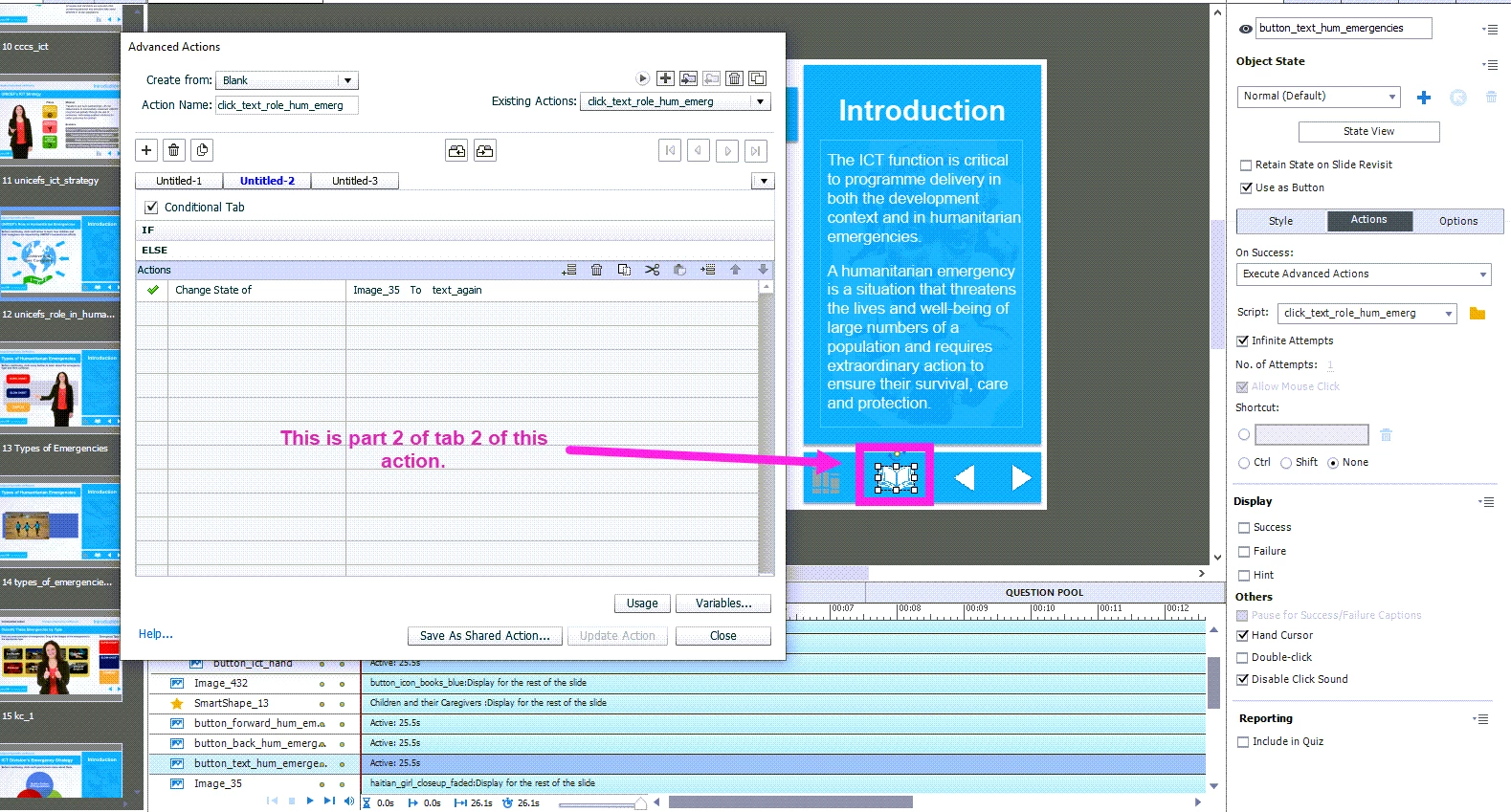
Here's one more screenshot of the advanced action that repeats the audio from the Normal/text_again states of the shape. This is the "Else" of the conditional tab (tab 2).
Hope you will not insult me because I am 'condescending', but want to offer you as much information as possible. Some training would be a good idea... You make your developer's life very difficult by ignoring a lot of features. The solution I propose at the end of this comment is rather simple compared with what you are now trying to do.
You add audio to a state, same way you add audio to an object, by using the Options tab:
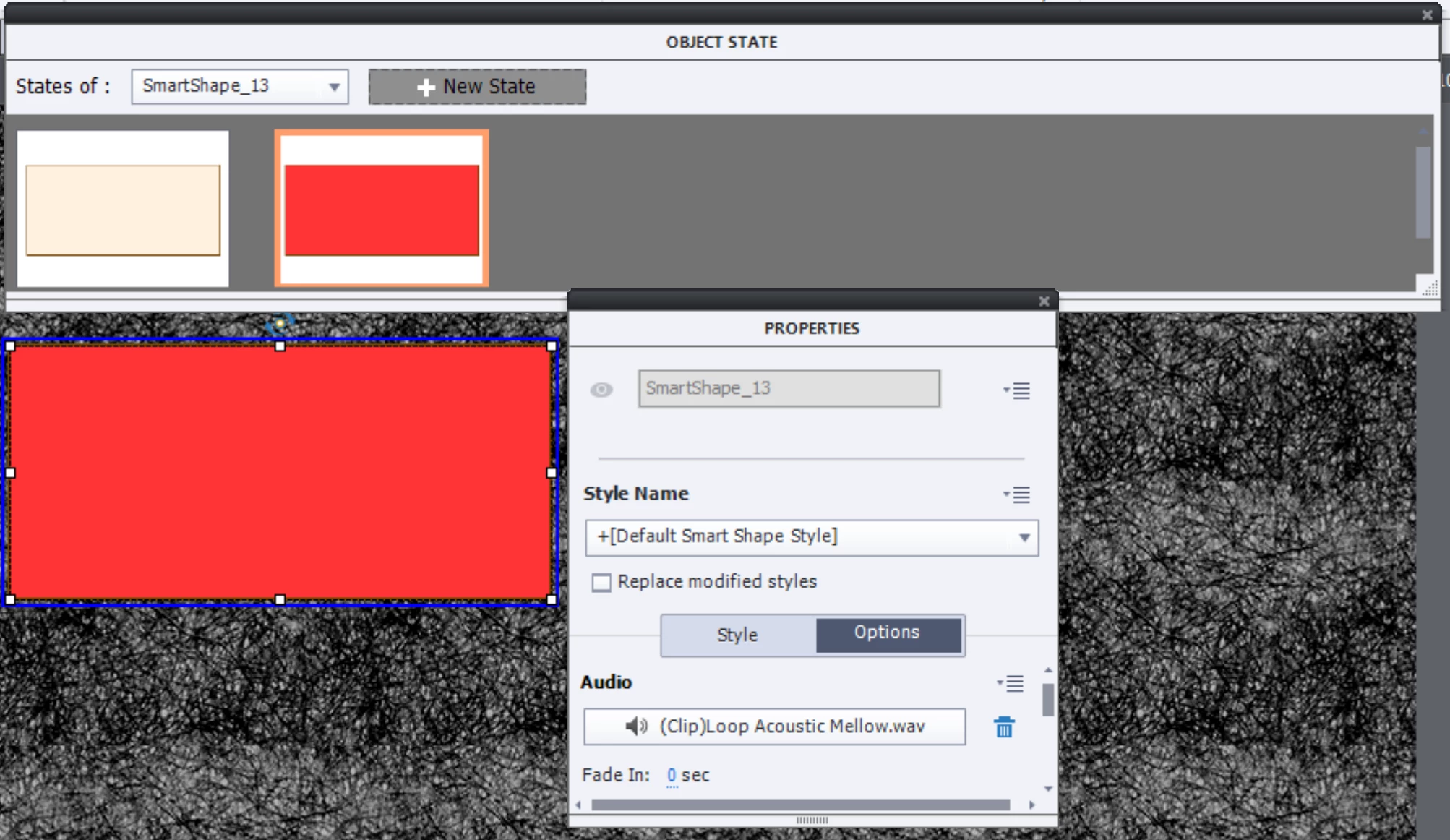
In this screenshot you see the second state of a multistate shape, in the Options tab you see the audio clip which I added.
It is the same as object audio: when the object disappears audio stops. This means when you go to another state without audio, the audio stops. If you go to another state with another audio clip, the fist audio will stop and the audio clip of the new state will play. I have demonstrated this workflow quite often.
There is no reason whatsoever to make the slide as long as the audio. Just make sure you have an interactive object like a button, which is pausing the slide. Once an audio clip starts playing in this situation (object audio) it will not be paused by the pausing point at all. Only slide audio CAN be paused by such a pausing point. Please reduce the duration of that slide to the default 3secs, and have a Next button to pause the slide.
Have a look at this blog:
https://elearning.adobe.com/2018/06/pausing-timeline-audio-clips/
Since I am posting links, this one would be useful, so that you can learn how to show Preview button for an advanced action, which will show all the decisions at once (easier to read):
http://blog.lilybiri.com/advanced-actions-dialog-box-in-captivate-2017
If this is the correct situation you want (and do not need Closed Captioning):
- On entering the slide text is shown and an audio clip is playing.
- When the user clicks the Replay button (which pauses at 1.5, not later) the audio has to Replay, but text remains the same.
In that case this would be the easiest setup:
- Use the On Enter slide event with the command 'Play Audio' and point to the audio clip. No worries, pausing at 1.5Secs with the Replay button will not pause that audio.
- Use the Success event of the Replay button to trigger the same command 'Play Audio' with the same audio clip. In this case you need to uncheck the option 'Continue Playing the project' which is checked by default. The playhead needs to remain paused.
Typical for the Play Audio command (you'll read that in the blog I offered you a link) is that you will never have two clips playing at the same time. When the user clicks the Replay button before the audio clip started On Enter is finished, that first clip will be stopped automatically to give priority to the 'new' clip.




 AdChoices