
reginar96574994
Known Participant
July 27, 2016
Answered

Slides Do Not Progress - C8

  • July 27, 2016
  • 2 replies
  • 558 views

Hello.. hoping someone can help!  I have a Captivate 8 eLearning course.  Eight .ppt slides were imported, a few slides (cover page, introduction and video) were added to the imported slides.  The slides progress by using back and next buttons.  The slides fail to progress.  Let me try to explain.  When previewing the entire course, the first three slides that were not part of the import play correctly. Then the first imported slide plays correctly as well.  After clicking next on the first imported slide, the screen progresses to the next imported slide but the audio does not play, the back and next buttons are not interactive.  I have been looking for anything that may be preventing it from moving forward, but am having no luck and have spent hours looking.  I'm sure its some checkbox somewhere.  Any ideas?  Any thoughts would be greatly appreciated!  If you have further question, I can provide more details.
    This topic has been closed for replies.
    Correct answer BDuckWorks

    As Captiv8r​ mentions, it sounds like a conflict between the source PPT and the Cp file that you're building.

    Workflow recommendation:

    Locate the PPT file in the library, right click and select 'Edit with PowerPoint,' then (for me) click the Animations tab, and show the Animation Pane:

    REMOVE any 'on click' animations, or convert them to 'After Previous' and set the delay to keep the animation timing.

    I've had to do this for dozens of files, and it now part of my content receipt and review process, in order to remove conflict between the PPT animations and Cp timing.

    Example problem:

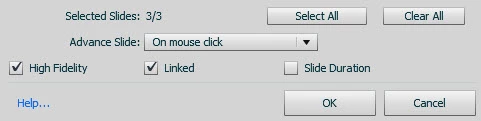
    The worst case, is an PPT file with a few of these on-click animations defined, and importing them to Captivate with the 'On mouse click' setting selected!

    Your users will howl, when the find these slides as they will need to click twice, and NOT double click, to work through the course.

    2 replies

    BDuckWorks
    BDuckWorksCorrect answer
    Inspiring
    July 27, 2016

    As Captiv8r​ mentions, it sounds like a conflict between the source PPT and the Cp file that you're building.

    Workflow recommendation:

    Locate the PPT file in the library, right click and select 'Edit with PowerPoint,' then (for me) click the Animations tab, and show the Animation Pane:

    REMOVE any 'on click' animations, or convert them to 'After Previous' and set the delay to keep the animation timing.

    I've had to do this for dozens of files, and it now part of my content receipt and review process, in order to remove conflict between the PPT animations and Cp timing.

    Example problem:

    The worst case, is an PPT file with a few of these on-click animations defined, and importing them to Captivate with the 'On mouse click' setting selected!

    Your users will howl, when the find these slides as they will need to click twice, and NOT double click, to work through the course.

    reginar96574994
    Known Participant
    July 27, 2016

    THANK YOU ALL!  The fix was in the .ppt, removing the check marks in the click boxes in the .ppt file allowed the slides to move forward so thank you to all who suggested that fix.  I would have NEVER figured that out without your help!  Thanks again and have a wonderful evening.. you have made my day!

    Lilybiri
    Legend
    July 27, 2016

    When you imported the PPT-slides did you choose for Automatic playing or for Play on user click? If you have chosen the last option, it has no sense to add another Next button at all, because a click box was already inserted which will pause the slide at its end. Can you please post a screenshot of the timeline of such a slide?

    You didn't tell which type of buttons you used for Next/Back? Are those shape buttons timed for the rest of the project? Do they have a pausing point?

    reginar96574994
    Known Participant
    July 27, 2016

    When I imported the slides I do not recall selecting either of those options, however I do recall that there was a click button in the middle of the slides that I deleted as I wanted the user to use the back/next buttons.  This eLearning is the third in a series and I had no trouble with the other two.  Is there a place that I can to to see how that set up is existing since the import is now done?

    The buttons are timed for rest of slide, not rest of project.

    I have pasted two screen shots. The Terminology slide plays correctly, then the user clicks next and the Accessing Zilliant slide stops.  I have tried deleting the buttons and allowing it to play automatically and it still stops at this same point.

    Lilybiri
    Legend
    July 27, 2016

    Please, can you use the zoom slider at the bottom, to the left of the progress bar, to make the complete timeline visible? This is only 11 seconds of the 52,4 seconds.

    The buttons are not timed for the rest of the project, you have another one on each slide? I need to see the pausing of those buttons.