Global Recordings
Known Participant
July 26, 2021
Answered

Speech Bubble that has Closed Captioning

  • July 26, 2021
  • 2 replies
  • 197 views

I am new to Captivate and am using Captivate 2019. I am using someone else's slide but would like to modify it for what I am doing. I have a call-out shape that is linked to an image. There is an audio clip that, when played, appears in the call-out shape. I do not know what I need to do to have a new audio file and have the closed captioning reflect that in the call-out shape. TIA.

Diane


    This topic has been closed for replies.
    Correct answer Lilybiri

    I may understand your question differently from Rod's interpretation. Do you need to reproduce this same situation:

    • one of the buttons is clicked 
    • the callout appears with the text
    • at the same time the audio plays as well

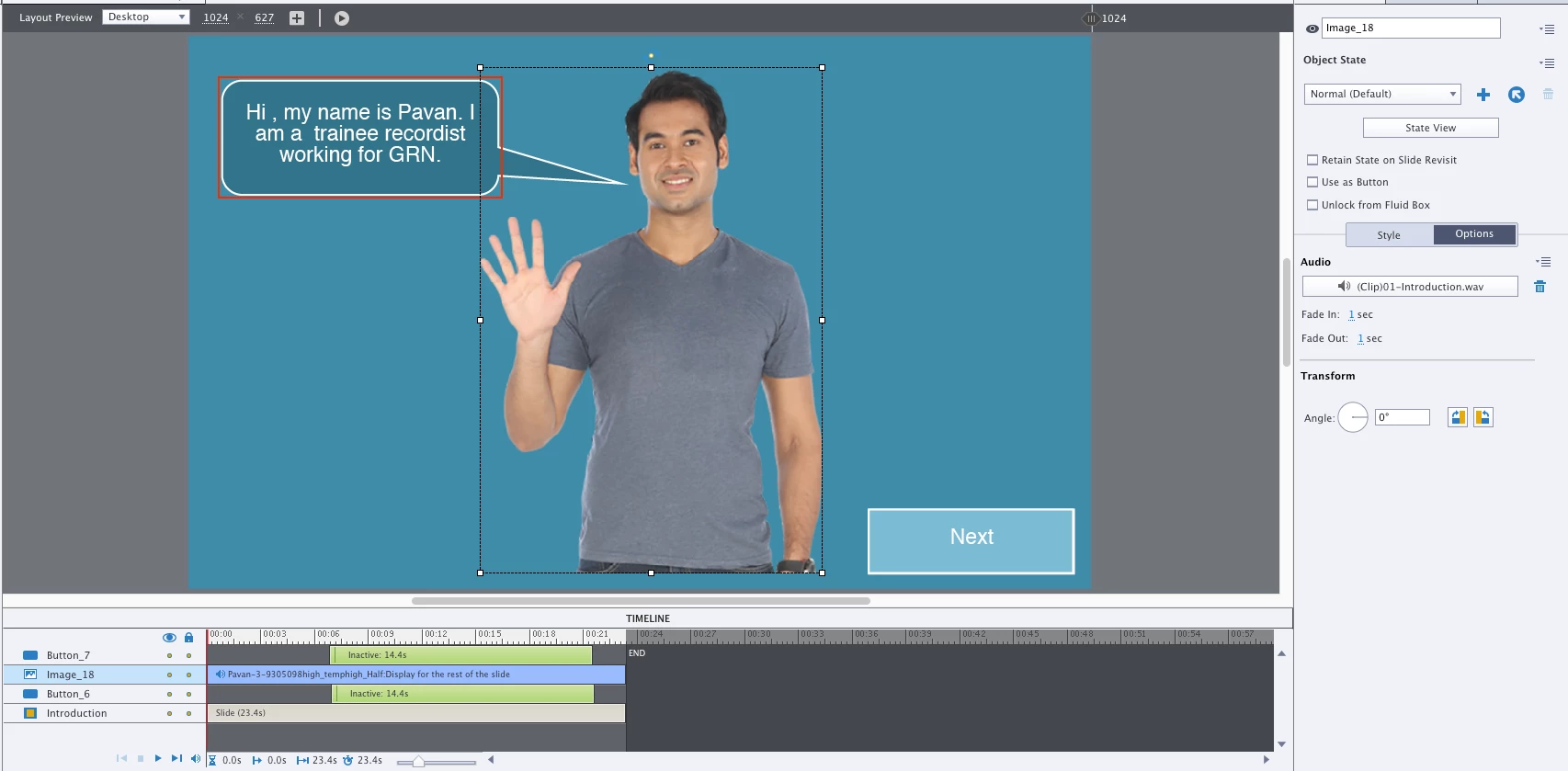
    Is this what you need? From the screenshot I deduct that:

    • The callout is added by changing the state of the image. Check the Object state panel (State view button in the Properties panel of the image)
    • That state has audio attached.

    If you need to edit such a callout, first check the action attached to the button which makes that callout visible. That would confirm my suspicion. Maybe you can add a screenshot of that action?

    In the object state panel you go to the custom state, replace the text in the callout, and replace the attached audio (Options tab). There is no automatic link between the text and the audio file. This is not really CC as is possible with the slide audio. It is a manual job, synching is done by using the state. Here is an example of a similar situation:

    http://blog.lilybiri.com/click-slash-reveal-interactions-back-to-basics

    However in that example I used the image as button, which is not the case in your situation where you use an extra button. Being able to use any image as button is new in version 11.5.


    2 replies

    Lilybiri
    LilybiriCorrect answer
    Legend
    July 27, 2021

    I may understand your question differently from Rod's interpretation. Do you need to reproduce this same situation:

    • one of the buttons is clicked 
    • the callout appears with the text
    • at the same time the audio plays as well

    Is this what you need? From the screenshot I deduct that:

    • The callout is added by changing the state of the image. Check the Object state panel (State view button in the Properties panel of the image)
    • That state has audio attached.

    If you need to edit such a callout, first check the action attached to the button which makes that callout visible. That would confirm my suspicion. Maybe you can add a screenshot of that action?

    In the object state panel you go to the custom state, replace the text in the callout, and replace the attached audio (Options tab). There is no automatic link between the text and the audio file. This is not really CC as is possible with the slide audio. It is a manual job, synching is done by using the state. Here is an example of a similar situation:

    http://blog.lilybiri.com/click-slash-reveal-interactions-back-to-basics

    However in that example I used the image as button, which is not the case in your situation where you use an extra button. Being able to use any image as button is new in version 11.5.

    Global Recordings
    Known Participant
    July 27, 2021

    Thank you! This was exactly what this was, an Object State. What I thought was a closed captioning was not that but added text inside the bubble. You are da bomb!


    RodWard
    Community Expert
    Community Expert
    July 27, 2021

    Closed Captioning only works on Slide Audio, not Object Audio.

    If you want Closed Captioning text synchronised with audio, then you need to have the audio attached to the slide, not the shape.