



Speed up your authoring with Generative text in Adobe Captivate
Creating impactful learning content shouldn’t feel like a marathon of rewrites, tone fixes, and endless polishing. With the new Generate text feature, Adobe Captivate 13.0 brings generative AI directly into your authoring workflow—so you can draft, refine, and adapt content in minutes. No switching tools. No clutter. Just clean, consistent, learner-ready content, right inside Captivate.
Learn more about how to generate text using AI in Adobe Captivate.
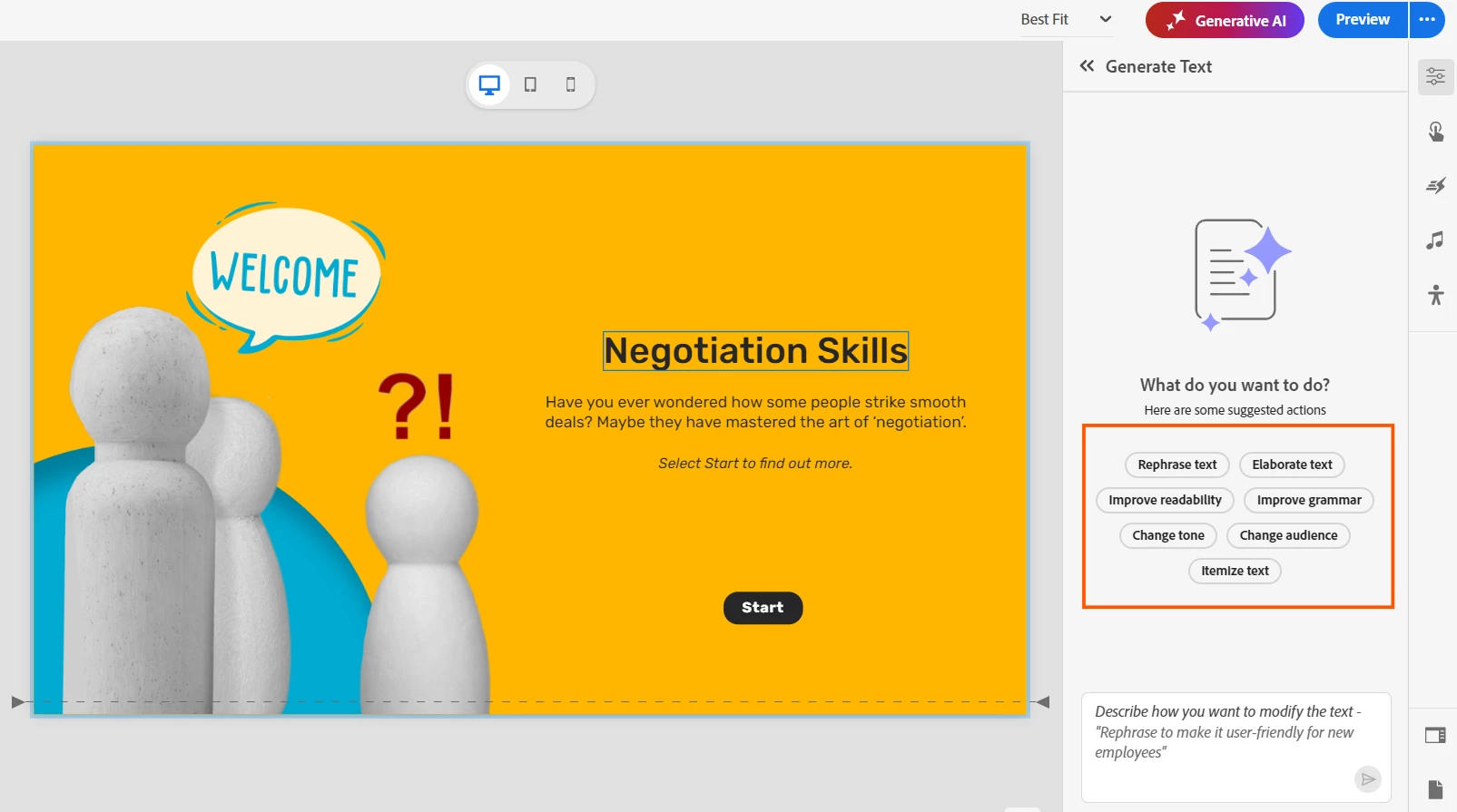
- Smart Content Creation – Draft, rephrase, elaborate, or itemize your slide content with ease.
- Audience Adaptability – Instantly adjust tone and style for different learner profiles.
- Efficiency & Consistency – Save time while keeping your voice consistent across modules.
- Instant Updates – Make quick text changes without reauthoring entire sections.
Before you begin, make sure Generate text is enabled under Generative AI preferences.
- Rephrase text: Rewrite content without changing the core meaning.
- Elaborate text: Add more depth and detail to short content.
- Itemize text: Turn long paragraphs into easy-to-read bullet points.
- Improve readability: Fix sentence flow and simplify the structure.
- Improve grammar: Correct errors and make the text look professional.
- Change audience: Rewrite text for a different type of learner (e.g., from technical to non-technical staff).
- Change tone: Make the style formal, conversational, and empathetic.
- Content generation: "Introduce the concept of demand and supply for an economics crash course."
- Assessment creation: "Create three multiple-choice questions based on the text." This is especially useful for generating questions that adhere to learning models like Bloom's Taxonomy.
- Adaptation: "Rewrite this slide for onboarding junior developers."
- Translation: "Translate to Spanish."
- Set Clear Goals – Know your learning objectives.
- Use Strategic Prompts – Keep them natural and positive.
- Provide Context – Include learner level and industry details.
- Blend AI + Human Expertise – AI is your partner, not a replacement.
Learn more about the best practices to generate text effectively in Adobe Captivate.
Give it a try!
If you haven’t explored Generative text yet, now is a great time to experiment, especially for tasks like creating early drafts, rewriting content, or performing quick cleanups.
Click here to dive into the latest version (Windows and macOS ) and experience the magic of Adobe Captivate 13.0 for yourself. Your next great learning experience is just a few clicks away!
Please do share your feedback and let us know your experience or any tips that worked well for you.
 AdChoices