Inspiring
November 3, 2022
Answered

Text box that will display system variable "cpInfoCurrentFrame" continuously (every frame change)

  • November 3, 2022
  • 2 replies
  • 421 views

Hi. I'm trying to debug an issue I'm having.  It would be so very helpful if I could create a Text box that always displays the cpInfoCurrentFrame.  I'm pretty sure that would require a Text Entry box with said variable.  I also suspect I won't need the accompanying Submit button that is automatically created when I initiate a new Text Entry box.

It would be great if I could set its timing to "Rest of Project".  But most important is I need step by step instructions to help with the scripting necessary to have the text box display that variable.  I am envisioning a scenario where a pause command should freeze the value at the frame where the pause is initiated.  When the Timeline is running the text box should display continuously incrementing numbers.

Is this possible?  I thought I saw an example of this in one of Lilybiri's posts or blog submissions.

Any help would be greatly appreciated, so thanks in advance!

    This topic has been closed for replies.
    Correct answer Lilybiri

    In many tutorials I put online, I have that variable in a Text container, timed for the rest of the project. No need for scripting at all. 

    Step-by-step

    1. Add a text container, shape or caption to the first slide.
    2. Go into edit mode for that container (double-click or F2)
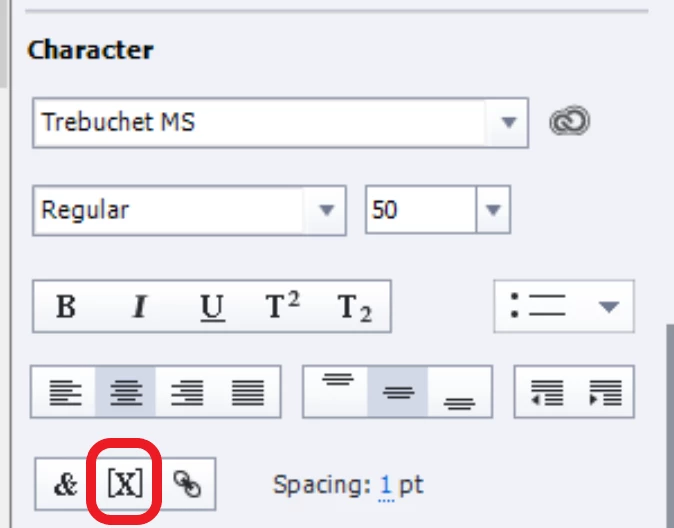
    3. Check the Character part of its Properties panel, find the X button.
    4. Dialog box 'Insert Variable' will open, switch from User to System for the variables
    5. Choose Category Movie Information
    6. Select cpInfoCurrentFrame from the dropdown list. No need to change the length which is sufficient.
    7. Go to the Timing Properties, change to Time for rest of Project. Check option 'Always on top'.


    More in:

    https://blog.lilybiri.com/discover-slash-use-captivates-system-variables-part-1


    2 replies

    Lilybiri
    LilybiriCorrect answer
    Legend
    November 3, 2022

    In many tutorials I put online, I have that variable in a Text container, timed for the rest of the project. No need for scripting at all. 

    Step-by-step

    1. Add a text container, shape or caption to the first slide.
    2. Go into edit mode for that container (double-click or F2)
    3. Check the Character part of its Properties panel, find the X button.
    4. Dialog box 'Insert Variable' will open, switch from User to System for the variables
    5. Choose Category Movie Information
    6. Select cpInfoCurrentFrame from the dropdown list. No need to change the length which is sufficient.
    7. Go to the Timing Properties, change to Time for rest of Project. Check option 'Always on top'.


    More in:

    https://blog.lilybiri.com/discover-slash-use-captivates-system-variables-part-1


    Inspiring
    November 4, 2022

    THANK YOU SO MUCH!!  This worked perfectly and is exactly what I was looking for.  I really appreciate your contributions, you definitely know your stuff!

    Lilybiri
    Legend
    November 4, 2022

    Please, can you mark the answer as being correct since it did help you?

    Sure, have been a consultant and trainer for Captivate since 2008. Lot of time to know the application in-depth.

    Stagprime2687219
    Legend
    November 3, 2022

    Something like this...?

    No Text Entry

    Just a smartshape with the text shown.


    Inspiring
    November 4, 2022

    Yes, however Lilybiri's description of the motions was right on!!