


yulia_s
Participant
November 11, 2021
Question

Text button—vertical text alignment (Captivate 2019)

  • November 11, 2021
  • 3 replies
  • 345 views

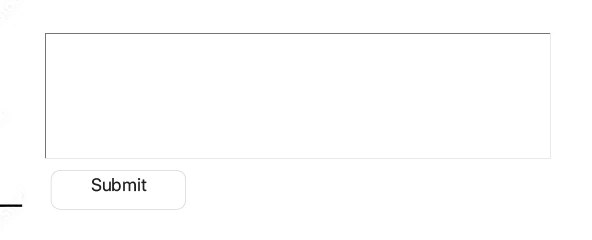
Hello, I have a Submit button and the button text is top-aligned by default. Is there a way to set verticle alignment to middle? I don't see this option under button Properties menu. Thank you.
 

    This topic has been closed for replies.

    3 replies

    yulia_s
    yulia_sAuthor
    Participant
    November 11, 2021

    In the example, I'm using a transparent button style for a text entry box ("Submit" button). Even if I add a text box and select a checkmark to 1) use as a button; 2) middle alignment, the button text is aligned to top ("Button 2"). It seems to be a glitch? 


    Lilybiri
    Legend
    November 11, 2021

    Maybe for Mac only, I never had this issue but I am on Windows. I asked to try this because of the link between a Text button type and the OS used.

    By text box you mean a shape, I suppose?  Can you enter another label for that shape button where you use also a character which goes below the baseline like g or j? You'll see that the text is vertically central aligned. The label 'Submit' has no characters going below the baseline.

    Lilybiri
    Legend
    November 11, 2021

    I have not used that very old type of button since eons. It used to be the type which takes on the default formatting of the OS buttons and doesn't allow for real custom styling. AFAIK in the Captivate themes it only appears as button for a Text Entry Box. In all themes the quiz buttons are Transparent buttons, also an old type but the best of the 3 old types, which is the reason it has been used for quiz buttons which still require one of the old types. The old types of buttons do not have the possibility to change the alignment. Have a look at this overview:

    http://blog.lilybiri.com/overvew-6-button-types

    My recommendation would be to replace that button by a transparent button. Select the submit button, choose Transparent button or Quiz button and it may be solved as well.

    RodWard
    Community Expert
    Community Expert
    November 11, 2021

    Sometimes this is just a glitch in the formatting of the button.  Try selecting the button and dragging the side handles to make it a bit wider.  That often triggers something that then allows the correct formatting to click into place.

    yulia_s
    yulia_sAuthor
    Participant
    November 11, 2021

    Thank you for the suggestion, but it didn't seem to work for me.  FYI for people who might be experiencing the same issue - I have Adobe Captivate 2019 11.5.5.678 on macOS Big Sur, which I can't update b/c of Adobe Captivate is not compatable the latest macOS ;(( yet. 

    RodWard
    Community Expert
    Community Expert
    November 11, 2021

    Wise move not to update.  There seems to be no hope at the moment of Adobe updating Cp 2019.


    With regard to your button formatting issue.  Is this just the Submit button for a Text Entry Box, or is it for a Short Answer Question?  I cannot tell from your screen shot.


    The button may be one of several types.  If we know which type, then it might be easier to fix the formatting.