
Known Participant
January 30, 2019
Question

Text Entry Box Questions

  • January 30, 2019
  • 1 reply
  • 1190 views

Hello,

Running into a couple questions/issues using the Text Entry Box feature in Captivate 2019 and was hoping for some assistance. 

1.) Is there anyway at all to format the text entry field beyond the font type and size?  Specifically looking for settings to center justify and/or adjust the padding.  As it is it seems to default to left justified in the center of box with 0 padding (text entry is right against the line of the box)

2.) after a bit of googling I was able to find the way to return the text entry variable in a subsequent text box ($$Text_Entry_Variable_Name$$) but am running into a problem with it adding a line break before the output. 

I have attached a few screenshots to try and clarify

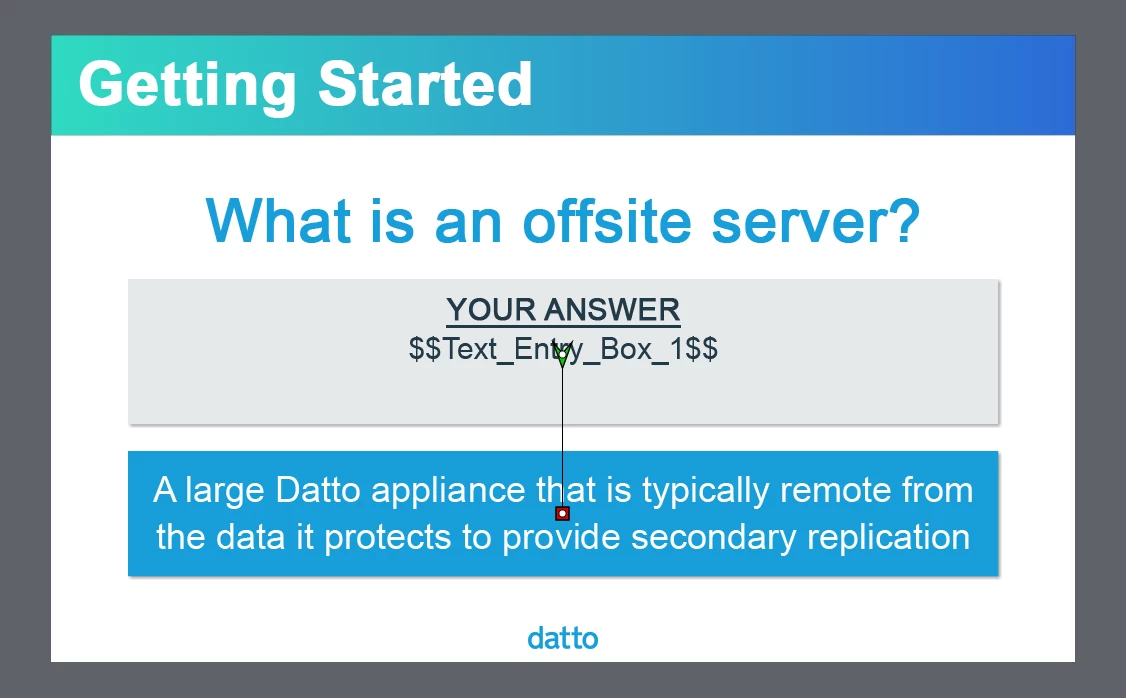
This screenshot is showing the way i have the slide designed to output with the textbox showing the "YOUR ANSWER" heading and the text entry variable below

First, here is the way i have the text entry output set up on the slide:
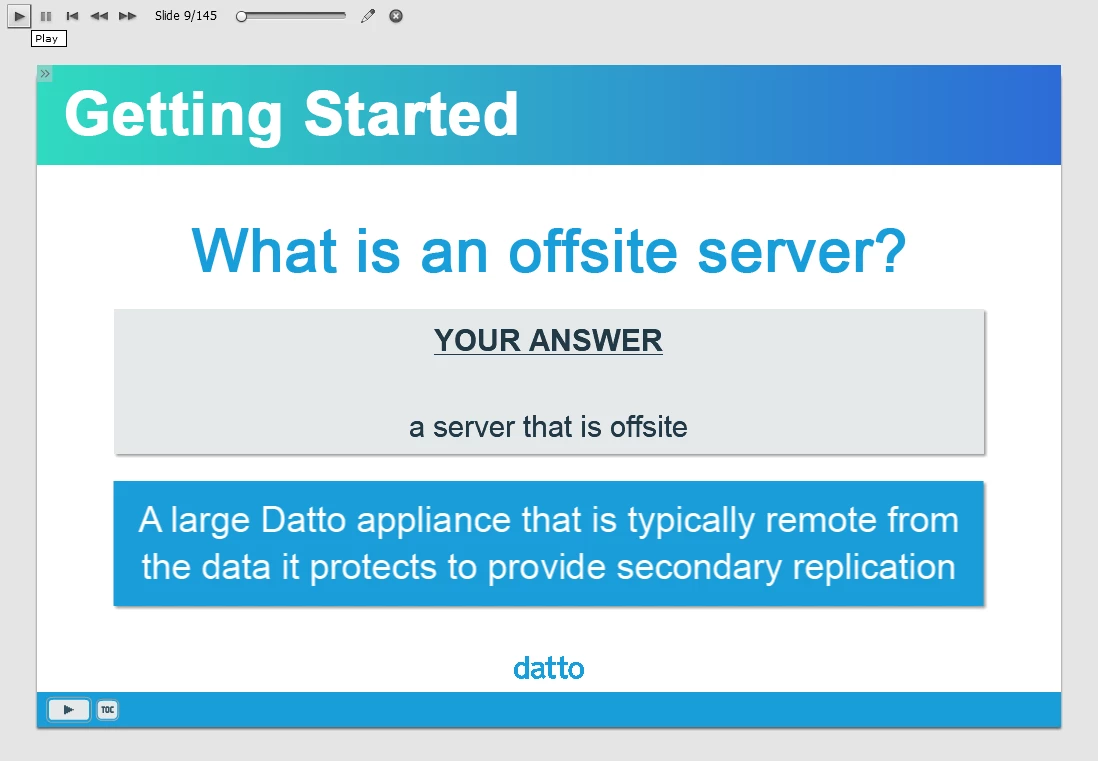
When I preview the project however, it seems to be adding a linebreak before the variable shown here:
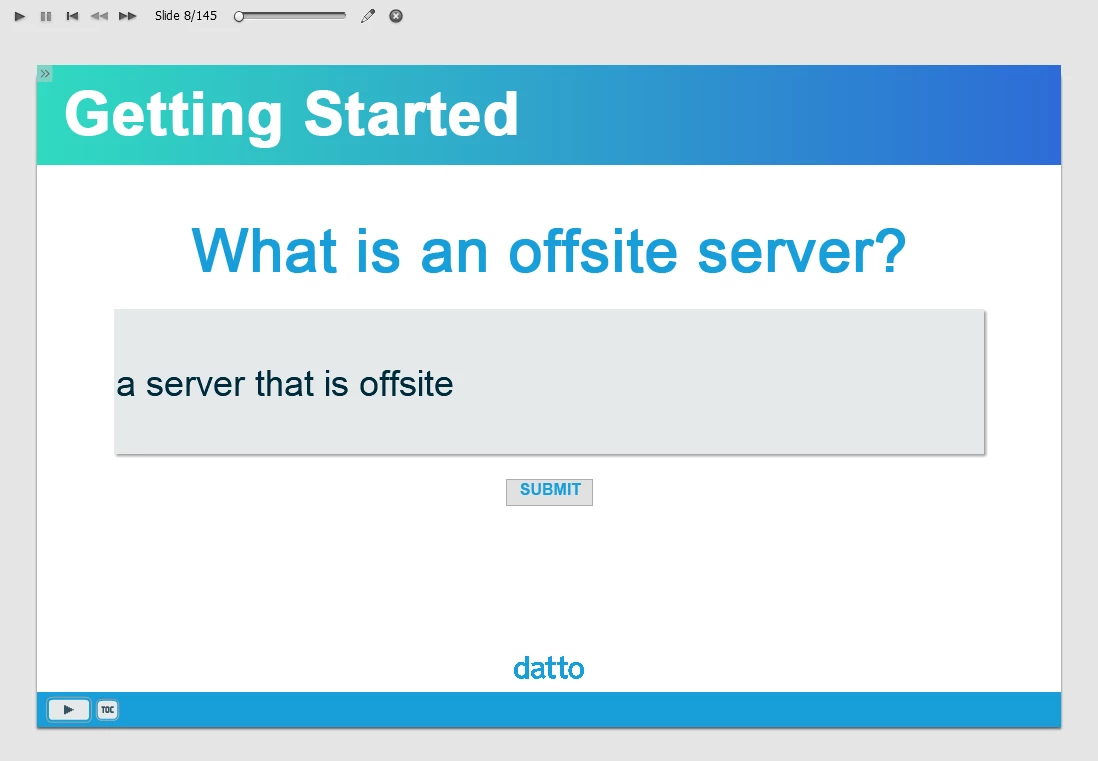
Regarding the issue with the formatting of the actual entry box itself, here is a screenshot showing the text entry left justified with no padding.  I would like to be able to, if not center this, at least increase the padding to the left
Finally, while playing around trying to figure out the linebreak issue, I noticed it behaving slightly differently if I added a colon (:) after the "YOUR ANSWER" heading.  Here you can see the output actually added the linebreak between "YOUR ANSWER" and the colon...

Would appreciate any assistance on this as I have spent the better part of the day googling it and must be using the wrong search terms because I cannot seem to come up with anything.

This topic has been closed for replies.

1 reply

Lilybiri
Legend
January 30, 2019

If this is a non-responsive project and you will publish to HTML, the only preview close to WYSIWYG is Preview HTML in Browser (F11). I see that you use Preview Project.

You cannot format the TEB object style very much. It is the reason I often use the Scrolling Text interaction if the TEB doesn't have to be scored.

Displaying a variables is explained in:

Discover/Use Captivate's System variables - Part 1 - Captivate blog

You could concatenate the text with a variable. I used it in a recent post as an answer on a totally different question. It is only on the eLearning portal at this moment:

Calculate Expiry Date (Expression, variables) - eLearning

Known Participant
January 31, 2019

Lilybiri, appreciate the quick reply.  a few follow up questions.

Regarding the Preview in HTML, using the HTML Tracker it shows several elements incompatible with this preview method.  in particular i have one slide that utilizes a number of rollovers and it seems to flag slides that have no transition (fade etc) configured.

In terms of the scrolling text interaction, I gave it a look and maybe I am missing something but it seems to have many of the same formatting limitations as the text entry box (forced left alignment, no padding adjustment, etc...)

finally, if i understand your suggestion on concatenating the text with a variable correctly, i would be creating an expression which is where variable A = literal (the "YOUR ANSWER" text) + Variable B (the TEB variable) and then on the actual slide display Variable A instead of Variable B.  If this is the case, my follow up would be seeing if you could include a line break in the literal portion? 

Example:

Variable_Response = YOUR ANSWER \n [literal] + [operator] TEB_Variable [variable]

thanks again

Lilybiri
Legend
January 31, 2019

Rollovers are officially not supported for HTML output, but they will be visible in desktop/laptop browsers.

Slide transitions however are Flash-based, leave them out. If necessary you can use transitions on objects.

Less limited than TEB:

I think you'll need JS to insert a line break.