
jess_b
Participant
February 18, 2016
Answered

Unable to hide objects in software simulation

  • February 18, 2016
  • 1 reply
  • 503 views

I'm creating a Software Simulation - Demo (in Captivate 9). Originally, I was trying to hide the mouse on some slides (but show on others). I clicked the "hide" icon in the Timeline. This has worked for me for every other project I've made so far, until now. At first I thought it was just a mouse issue (since it has slightly different behavior than other objects), but I tried to hide other objects on my slide (captions, highlight boxes, etc), and Captivate seems to be ignoring the "hide" option for those as well.

Below is the hide setting I'm referring to:
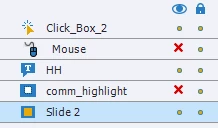
So far I've tried saving before previewing, restarting Captivate, restarting my computer, AND calling Adobe help.

I should note: deleting the mouse object works (obviously). However, since I'm still showing the mouse on other slides, I would like those slides to have the mouse movement be based on the previous slide, which isn't the case if I'm deleting it (the mouse starts from the top left corner instead of the previous slide's ending position) which is why I would like to hide it instead of deleting, so that the positions persist throughout the slides.

This topic has been closed for replies.
Correct answer Lilybiri

The usual confusion!  Sorry for that exclamation, it has not improved with the new UI because now that eye symbol is used for more than one use.

There is a big difference between:

  1. Hiding on the stage for editing reasons: that is what the eye buttton in the Timeline is doing. This has no effect whatsoever on the visibility of those objects when previewing or after publishing.
  2. Hiding in OUTPUT is what you need. In versions before 8 this was done by checking a box that clearly stated that the object wouldn't be visible in output. In CP8 and 9 you have to search for another eye button in the Properties panel, top left.
  3. To increase the confusion: that same eye button also exists in the Drag&Drop panel: there it is meant to hide the links between drag sources and target objects, has no effect whatsoever on output, since those links are never visible in output.

1 reply

Lilybiri
LilybiriCorrect answer
Legend
February 18, 2016

The usual confusion!  Sorry for that exclamation, it has not improved with the new UI because now that eye symbol is used for more than one use.

There is a big difference between:

  1. Hiding on the stage for editing reasons: that is what the eye buttton in the Timeline is doing. This has no effect whatsoever on the visibility of those objects when previewing or after publishing.
  2. Hiding in OUTPUT is what you need. In versions before 8 this was done by checking a box that clearly stated that the object wouldn't be visible in output. In CP8 and 9 you have to search for another eye button in the Properties panel, top left.
  3. To increase the confusion: that same eye button also exists in the Drag&Drop panel: there it is meant to hide the links between drag sources and target objects, has no effect whatsoever on output, since those links are never visible in output.
jess_b
jess_bAuthor
Participant
February 18, 2016

Okay that helps... So where in the properties window does this exist for the mouse? I know what you're referring to:

but for the mouse, this is what I see in properties:

Lilybiri
Legend
February 18, 2016

Mouse is only added in demo simulation, you can delete a mouse object, you cannot hide it. Hiding in the Timeline has no effect on the visibility, that comment remains.

Hiding has no sense for a mouse object, because that object never has an ID (name) like other objects. That means it cannot be controlled and that is what mostly will happen with hidden objects in output: at a certain moment they will be made visible (by an action triggered by an event). Why do you want to hide a mouse object instead of deleting it?