Known Participant
November 17, 2016
Answered

User Variable with Conditional Action not working correctly.

  • November 17, 2016
  • 3 replies
  • 1020 views

I have a project that has four click boxes on one slide and want the user to click on each one - which is identifying an error.  With each click box, I have multiple objects appearing and disappearing.  I also have a "counter" which is actually 4 text captions counting down how many errors are left to find:

Texrt captions -

Errors to Find - 4 - showing until user clicks a click box

Errors to Find - 3 - Hidden until conditional action shows it

Errors to Find - 2 - "

Errors to Find - 1 - "

So have set up a user variable (ErrorCounter).

Then for each click box I have conditional advanced actions set up to show one of the four text boxes (and hide the others) based on how many of the text boxes they have already selected.
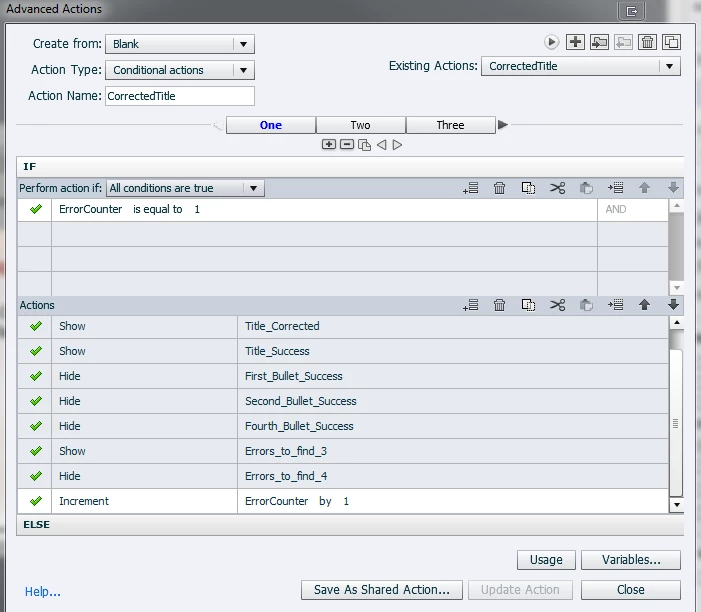
Finally when all the click boxes have been clicked - I would like the "next" button (named Errors_Found) to appear.
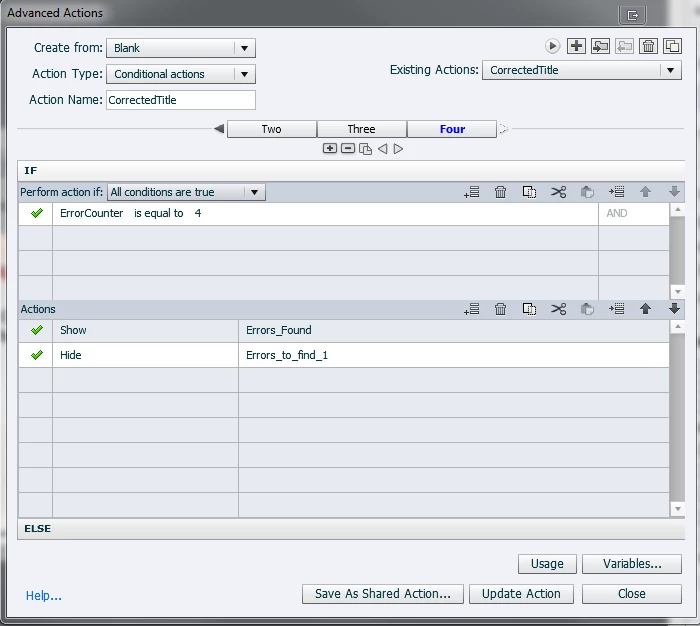
I set the variable value as 0 - but when I preview and click on the first click box, the text "Errors to Find - 3" does not show up... none of the text captions show up.

AND - the "next button" does not appear once all the text boxes have been clicked either.

Is there an easier way to accomplish this - or any idea why it's not working?

I am using Captivate 8.01.242.

This topic has been closed for replies.
Correct answer Lilybiri

Lilybiri,

Great suggestion on making the click boxes buttons.  I will try that.

Yes, I would like a failure caption to appear if the user clicks an area that is not an error.


OK. Try this:

  • Each statement should be in its shape, and option 'Use as button' checked; be sure that the pausing point remains the same for all the shape buttons. I will label them SB_one, SB_two, SB_three and SB_error just for the sake of having an ID. The first three should result in a Failure message, the last one is the one that has the error, needs a Success message and decrementing of the counter.
  • Create the Success and Failure messages in a text container: Tx_Correct and Tx_Wrong.  You could even have three different messages for the three first shape buttons, in that case I would group them: Gr_Text.
  • Make Gr_Text invisible in output, either with the eye icon in the Properties panel or with the On Enter action of the slide
  • Create the text container with the corrected version of the text in SB_error, and make this also invisible in output.
  • Create the user variable v_counter and give it the wanted start value, maybe 5.
  • Insert that variable in the text as you showed on the screenshot.
  • For the three buttons SB_one, SB_two and SB_three you'll need a shared action (to prevent the playhead from being released, would not be necessary for CP9):
        Hide Gr_Text            group will be a parameter
        "Show Tx_Wrongx"   where the parameter is Tx_Wrongx, the Failure message relative to that shape button
  • For the shape butto SB_Error you create this standard action
         Decrement v_counter by 1
         Hide Gr_Text
         Show Tx_Correct
         Show Bt_Next         optional, don't know if you need that?


3 replies

Known Participant
December 16, 2016

Thank you so much for your responses Rod & Lilybiri.  I had to switch projects for the last month so I apologize for the late response.  Below is an image of the project.  What I am ultimately trying to accomplish is when the user clicks an error

     1) The error is corrected (i.e. the error text is hidden and corrected text caption appears)

     2) The success caption appears

     3) The counter changes to show the number of errors still left to find.

I am not sure my original approach was the simplest way to go about this.

Full disclosure - I lost the original conditional action that I had set up, so thought I would try to tackle this with a fresh start.

Is there an easier way to accomplish this?

Lilybiri
Legend
December 16, 2016

I would have preferred to have each of the statements in a separate shape as text container, would be easier to 'hide' an error text. The alternative is to cover the error with an extra text container. Shapes have also the advantage that they can be directly clickable when turned into a button, which will decrease the number of objects and the clutter on the timeline.

You don't tell what has to happen when the user clicks wrongly on a statement that is correct? Do you want a 'Failure message' to appear?

Known Participant
December 16, 2016

Lilybiri,

Great suggestion on making the click boxes buttons.  I will try that.

Yes, I would like a failure caption to appear if the user clicks an area that is not an error.

Lilybiri
Legend
November 18, 2016

I would love to see the whole action. You can have a full preview with the first button in the control panel (looks like a play button) top right in the Advanced Actions dialog box.  Incrementing a counter can be a workable approach if the user will not be able to click the same interactive object multiple times, which I'm not sure in your case. I do not see a Disable command.  Moreover, from the screenshots, which don't give the whole picture of the action, I suspect that you should have to change the sequence of the decisions. You get trapped by the way Captivate is executing an advanced action: all commands and decisions are executed, from top to bottom and from left to right.

I see that in the first decision 'One' you do increment the counter, which means that the second decision will probably end up with a correct condition as well. If you increment again in that decision, the third decision will also end up being true. The result of the conditional action will be in that case that the last decision will always be the one that is done. Not sure, I repeat, because you don't show the whole conditional action.

Must confess that I don't understand fully your setup. Why do you need 4 text captions?

RodWard
Community Expert
Community Expert
November 18, 2016

I generally find this approach of using a single variable to track whether a number of things have been done is not precise enough and leads to the type of failures you describe.

The better way to use tracking variables is to have a separate User Variable for each type of error that has to be found.  You assign these variables with an appropriate value with a Conditional Action that is triggered by the Learner performing whatever action is required to indicate they have located that error.  Then in the same Conditional Action the following decision block checks whether all of these tracking variables have been set to indicate they were found and if so THEN show the Next button.