
aureliab1
Known Participant
November 27, 2018
Answered

Using a PDF in Captivate project

  • November 27, 2018
  • 2 replies
  • 2899 views

I have the same question and I have done the steps that you outlined but still no success. I am using Captivate 2019, I did the following. Please advise where I went wrong.

  1. Added a click button
  2. On Success = Open URL or File
  3. Located the PDF file (it is on a shared R: drive for all employees) and typed in the path in the URL field
  4. Selected "New" in the dropdown field
  5. Deselected "Continue Playing the Project"
  6. Published
  7. unzipped the folder
  8. pasted the PDF into the folder
  9. Re-zipped the folder

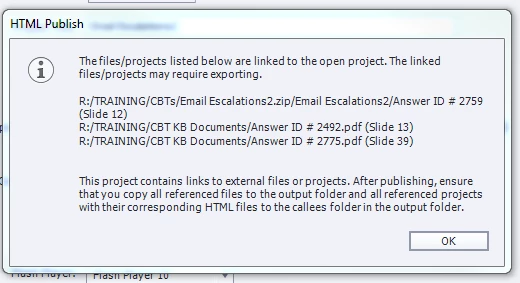
I have attached the screenshot of the error message of what happens when I publish. Also,  we are using the PDF version of the project as we do not have an LMS to view the project any other way.
Thank you,

Lynne

    This topic has been closed for replies.
    Correct answer RodWard

    Publishing to a Multimedia PDF used to be a good way to deliver Captivate content where an LMS or web server was not available.  But that was back in the days when the Adobe Acrobat PDF Reader came standard with a built-in Flash Player plugin.  Those days are gone now and most web browsers do not have Flash Player and getting it into Acrobat Reader is far too much trouble.

    As much as it might not be what you want to hear, the reality is that you need to find a way to deliver your content from a web server or LMS.  There aren't really any other viable options.

    2 replies

    aureliab1
    aureliab1Author
    Known Participant
    December 11, 2018

    Thank you all for your help. It appears that if I publish to Adobe Captivate Prime cloud, everything works appropriately. However, my objective is to publish to a PDF file so it can be placed on out company shared drive. Even with all of your much appreciated helpful hints, I am still unable to make them work. But thank you once again for every comment.

    RodWard
    Community Expert
    RodWardCommunity ExpertCorrect answer
    Community Expert
    December 11, 2018

    Publishing to a Multimedia PDF used to be a good way to deliver Captivate content where an LMS or web server was not available.  But that was back in the days when the Adobe Acrobat PDF Reader came standard with a built-in Flash Player plugin.  Those days are gone now and most web browsers do not have Flash Player and getting it into Acrobat Reader is far too much trouble.

    As much as it might not be what you want to hear, the reality is that you need to find a way to deliver your content from a web server or LMS.  There aren't really any other viable options.

    aureliab1
    aureliab1Author
    Known Participant
    December 11, 2018

    Agreed. It has been awhile since I have worked with Captivate (Captivate 8 was my last update until 2017) so your explanation makes a lot of sense to me. I did go a different direction, which will work just fine until I can figure out a new plan. Again, thanks for your help. :-) 

    Lilybiri
    Legend
    November 28, 2018

    I did move your question to a new thread, because you added it to a very old thread and a lot has changed since version 6 whuch did not have HTML output.

    Coudl you please tell which exact version you are using? The full version number which you can find under Help, About Captivate.

    Are you publishing to SWF (hope not, we are very near to the end of Flash players in all browsers) or to HTML5? The publishid folder is different, hence my question.

    RodWard
    Community Expert
    Community Expert
    November 28, 2018

    Your 'error message' is not really indicating any errors. It's just telling you that you may need to copy the PDF files listed to the published output.  Captivate normally does this anyway, but if you check the published output and don't see the PDF files at the root level, then you'll need to copy them to that location yourself.

    In any case, you will probably find that links to the PDFs don't work as expected unless you upload your content to a web server or LMS as browser security will often intervene and block links when played locally from your hard drive.