
Using the Tab Key in Simulations
Hi, I am new to this forum and new to Captivate 5.
I am creating online courses that teach people how to use our company's software programs so I use Captivate simulations often. We use Captivate to record the simulations and then we use Articulate Presenter to create the course.
Problem 1
I still can't figure out how to use Tabs smoothly with Text Entry boxes all together. I've been reading all of the forum information and trying everything and the Tab won't work correctly for me.
I have only placed one TEB on a slide but when I get to the second TEB on the next slide, I start typing the text and the system moves forward to the next action before I finish typing the text. Or, I have to press the Tab key twice to get to the next TEB on the next slide. I am totally confused.
Problem 2
I have been able to successfully create a simulation using the Enter key to validate text entry boxes. I publish the simulation and use the swf file to create a web object that gets placed in Articulate. The web object holds the swf file and the html file below.
Here is an example of the html file:
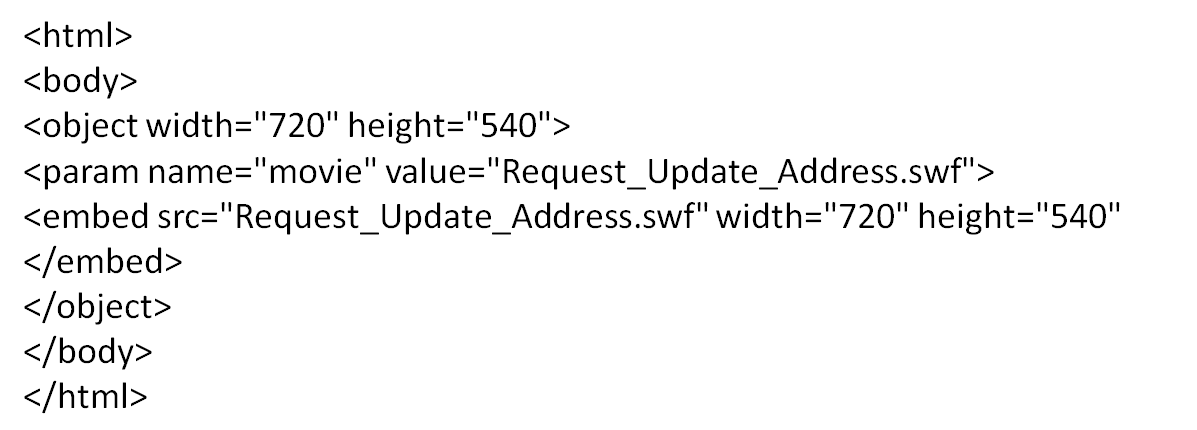
This works just fine when I use the Enter key to validate text entry boxes. However, we decided to use the Tab key and now I have to deal with the seamless tabbing issues in Captivate. I figured out how to add the seemless tab info to the published file, Can I use the Captivate html file to create a web object? If so, how do I do that?
Please help!!
 AdChoices