VR Feedback
How do I edit the feedback after a student has viewed all of the VR hotspots? Where can I locate that text field? Thanks!

OK, I found the text message after checking that it is appearing indeed automatically due to the requirement to have all hotspots clicked.
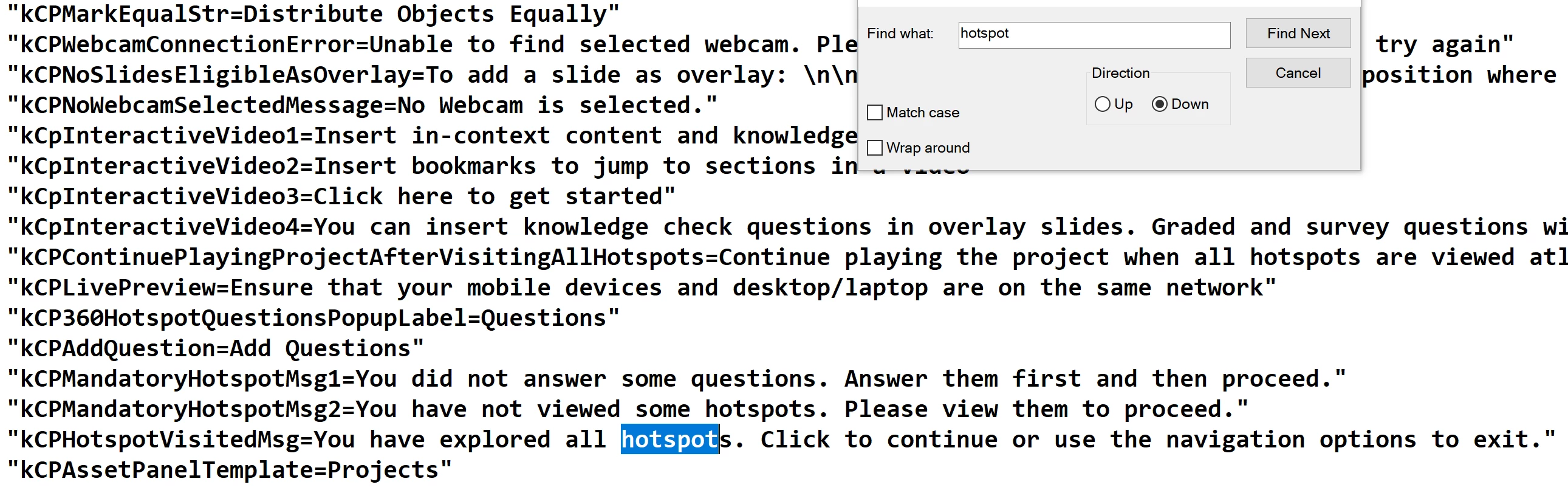
Look in the installation folder for the subfolder corresponding with the language chosen on install. For me that subfolder is labeled 'en_US'. In that folder look for the file 'strings.txt'. I used Notepad to open the file, and searched with the Find functionality for 'hotspot'. You may look for a longer string which corresponds better with the message. I cannot tell you the line exactly:

Already have an account? Login
Enter your E-mail address. We'll send you an e-mail with instructions to reset your password.