Inspiring
May 13, 2016
Answered

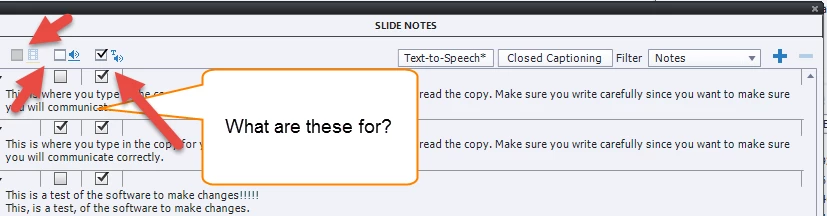
What are these Slide Note buttons for?

  • May 13, 2016
  • 2 replies
  • 1048 views

Hello group,

I have some questions about Adobe Captivate 8 and it's Slide Notes features.

What are the buttons for within the Slide Notes? I have attached a screen shot to give an example.

Am I correct when I say:

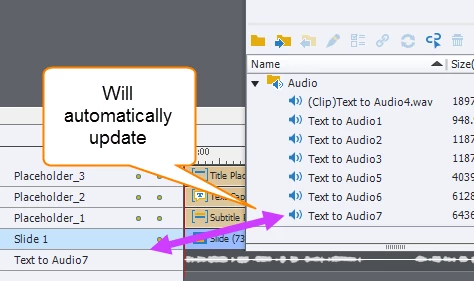
  • Captivate 8 automatically will update the text to speech on my timeline once I update it through Slide Notes/ Text to Speech/ Generate Audio?
  • Captivate 8 Automatically will make a new audio file within the library that is replaced the previous audio file that was in the timeline.

Question:

  • Can I add another voice to the Same Timeline through the Slide Notes, or must it be in a new Slide?
  • How many of you use the Speech Synthesis VoiceTEXT editor that is packaged with Captivate 8? I just learned about it and it seems pretty interesting.
  • Is the only way to use a New Voice within the same Captivate 8 file is to use it in a new
  • Must I select Generate Audio every time I want to change the voice?
This topic has been closed for replies.
Correct answer Lilybiri

Just a partial answer: you can choose another voice for each sentence, in the Text-to-Speech dialog box. When the slide notes that are indicated to be used for TTS change, the button 'Text to Speech' shows an asterisk like in your screenshot, you can use it to go into that Dialog box, select the sentences for which you want another voice, and Generate Audio again.

Right-most check box (global or individual per note) is for TTS, the one in the center is for CC for slide audio, the most left one is for CC in Video.

I rarely will use TTS, if I have to edit, I would prefer largely to capture a real VO myself.

2 replies

Lilybiri
LilybiriCorrect answer
Legend
May 13, 2016

Just a partial answer: you can choose another voice for each sentence, in the Text-to-Speech dialog box. When the slide notes that are indicated to be used for TTS change, the button 'Text to Speech' shows an asterisk like in your screenshot, you can use it to go into that Dialog box, select the sentences for which you want another voice, and Generate Audio again.

Right-most check box (global or individual per note) is for TTS, the one in the center is for CC for slide audio, the most left one is for CC in Video.

I rarely will use TTS, if I have to edit, I would prefer largely to capture a real VO myself.

clworkAuthor
Inspiring
May 13, 2016

Okay I have yet to use Closed Captioning. So if this center box is NOT selected it will NOT play CC?

I don't follow yet why the Video box is there. I don't see a connection with video yet.

Lilybiri
Legend
May 13, 2016

You can have CC for video. You can use the same slide notes for CC and TTS,

you do not have to. If you prefer, you can type in the CC text immediately in the appropriate dialog box.

clworkAuthor
Inspiring
May 13, 2016

Answer Found. I see I can indeed change the voice of each text to speech paragraph within the same slide. I just have to select the name of the voice within the field and then choose generate audio.

clworkAuthor
Inspiring
May 13, 2016

Another Question:

When I Right Click the audio on the timeline, Edit/Slide Audio/ and select Captions & Slide Notes... then change the text there, why doesn't it update on my audio file?

Thanks

Lilybiri
Legend
May 13, 2016

That option is not meant for TTS, but when you are recording a real VO, at least that is my use of Captions and Slide Notes. I write out the text needed for VO and open them when recording the VO.

To generate TTS from slide notes, you need the TTS dialog box.