


Known Participant
January 26, 2014
Question

Why does the timelines counter disappear?

  • January 26, 2014
  • 10 replies
  • 6524 views

I'm working on a project and more and more frequently my timeline counter disappears. I'm not able to move the curser and edit. I have to save, close Captivate, and re-open. Even at this point, it only reappears sometimes.

I've had this problem in the past but its happening more and more and causing production to slow!
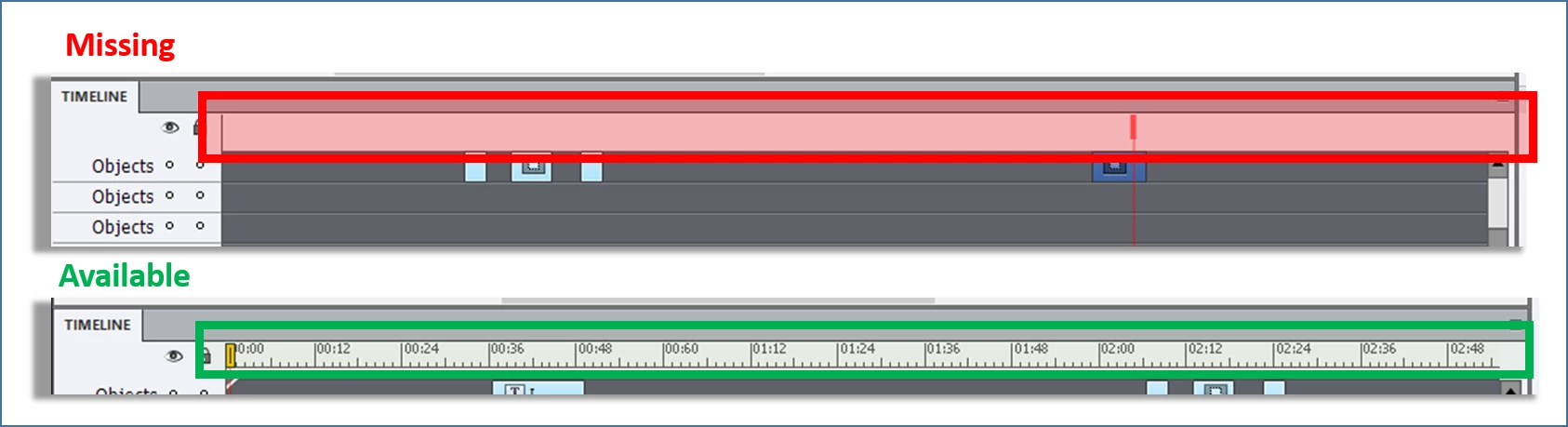
Please help, what can I do? Has anyone else had this issue?

Windows 8

Captivate 8

I've had this problem working on other PCs as well fyi

Thanks in advance Captivate experts!!!

Sabrina

This topic has been closed for replies.

10 replies

llw00000
Participant
August 11, 2020

I noticed this was reported as a bug **7 years** ago. Can we get a fix???

Using Captivate 2019 release.

Happens several times a week. 

Stagprime2687219
Legend
August 11, 2020

Interesting...
Always fun when these really old threads pop to the front...

Been using Captivate for many, many years - I have never experienced this.

samuelw43498504
Participant
April 18, 2018

Simple fix.

Captivate 8.

Place your cursor over the horizontal scroll bar located along the bottom border of the timeline.

Use your cursor to move the horizontal scroll bar back and forth a few times. Doing so should reactivate the hash marks (ruler) on the timeline.

Cheers!

jamesm80079421
Participant
May 9, 2019

I'm using captivate 19 and have this issue constantly. Samuel's fix works if you bang the slider full left and hey presto the time scale reappears

thx

James

Participant
January 12, 2018

Thanks to everyone in this post who have found the workarounds for this issue. I'm not expecting Adobe to resolve this, since it's been happening ever since version 6, but I now have a 3 step process (which others in this post helped me to discover - thanks!) to resolve the issues I face with the Captivate disappearing timeline AND the suggish performance. Hoepfully this will help you too:

Take the following steps to try to remedy the situation:

  1. Clear the cache
  2. Reset the workspace
  3. Reset the preferences folder

Clear the cache:

• Edit, Preferences

• Select "General Settings" (in the Category list)

• Click the Clear Cache button

• Click OK when prompted

Reset the workspace:

• At the top right, the current Workspace is displayed (this defaults to "Classic")

• Click the dropdown, choose Reset <workspace name>

Reset the preferences folder:

• Browse to the installation folder. e.g. C:\Program Files\Adobe\Adobe Captivate 6 x64\

• Open the "Utils" folder

• Run the appropriate batch file e.g. CleanPreferencesWin.bat

DJ_Sultan
Participant
October 16, 2017

This is clearly a bug that has not been fixed as I am using Captivate 10 and it is happening to me.  I have read through all of the responses and tried each suggested "fix" with no avail.  Quite frustrating!

DJ_Sultan
Participant
October 16, 2017

Restarting Captivate is the ONLY thing that brings back the timeline for me.  And restarting regularly is a MAJOR inconvenience.

RodWard
Community Expert
Community Expert
October 17, 2017

I agree this behaviour is frustrating at times, but I never have to reboot Captivate to get it back on my PC.

Does it not come back if you grab the horizontal timeline slider and wiggle it back and forth?  That works for me.

I also find that sometimes changing the slider value to expand or contract the timeline can also sometimes bring back the timeline measure.

jnifferg
Inspiring
December 15, 2015

How does one either reset the Workspace, or reset the Preferences folder?

My current project is pretty much freezing every time I click the video bar. The cursor turns to a fist for about 5 minutes, and then eventually, the screen comes back, with no timeline. I'm not able to do anything with the file, as clicking the video bar is about the 3rd action I complete after opening the file.

I have cleared cache, and made sure that everything is local. Is there anything system-wise I can do to improve the capability?  It's only a 7 minute video with graphics, audio, highlighting boxes, etc.

RodWard
Community Expert
Community Expert
December 15, 2015

The Workspace can be reset via the dropdown menu in the upper right corner of the Captivate UI.

Resetting the Preferences folder is done by executing the relevant CleanPreferences utility found in the Utils folder of the Captivate installation directory.

bobhamlinac
Participating Frequently
April 18, 2016

I have Captivate 9, and the same problem appears to be happening from several previous versions. I reset the Workspace, then used the ClearnPreferences for Win. I had to restart Captivate to retrieve my timeline counter AND my ability to move the timeline slider I cannot grab and move it). Here is how the timeline looks w/o the counters

Time will tell if your solution was a permanent fix to Captivate or the restart was the temporary fix like it has been for the last couple weeks.

jnifferg
Inspiring
December 11, 2015

I'm having the same issue in Captivate 9, and just started using it.  :-(

Windows 7 Professional

Intel Core i7 @ 2.6 GHz

16G RAM

64 Bit OS

RodWard
Community Expert
Community Expert
December 12, 2015

This is a known issue.

Try resetting your Workspace, moving the timeline slider back and forth a bit, relaunching Captivate, or resetting the Preferences folder.

Inspiring
June 2, 2014

I've experienced this in both CP6 and CP7.

jnifferg
Inspiring
April 7, 2014

I never had this happen in Captivate 6, but upgraded to 7 just last week. This has happened several times, and makes it very difficult to work.

RAM was recently upgraded, so I have lots of it.

Closing and reopening seems to bring it back, but I can't be doing that every 10 minutes.

Has anyone found a resolution yet?

Thank you,

RodWard
Community Expert
Community Expert
April 8, 2014

Try refreshing your workspace.  You might also need to clear out your project cache.

Participant
June 2, 2014

This bug is alive and well in Captivate 8, on both the Mac and Windows versions.

Participating Frequently
February 13, 2014

Hello -

Yes, this is happening to me as well - and it seems to be happening with greaer frequency. I am inclined to call it a bug. Is there an ETA on a fix?

Erin

Lilybiri
Legend
February 13, 2014

It even happened sometimes in 6, and seems not to be totally solved. But just moving to another slide and coming back mostly repairs the timeline, so I don't bother so much about it.

Inspiring
February 13, 2014

Lilybiri wrote:

But just moving to another slide and coming back mostly repairs the timeline.

Maybe the "bug fix" since 6 has changed the characteristics of the problem.

I regularly loose the "ruller" at the top of the timeline (7.0.1 + Win7) and changing slides never fixes it.

I end up moving the two sliders at the bottom of the timeline till eventually I am able to see both the ruller AND the section of the timeline I want to edit.

Phebe - I agree - definately a BUG!

Legend
January 26, 2014

Captivate 8???? I guess you meant Captivate 7.

Seems like a RAM issue. Please close any other open application and try.

Sreekanth

Lilybiri
Legend
January 26, 2014

No Sreekanth, this happened a lot in version 6 (and sometimes in 5 as well). And I have 32GB of RAM on my system + NVidia GTX680 with 2GB. It was a bug...

@Sabrina please mention the exact version number if you are indeed on 6, you should have 240 or more as last numbers, if you are still on the one that ends with 199, upgrade ASAP

kevin_stagg
Known Participant
January 27, 2014

I just had this happen on my brand spanking new MacBook and only had Captivate (one project), Fireworks, and Bridge open on the screen. I wasn't exactly putting the machine through its paces. Once I did turn off/on Captivate though - the timeline came back.

See my screen below.